• BLOG
  • ABOUT
    • Privacy Policy
  • CONTACT

Organize Your Family History

Stay focused and happy while exploring your roots

I’m interviewed on DNA Weekly

January 5, 2021 By Janine Adams 4 Comments

I had the pleasure last month of being interviewed via Zoom for the website DNA Weekly. The interviewer, Ditsa Keren, transcribed and edited the interview, and it’s presented in print form. Here’s the link if you’d like to read it: Organize Your Family History for Future Generations.

I don’t do much with genetic genealogy so I was a little surprised to be asked, but I was happy to talk about organizing traditional genealogy. And I shared my views on genetic genealogy.

DNA Weekly looks like a great resource for those interested in genetic genealogy. In addition to its blog (where my interview appears as well as interviews with others), it offers reviews of different testing platforms and weighs in on what it considers the best testing kits for various types of DNA tests.

I hope you enjoy the interview!
Filed Under: Excitement, Technology Tagged With: interviews

New + improved search capability

November 24, 2020 By Janine Adams Leave a Comment

I don’t know if you noticed, but a few months ago the Search field disappeared from this blog. I think it was the result of a WordPress update (or perhaps a theme update), but it up and vanished.

I set up and maintain Organize Your Family History on my own but I’m far from a WordPress expert and my efforts to figure out what had happened flailed. Figuring it out was on my task list forever and, finally, I decided to purchase Jetpack Search so that readers would once again be able to search for topics of interest on this site.

In implementing Jetpack Search, I learned that I could no longer use the old location for the Search. (It used to be up at the top, to the right of the menu items.) I’ve now located it in the right sidebar, between my photo and the tag cloud.

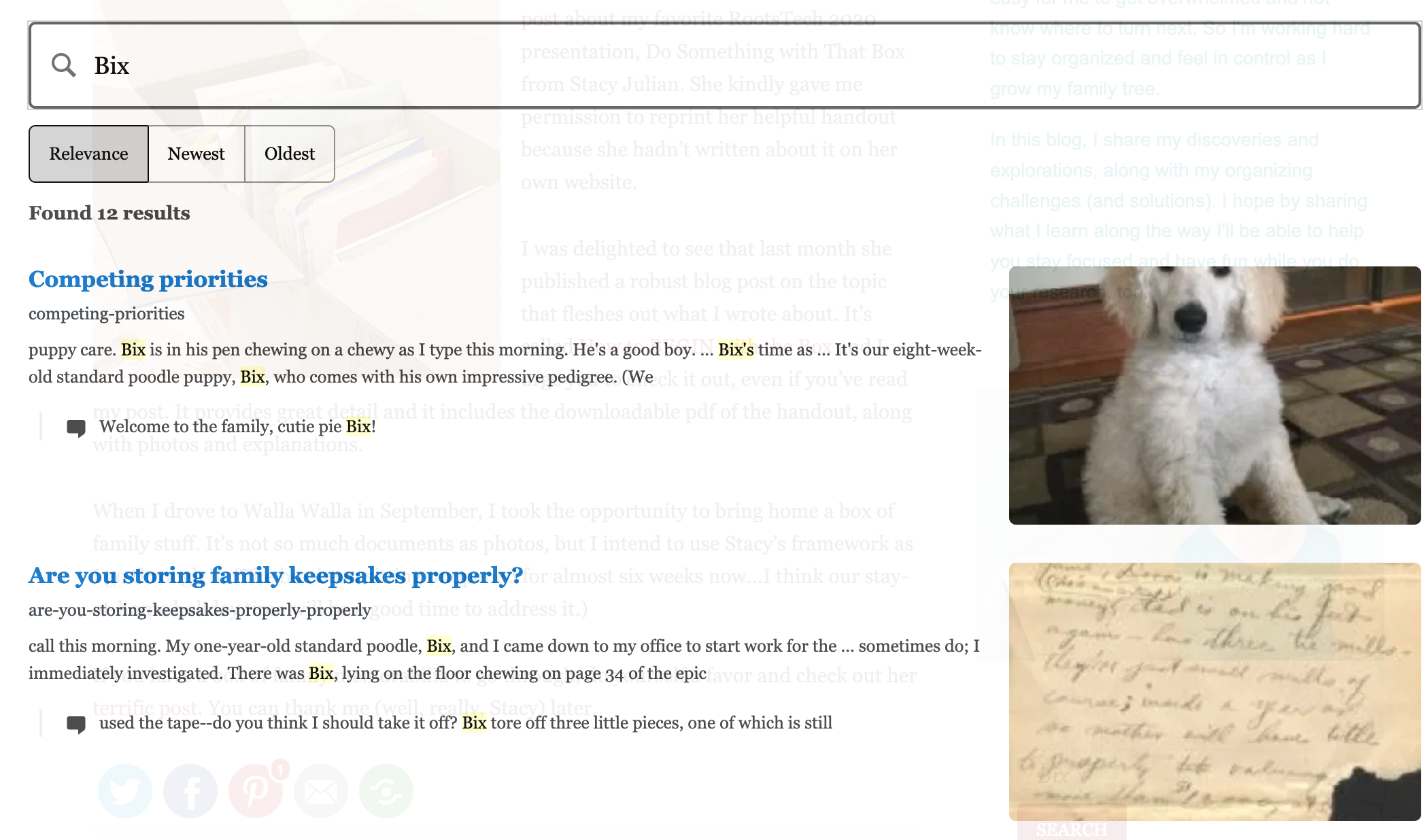
I’m excited that the new Jetpack Search is more robust than the old default search used to be. When you search on a term, an overlay window comes up that shows your results, including results that appeared in comments (shown just below the post to which the comment was made). When you’re finished, you just click the X at the top right of the screen to go back to the blog page. Another thing I’m happy about is that, as with Google, if you mistype a word it will try to figure out what you meant. For example, I accidentally typed “Barru” and the search results for “Barry” (my husband’s name) appeared.

If you were inconvenienced by the absence of a Search field for a number of months, I apologize and I thank you for not complaining. I hope you find the new, more robust, search capability helpful!

Filed Under: Challenges, Technology

Major upgrade to Reunion released

November 3, 2020 By Janine Adams 19 Comments

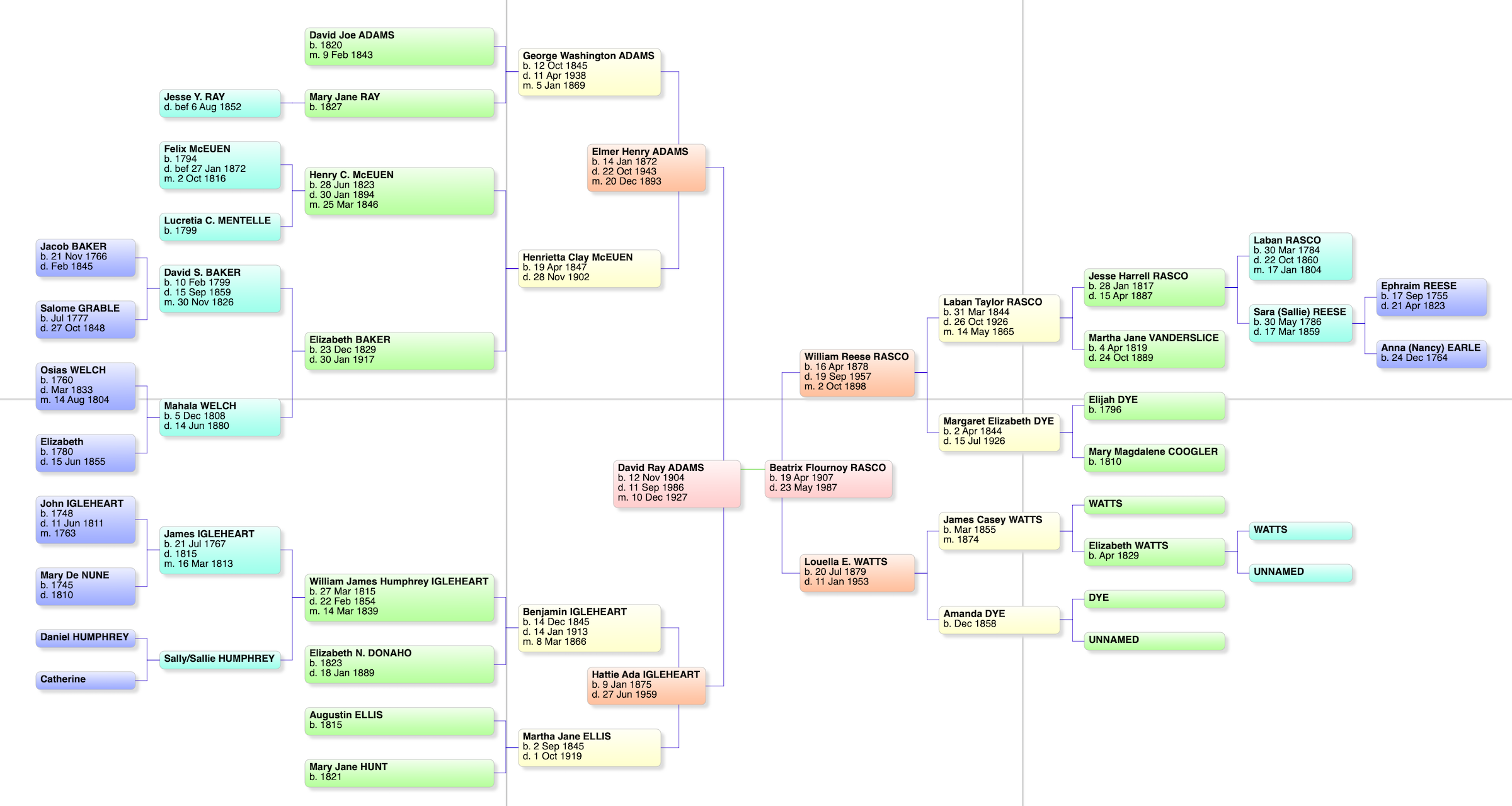
A bowtie chart for my paternal grandparents

I’ve been using Reunion, the genealogy software designed for the Mac, since I started getting serious about genealogy research, back in 2012. I love Reunion, though the truth is I’ve never used any other software so I don’t have anything to compare it with. It works well with the way I think and I’ve found it intuitive and easy to use. I’m definitely a glass-half-full kind of gal, but the only complaint I’ve ever had about Reunion is that media files do not export with a GEDCOM.

Over the years, I’ve upgraded Reunion when new versions became available every few years. (I started with Reunion 10.) Just last week when I opened the program, I saw that an upgrade to Reunion 13 was available. (It had been three years since I upgraded to Reunion 12.) I quickly checked out the new features and didn’t hesitate to spend $49.95 for the upgrade. The upgrade process was headache-free and I’m happily using and exploring the expanded capabilities.

Here’s a list of my favorite new features. I haven’t used them all but I’m glad to have them available:

  • Change Log. I can now look back and see what changes I made each research session. I used this the other day when I forgot to write in my research log. (I think the Change Log is a little hard to find, so I’ll mention that you find it by clicking on the File menu item at the top of the screen. If you don’t see Change Log, try clicking on a different screen in Reunion, if you have more than one open.)
  • Summary sidebar. Personal statistics for each member of a couple are now available in the sidebar. The summary sidebar contains information such as spouses, siblings, surnames of ancestors, surnames of descendants, number of descendants in how many generations and so forth. You can drill down on most statistics for more detail.
  • Connections allows me to add unrelated people (neighbor, godparent, witness, etc.) to my tree.
  • Find Relationship has been upgraded to instantly show a graphic relationship between to people in my tree. I can easily copy that graphic to share with someone.
  • Quickview windows pop up to provide further information about a person, couple, source record or surname without having to navigate to another record.
  • A Find feature that searches across all records and fields. You can search without having to leave the family view.
  • A new Bowtie chart that shows the ancestors of each member of a couple in one view (see photo above).

You can watch this video to see the top ten new features in action.

Eight years using Reunion and I haven’t been tempted to switch. This upgrade makes me feel more enthusiastic than ever!

Filed Under: Excitement, Genealogy tips, Technology Tagged With: genealogy tools, record keeping, technology

How I process Newspapers.com articles

July 10, 2020 By Janine Adams 25 Comments

I’ve been doing a lot of research on Newspapers.com recently. I downloaded a number of articles about my maternal grandparents, Crawford and Susie (Jeffries) Brown, who lived in Spokane, Washington, from 1936 until their deaths in the 1990s. My mother, Betty Sue Brown Adams, was born in Missouri in 1933, but the family to Spokane when she was three and lived there until she left for college.

The Spokesman-Review, Spokane’s daily paper, is part of Newspapers.com Publisher Extra collection. I did a seven-day free trial with them and when it was over I still I had research I wanted to do, so I signed up for a 30-day subscription for $19.99. (I didn’t want to spend $60 for a six-month subscription.) With the clock ticking, I’ve been downloading articles and also working through my backlog of downloaded articles. In doing so much research on Newspapers.com, I’ve developed a method of downloading and processing the articles that I thought I’d share with you here with some screenshots in case it’s helpful.

As always, I’m sharing what works for me…that doesn’t make it the right way or the best way. And it doesn’t mean I won’t change it up later. But this is what I’m doing now. (Several years ago, I did a screencast of how I process newspaper articles from Genealogy Bank, which was slightly different. If you’re interested, you can check it out here.)

When you find an article on Newspapers.com, you have the option to clip the article so that you find it later on Newspapers.com and others can see it (you can also download, share or save on Ancestry.com by clipping an article), or you can print or save the article. Because I don’t plan to keep my Publisher’s Extra subscription and because I prefer to download everything to my hard drive, I choose to the download the article and also to download the entire page it is on, for context. Here’s what I do:

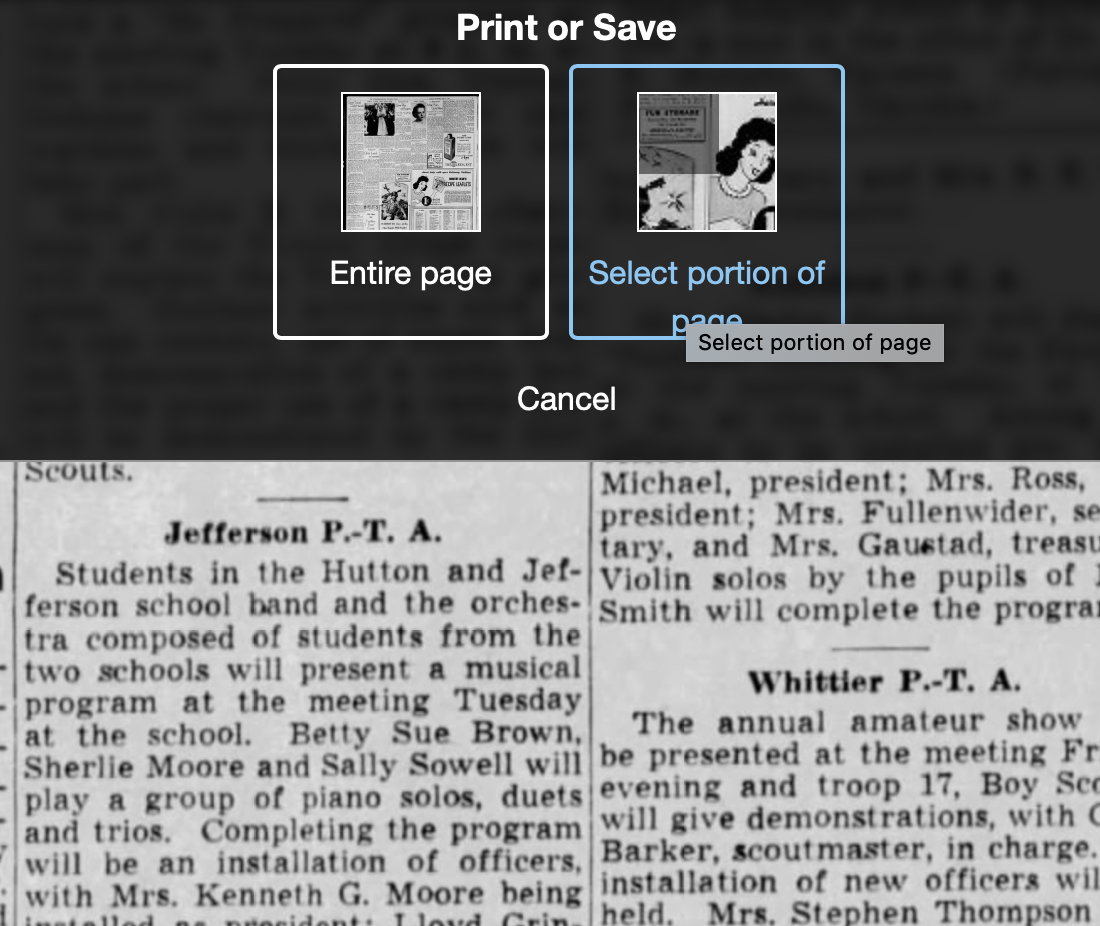
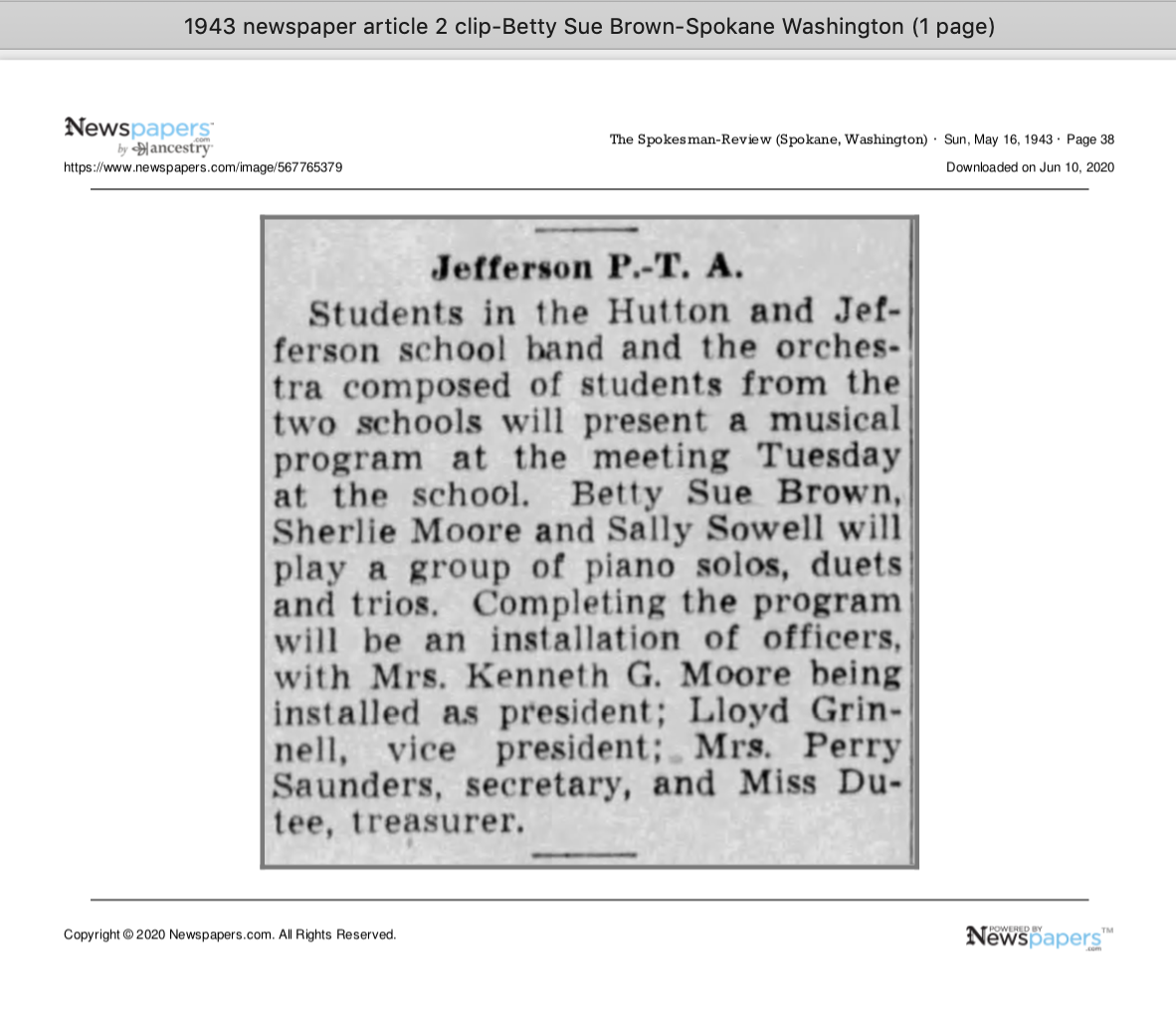
Once I’ve found an article that I want to save (in this example, it’s a 1943 article about my ten-year-old mother performing in a musical program at a PTA meeting), I click on Print/Save.

Then I click on Select portion of page. (Click on any of these images to make them larger.)

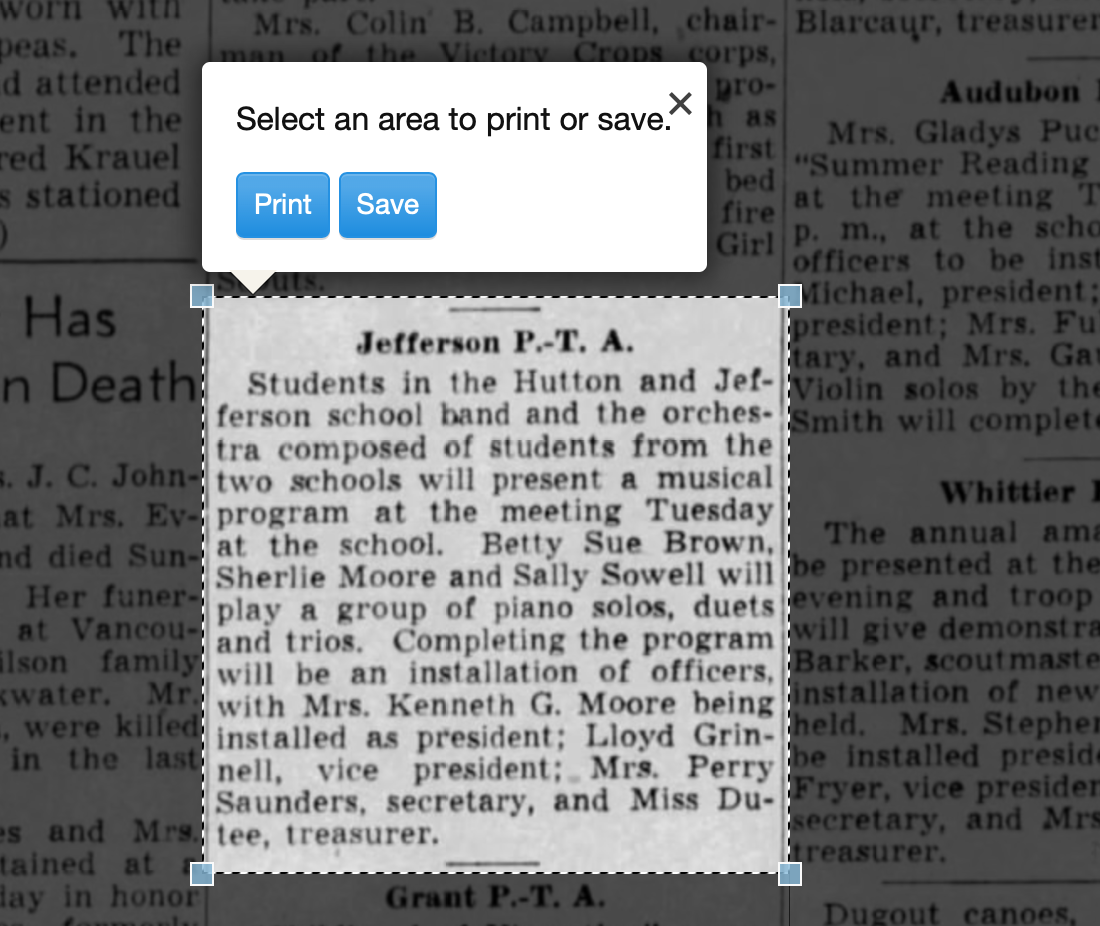
Processing an article from Newspapers.com Step OneThen I outline the article using Newspaper.com’s grab tool and click Save.

Processing an article from Newspapers.com Step One

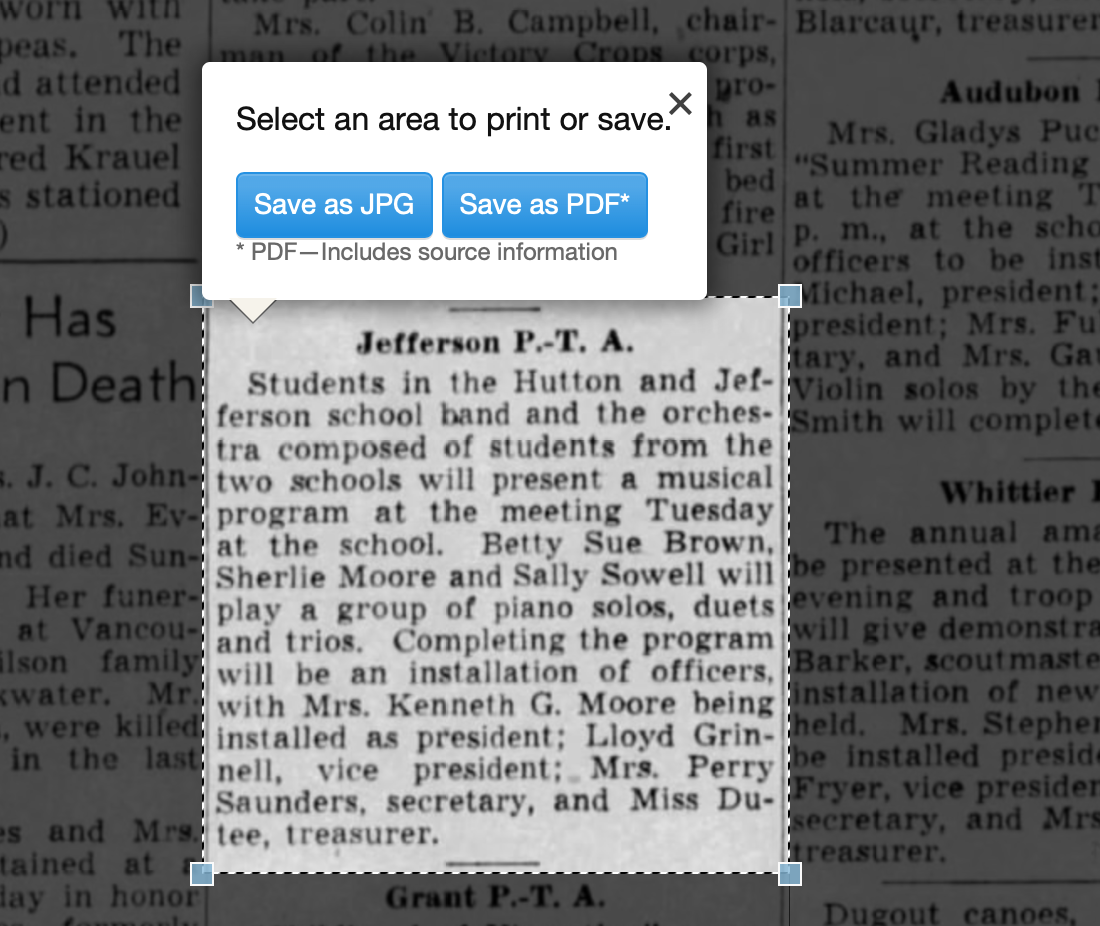
Once I click Save, I’m given an option of saving it as a jpg or a pdf. When you save as a pdf, the source information is included. I always save a clip as a pdf.

Processing an article from Newspapers.com Step Three

Once I click Save as PDF, the article is downloaded to my hard drive. When I open it, it looks like this:

Processing an article from Newspapers.com Step Four

You can see that Newspapers.com has included the newspaper title, date, and page number of the article, as well as the date it was downloaded and the URL for the image. This is really helpful when I create the source citation in Reunion, the genealogy software I use on my Mac. Notice that I have changed the filename of the article per my file-naming protocol. I always put “clip” in the filename for the clipped articles, since I will also download the entire page using the same filename (minus “clip”). I save the article in my Surnames folder.

Next, I go back to newspapers.com, click on Print/Save again, and this time select Entire Page. Then I’m asked if I want to save it as a jpg or pdf. I always save the whole page, as a jpg. That’s just my personal preference.

Processing an article from Newspapers.com Step FourOnce I click Save as JPG, the page is downloaded and I change the filename to match the clip’s filename (omitting the word “clip.”)

Now it’s time to glean information from the article and add it to Reunion.

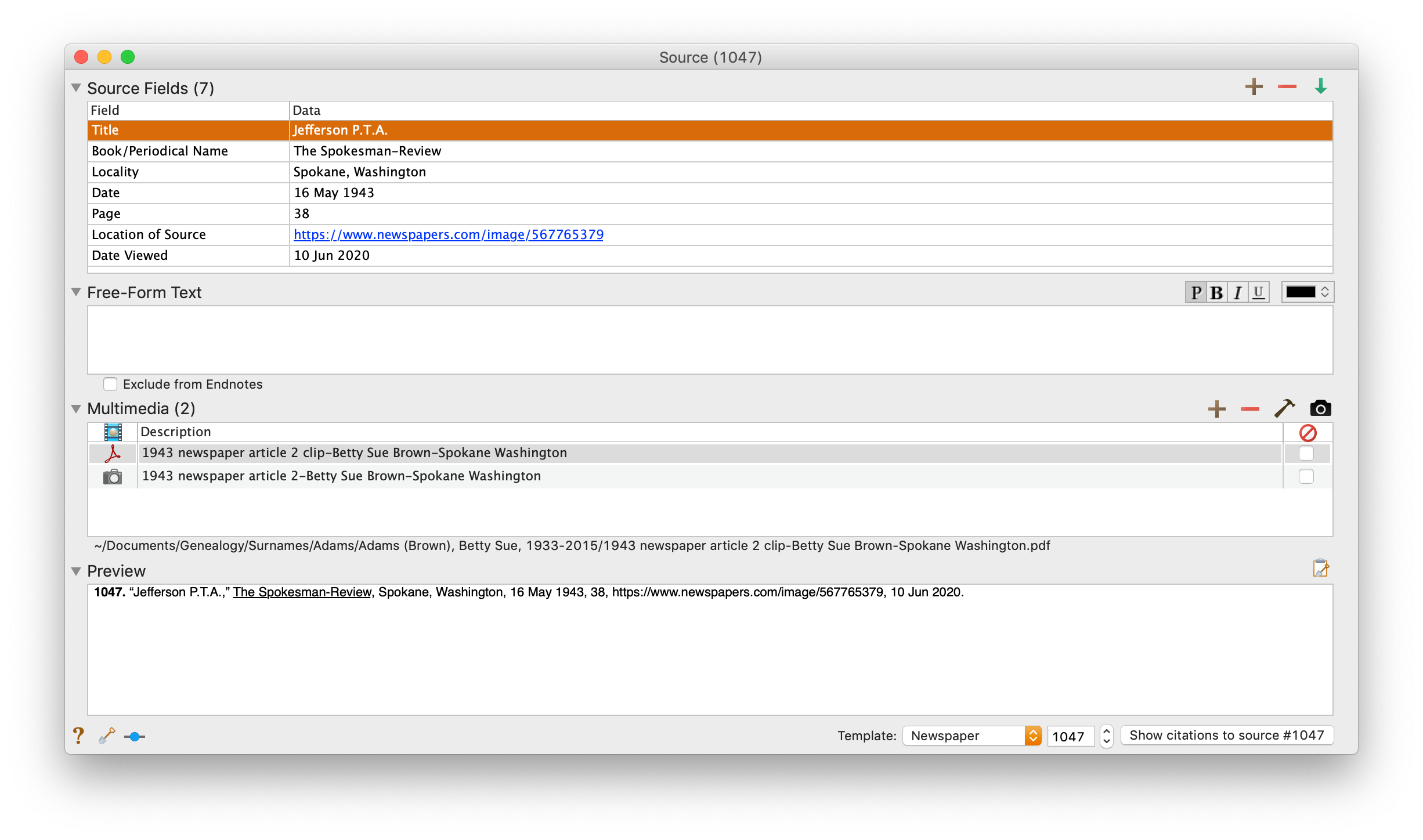
I take a fact from the article, enter it into Reunion and create a source citation. In Reunion, I use the template for Newspapers to create my source citations. So here’s what the source record for this article looks like (again, click any image for a larger view):

Processing an article from Newspapers.com Step FiveNote that I have attached both files, the clip and the whole page, as multimedia files in the source citation, by simply dragging them from the Finder. But before I do that, I do one other thing. I click on the little clipboard icon in the Preview pane and I paste the citation into the metadata of the file. Here’s how I do that.

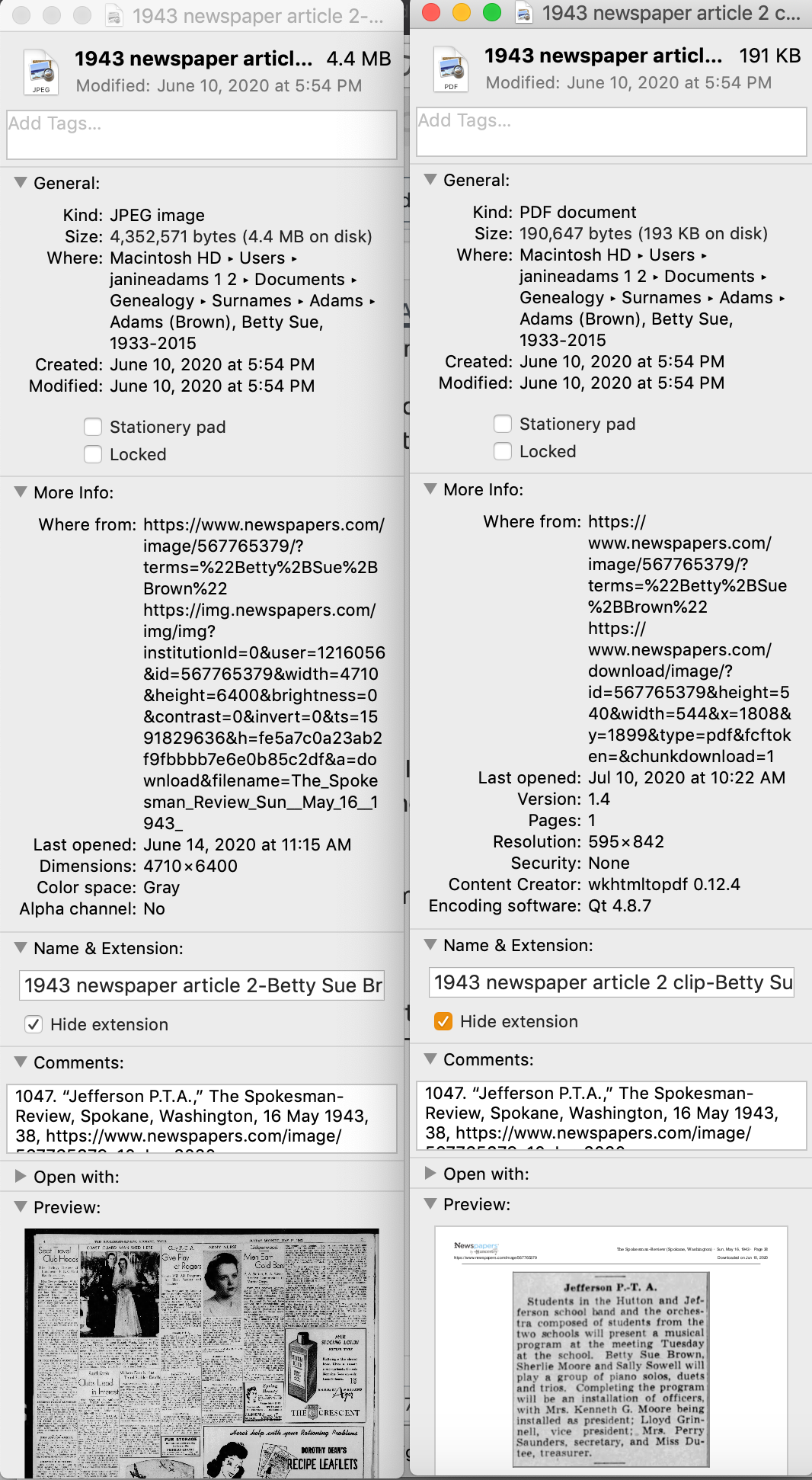
I highlight the two files (article and whole page) in Finder, right (or control) click on them and then select Get Info. That brings up the metadata for those files. I paste the source citation in the Comments field. This is really helpful later on if I want to see which source a particular file is attached to.

Processing an article from Newspapers.com Step Six

Then I drag the files into the source record. After I’ve gleaned all the information from the articles, I file them in my folder structure.

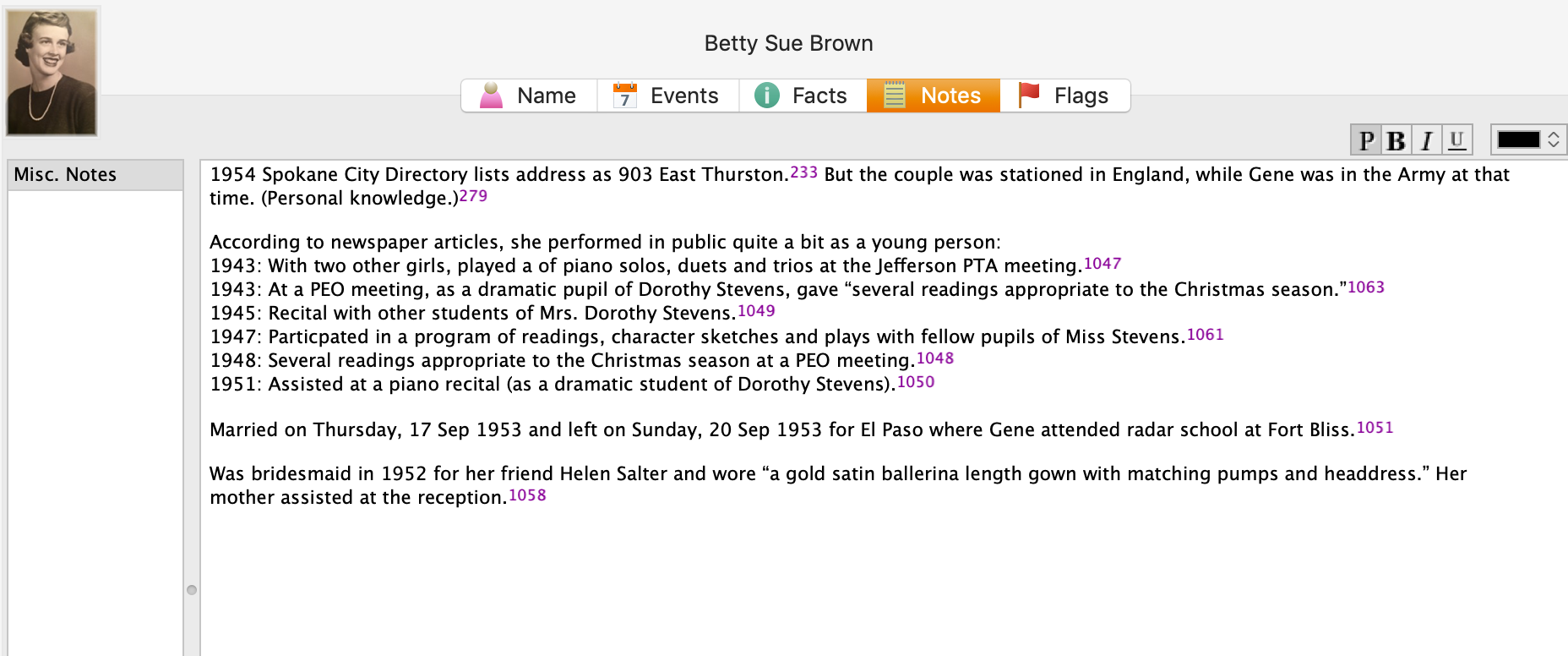
A final note: In this particular example, you might be curious how I entered this tidbit about a musical program in Reunion. Under Residence in the Events tab, I added the date of the newspaper article and Spokane, recording that my mother lived in Spokane on 16 May 1943.Ā  But I took it a little further. This was one of six Spokesman-Review articles I found about my mother performing as a girl. So in the Notes tab I also created a little listing of those performances. Here’s a screenshot:

Processing an article from Newspapers.comI don’t know if it looks complicated laid out like this, but it really isn’t. I pretty easily got into the rhythm of it. The process can get a little tedious, but I think it’s worth the effort to have both the clip and the whole page downloaded. The little nuggets you get from newspaper research can really paint a great picture!


Filed Under: Challenges, Genealogy tips, Organizing, Technology Tagged With: Brown, electronic files, genealogy tools, newspaper clippings, newspapers, organizing aids, research, source documentation

  • « Go to Previous Page
  • Page 1
  • Interim pages omitted …
  • Page 5
  • Page 6
  • Page 7
  • Page 8
  • Page 9
  • Interim pages omitted …
  • Page 27
  • Go to Next Page »

about me

I'm Janine Adams, a professional organizer and a genealogy enthusiast. I love doing family history research, but I find it's very easy for me to get overwhelmed and not know where to turn next. So I'm working hard to stay organized and feel in control as I grow my family tree.

In this blog, I share my discoveries and explorations, along with my organizing challenges (and solutions). I hope by sharing what I learn along the way I'll be able to help you stay focused and have fun while you do your research, too.

tags

30 x 30 Adams amy johnson crow anniversary Brown cemetery census Civil War conferences connections dna electronic files Evernote excitement Family Curator family photos genealogy tools getting started goals How They Do It Igleheart Jeffries keepsakes learning opportunities maps newspapers NGS organizing aids overwhelm paper files planning quick tips rasco record keeping research research log research trip resources RootsTech social history source documentation Stacy Julian technology time management vital records

join the facebook community!

join the facebook community!

My organizing business

Learn more about my organizing business, Peace of Mind OrganizingĀ®.

Subscribe by RSS

  • RSS - Posts
  • RSS - Comments

© 2026 Janine Adams


Loading Comments...