• BLOG
  • ABOUT
    • Privacy Policy
  • CONTACT

Organize Your Family History

Stay focused and happy while exploring your roots

Revisit: Reading hard-to-read gravestones

June 24, 2025 By Janine Adams 4 Comments

This article, which I published almost exactly 11 years ago, on July 1, 2014, is easily my most-read blog post. I looked at the stats today and saw that it has had almost 61,000 views in the past 11 years. That’s a lot of views for my little blog. I thought I’d re-run it today for readers who may not have seen it before.

My family reunion was last weekend and I had a great time. Family members were so warm and welcoming to my husband and me despite the fact that my branch of the family had not been represented at that reunion in a couple of generations. I was given family pictures (some of which I’ll probably scan and share here) and well as a painting that my grandmother had painted. It was a great weekend.

On Saturday, my husband and I paid a visit to the cemetery where my grandmother’s ancestors were buried. (This was a reunion of people from my grandfather’s side of the family, so it was an adjunct activity.) I had visited that cemetery, Meyer Cemetery, last year when I traveled to western Missouri.  Three generations of Jeffries are buried in that cemetery:  my great grandfather, James Earl Jeffries;  his parents, John D. Jeffries and Susan Price Jeffries; his in-laws, John Price and Mary Puffenbarger Price; and his grandparents, Richard Anderson Jeffries and Harriet McKinley Jeffries. I wanted to capture some more photos of the gravestones, as well as find the graves of the Prices, which I hadn’t seen on my first visit.

Fortunately for me, I’d learned just the prior week about using aluminum foil to make reading hard-to-read gravestones much easier. I’d seen a link to a blog post called safe solutions for hard to read tombstones on the fabulous Organized Genealogist Facebook page. That post described how you can cover a gravestone with foil and gently rub it to make the hidden words on a gravestone almost magically appear. The post linked above suggested using a clean makeup brush. I didn’t have one so I dug around a bit more on the web and found a post on Save a Grave that suggested using a damp sponge.

So I went to the dollar store and bought some cheap aluminum foil. I grabbed a sponge from under the sink and was ready to head to the cemetery the next day. The method really felt like magic.

This is the stone of the Mary Ann Price, my great great great grandmother.
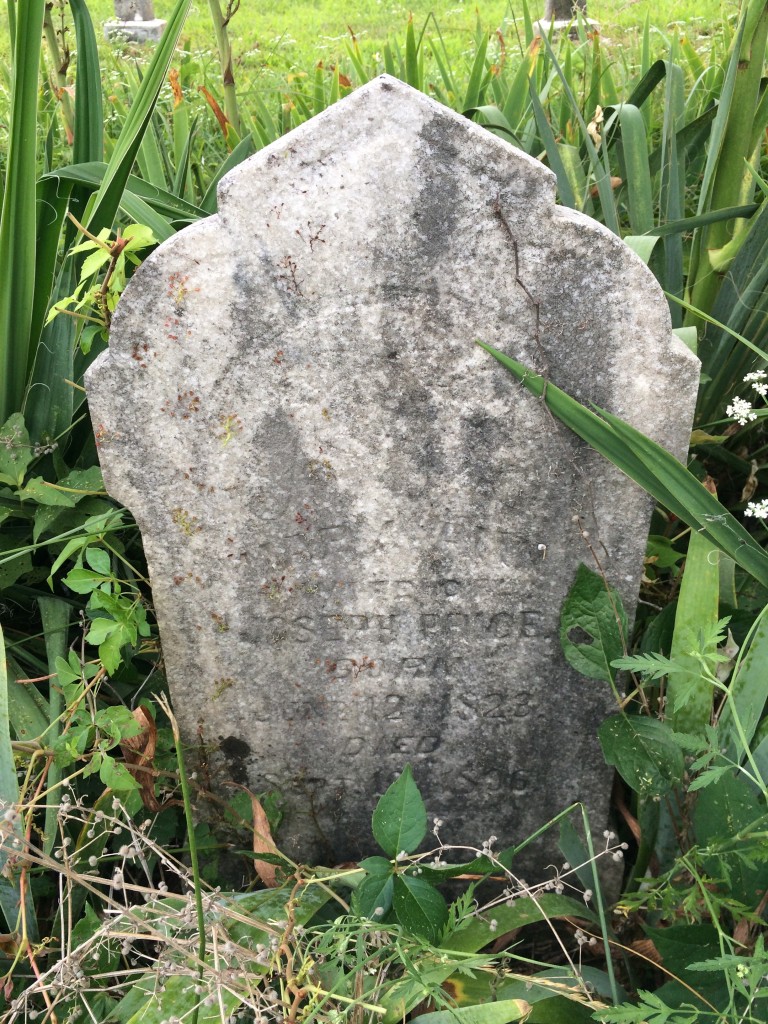
Foil can make hard-to-read gravestones legible

Cover it in foil and rub and voila, the writing emerges.
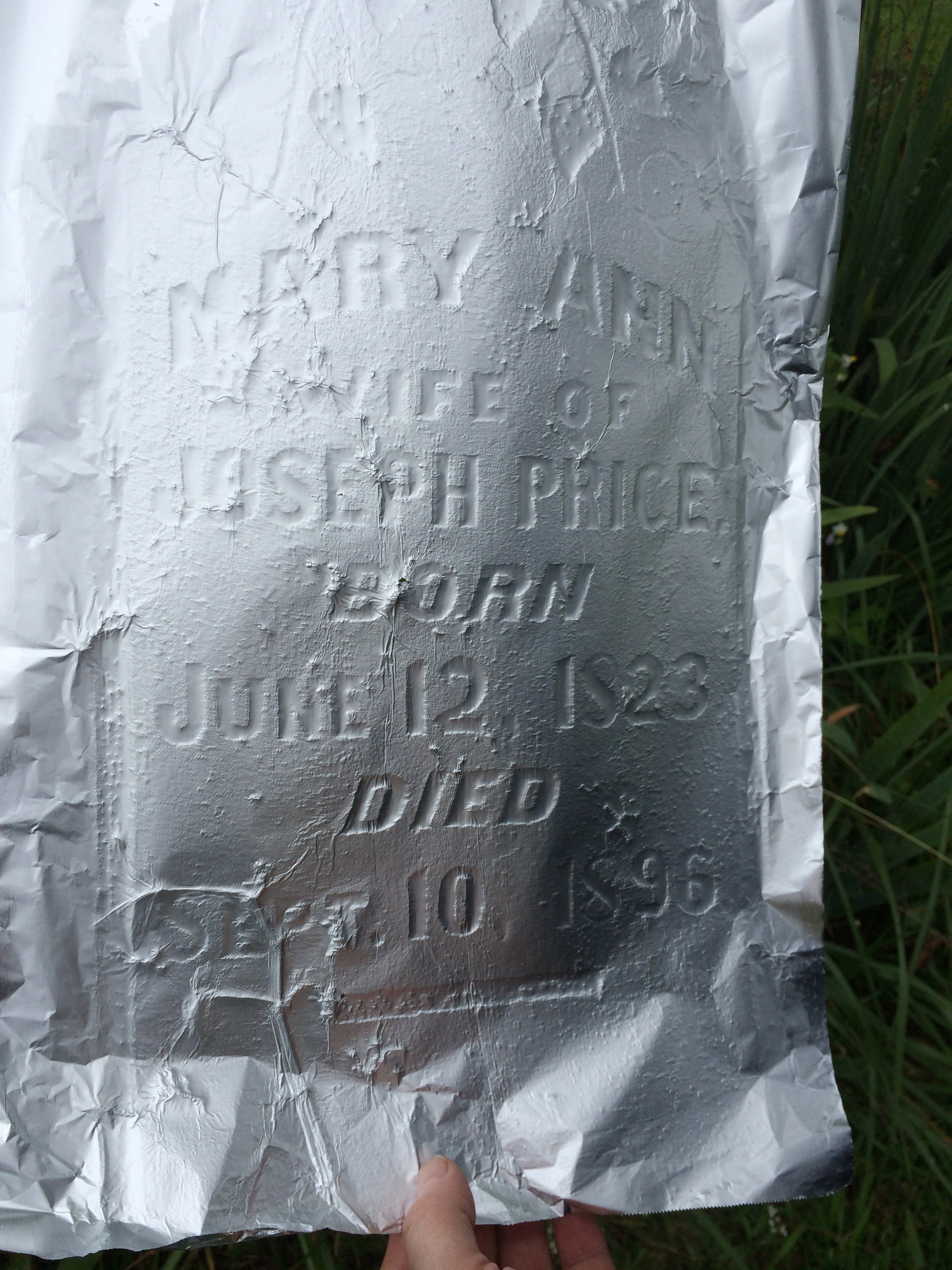
Foil can make hard-to-read gravestones legible

There’s a gravestone  right next to my great great grandfather’s grave. The top of that same stone was so worn and dirty you couldn’t really tell that there was a name on it. But when I covered it in foil and rubbed it with a damp sponge, the name “Harriett” appeared. Amazing!
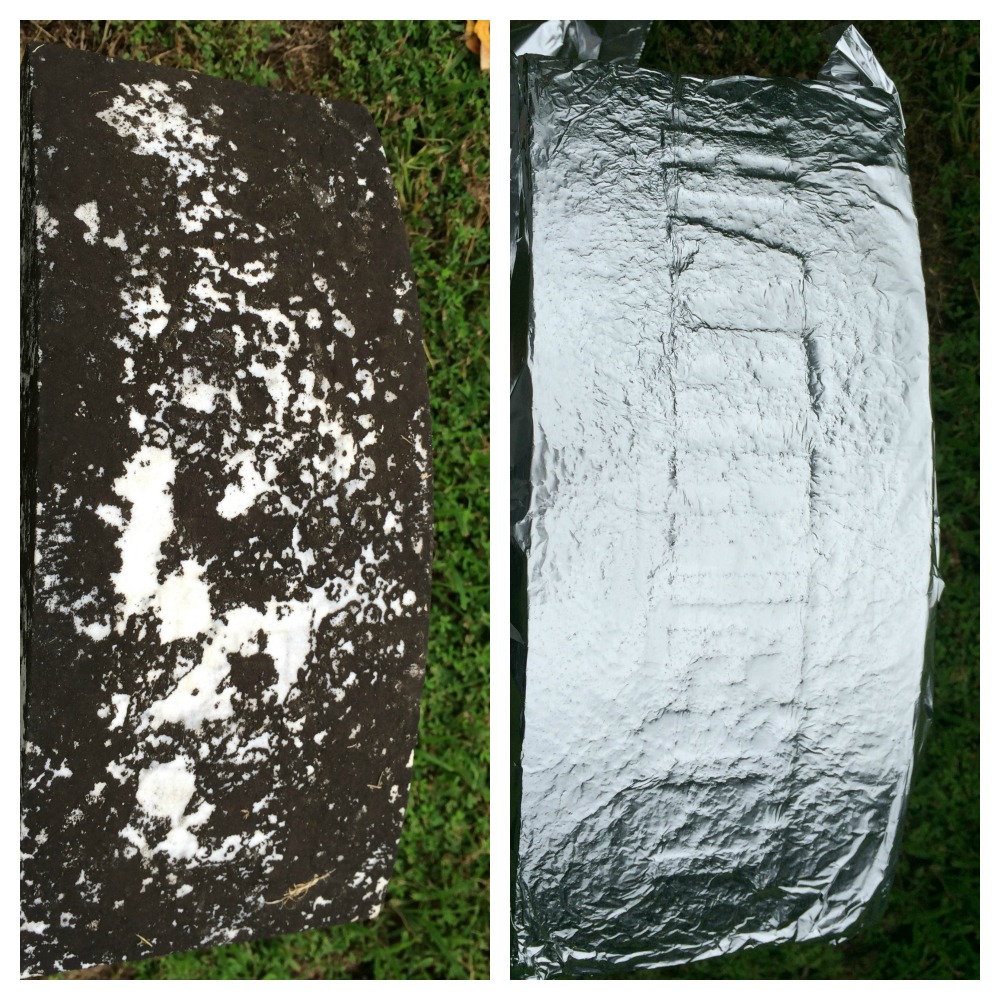
aluminum foil can make hard-to-read gravestones legible againI love this method! The downside is that, unlike gravestone rubbings–which I learned are harmful to the gravestone–it’s not easy to keep and store foil rubbings. I consider them temporary and my digital photo of the rubbed stone to be my permanent record. I can’t quite get myself to throw away the foil (it’s driving around in the back of my SUV), but soon I expect I’ll put it in the recycling bin. [ETA in 2025: I recycled it shortly thereafter!]

Filed Under: Excitement, Genealogy tips, My family, Preservation Tagged With: Brown, cemetery, excitement, genealogy tools, Jeffries, Price, resources, revisit

Revisit: How I process Newspapers.com articles

April 21, 2025 By Janine Adams 10 Comments

I’ve been looking through my published blog posts for some that might be worthy of repeating. This article from 2020 is one that I thought folks might find helpful. The screenshots may not exactly match how things look currently on Newspapers.com and to be honest I haven’t had a subscription in awhile so I wasn’t able to verify that all the steps are exactly right. But I’m going on faith that it’s up-to-date enough to be helpful to those looking for ideas on including newspaper articles in their genealogy database. When I published it originally, it garnered some valuable comments, so you might want to check the comments on the original version.

I’ve been doing a lot of research on Newspapers.com recently. I downloaded a number of articles about my maternal grandparents, Crawford and Susie (Jeffries) Brown, who lived in Spokane, Washington, from 1936 until their deaths in the 1990s. My mother, Betty Sue Brown Adams, was born in Missouri in 1933, but the family to Spokane when she was three and lived there until she left for college.

The Spokesman-Review, Spokane’s daily paper, is part of Newspapers.com Publisher Extra collection. I did a seven-day free trial with them and when it was over I still I had research I wanted to do, so I signed up for a 30-day subscription for $19.99. (I didn’t want to spend $60 for a six-month subscription.) With the clock ticking, I’ve been downloading articles and also working through my backlog of downloaded articles. In doing so much research on Newspapers.com, I’ve developed a method of downloading and processing the articles that I thought I’d share with you here with some screenshots in case it’s helpful.

As always, I’m sharing what works for me…that doesn’t make it the right way or the best way. And it doesn’t mean I won’t change it up later. But this is what I’m doing now. (Several years ago, I did a screencast of how I process newspaper articles from Genealogy Bank, which was slightly different. If you’re interested, you can check it out here.)

When you find an article on Newspapers.com, you have the option to clip the article so that you find it later on Newspapers.com and others can see it (you can also download, share or save on Ancestry.com by clipping an article), or you can print or save the article. Because I don’t plan to keep my Publisher’s Extra subscription and because I prefer to download everything to my hard drive, I choose to the download the article and also to download the entire page it is on, for context. Here’s what I do:

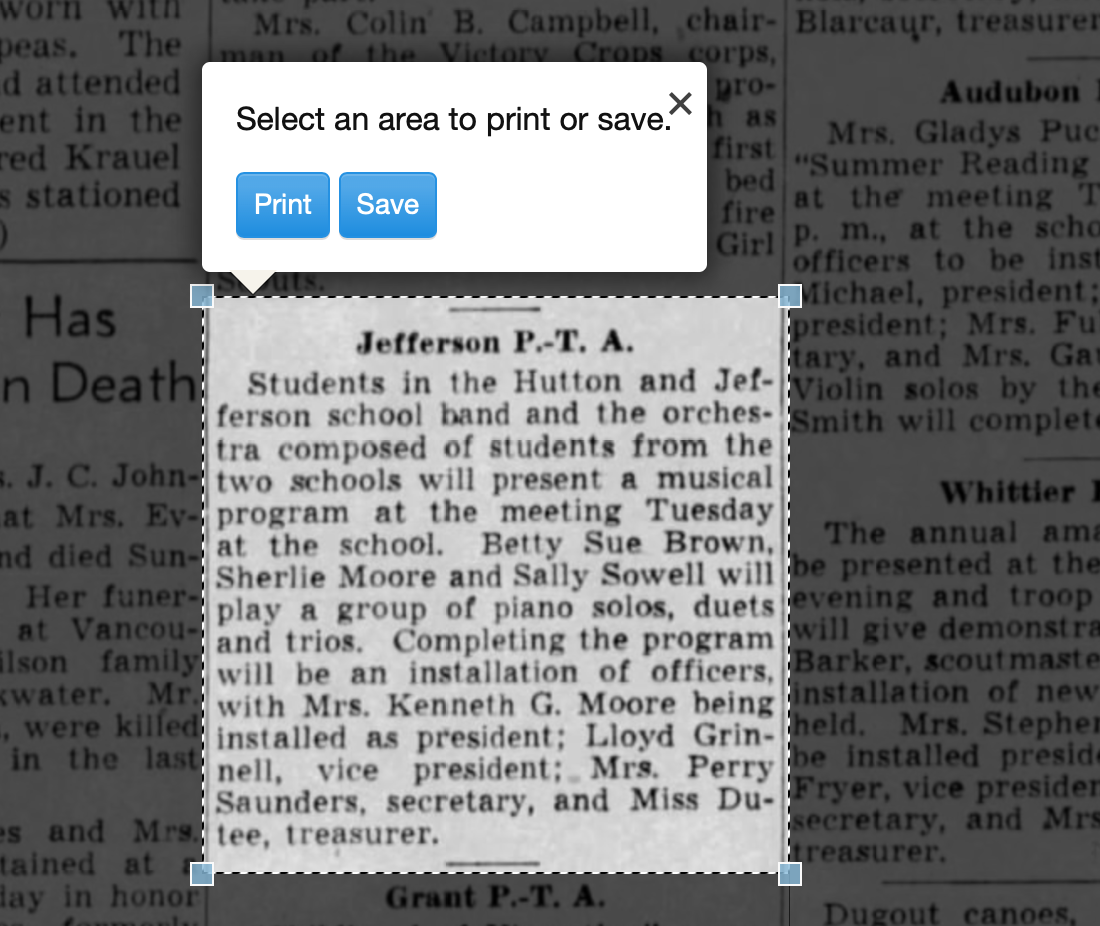
Once I’ve found an article that I want to save (in this example, it’s a 1943 article about my ten-year-old mother performing in a musical program at a PTA meeting), I click on Print/Save.

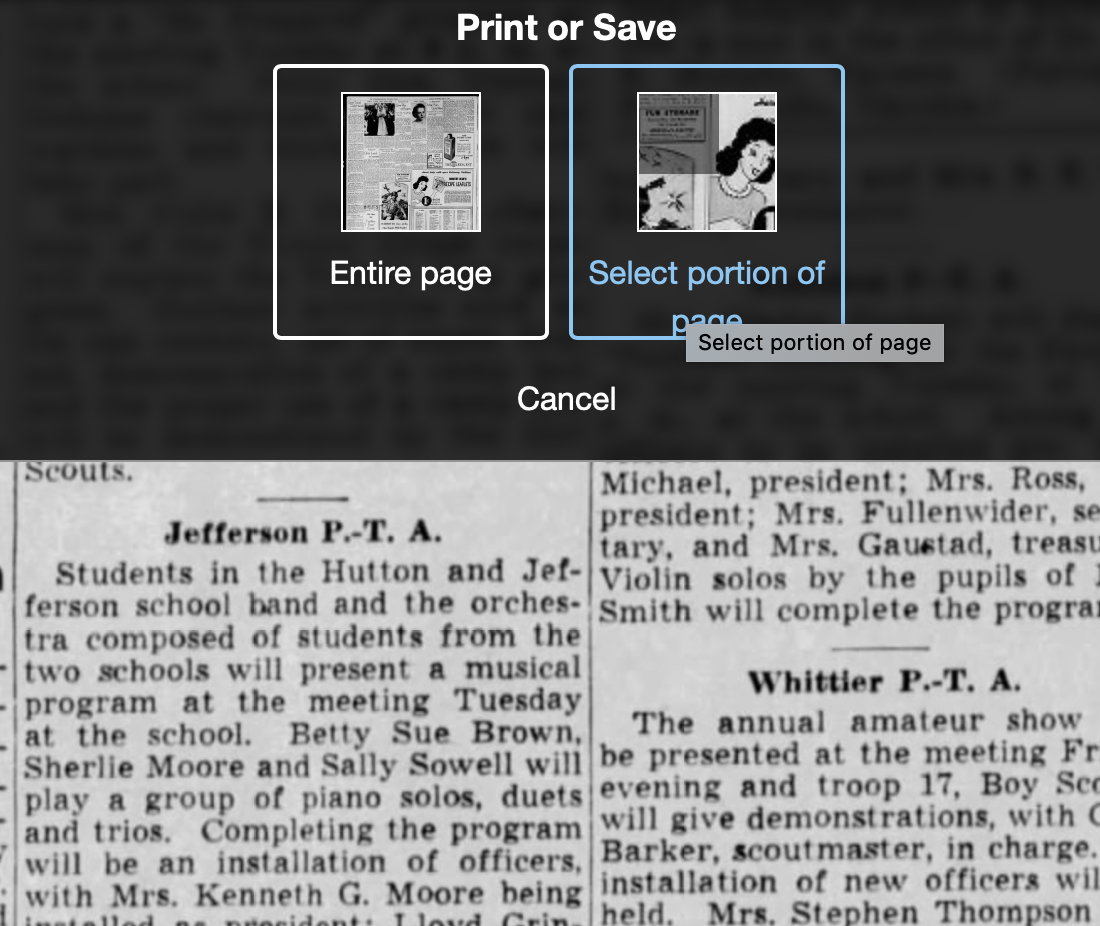
Then I click on Select portion of page. (Click on any of these images to make them larger.)

Processing an article from Newspapers.com Step OneThen I outline the article using Newspaper.com’s grab tool and click Save.

Processing an article from Newspapers.com Step One

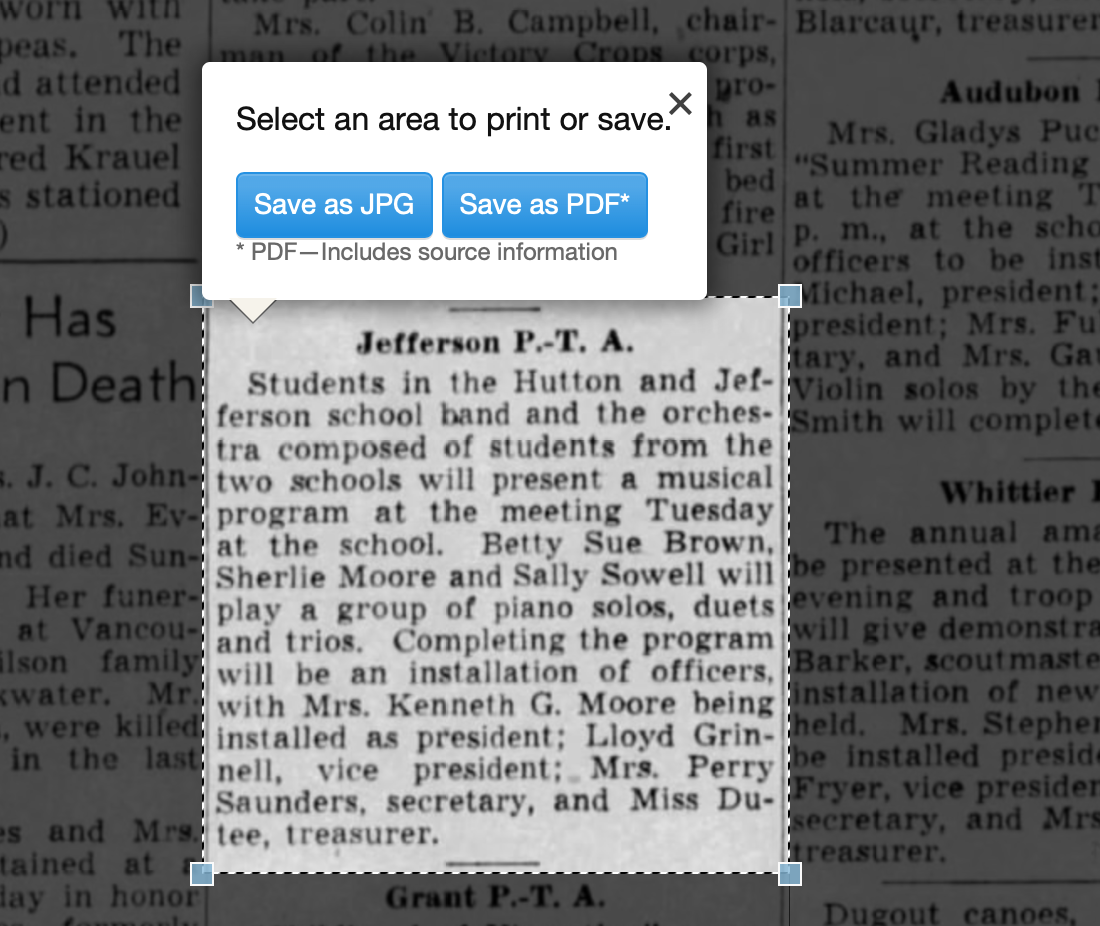
Once I click Save, I’m given an option of saving it as a jpg or a pdf. When you save as a pdf, the source information is included. I always save a clip as a pdf.

Processing an article from Newspapers.com Step Three

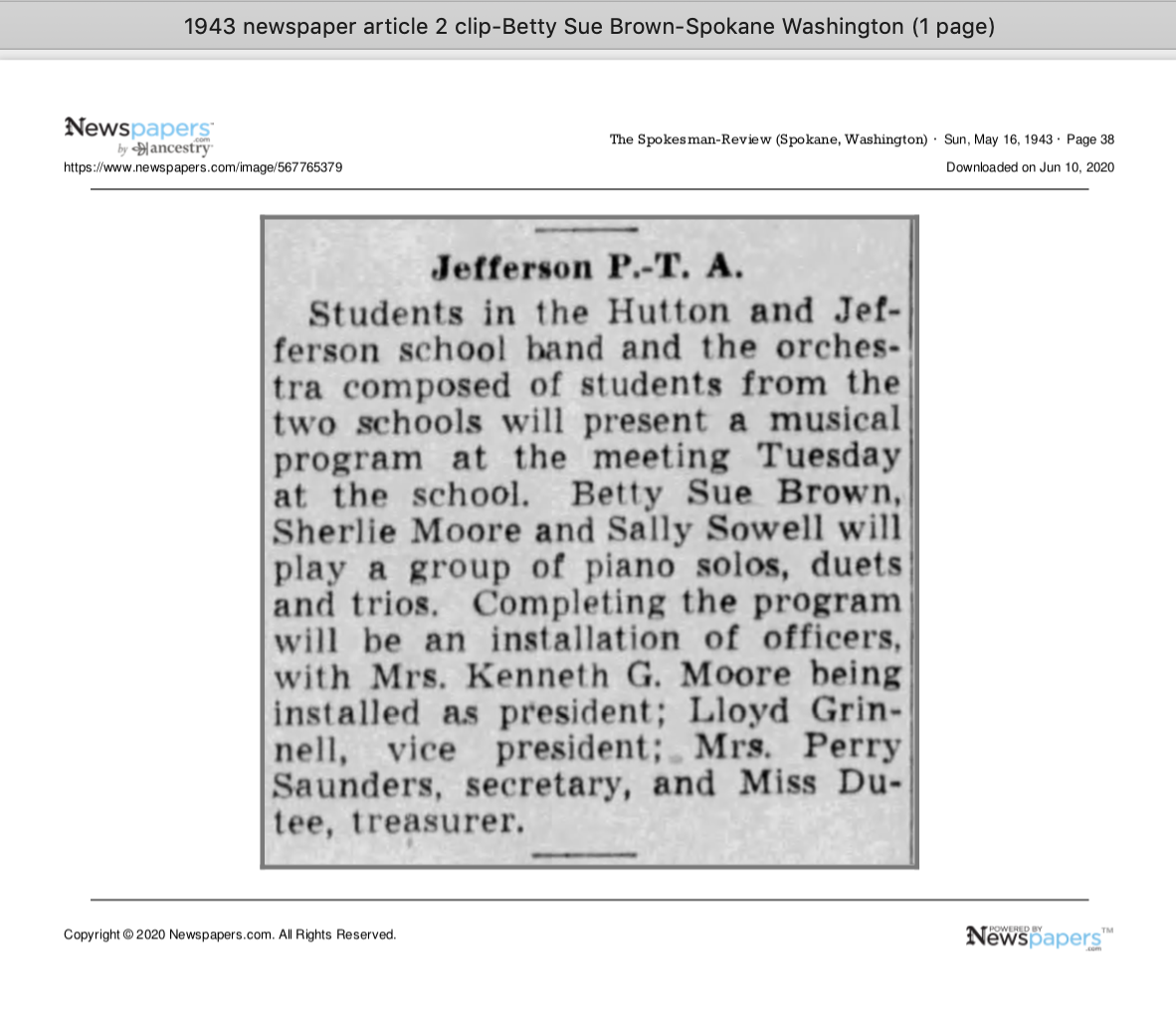
Once I click Save as PDF, the article is downloaded to my hard drive. When I open it, it looks like this:

Processing an article from Newspapers.com Step Four

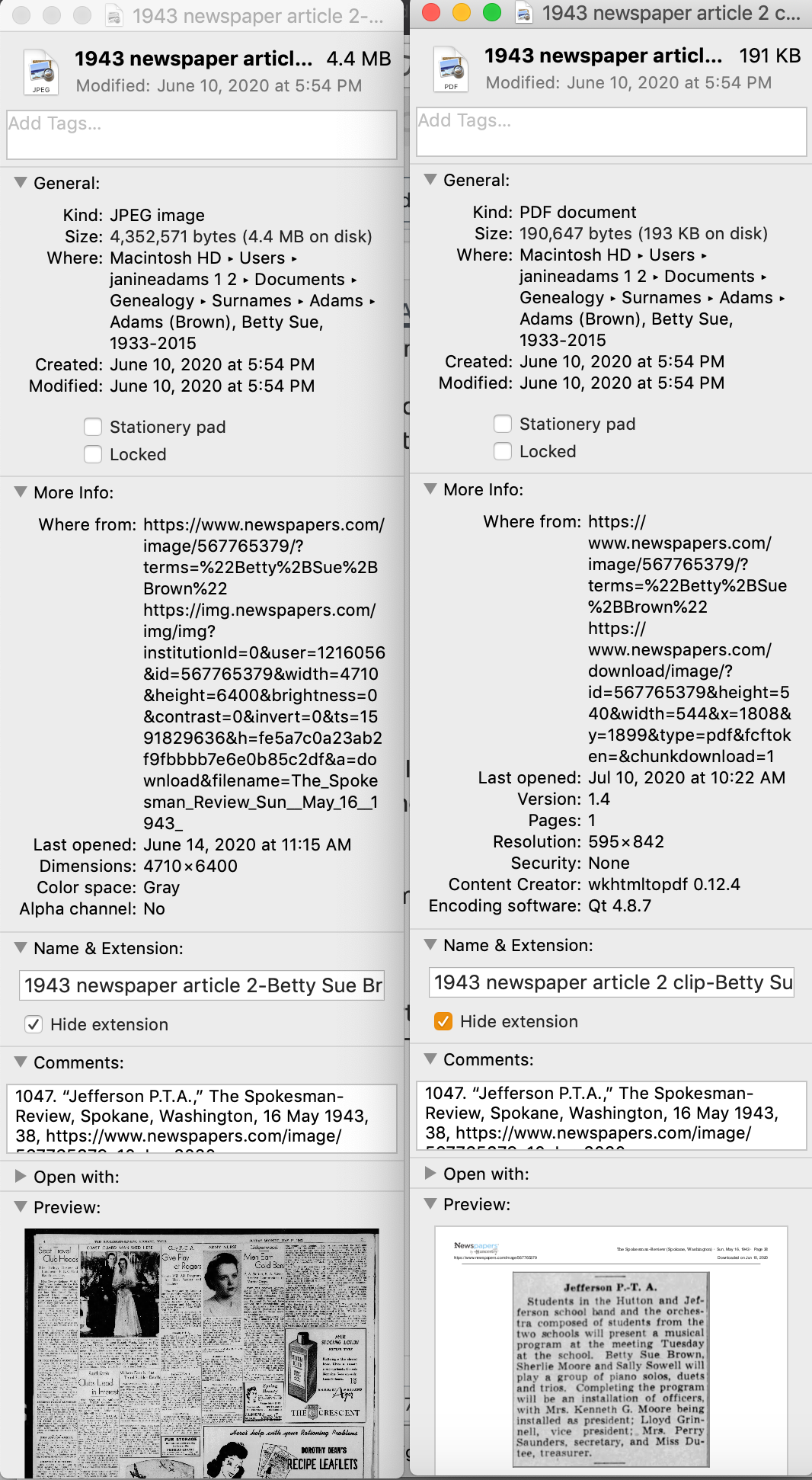
You can see that Newspapers.com has included the newspaper title, date, and page number of the article, as well as the date it was downloaded and the URL for the image. This is really helpful when I create the source citation in Reunion, the genealogy software I use on my Mac. Notice that I have changed the filename of the article per my file-naming protocol. I always put “clip” in the filename for the clipped articles, since I will also download the entire page using the same filename (minus “clip”). I save the article in my Surnames folder.

Next, I go back to newspapers.com, click on Print/Save again, and this time select Entire Page. Then I’m asked if I want to save it as a jpg or pdf. I always save the whole page, as a jpg. That’s just my personal preference.

Processing an article from Newspapers.com Step FourOnce I click Save as JPG, the page is downloaded and I change the filename to match the clip’s filename (omitting the word “clip.”)

Now it’s time to glean information from the article and add it to Reunion.

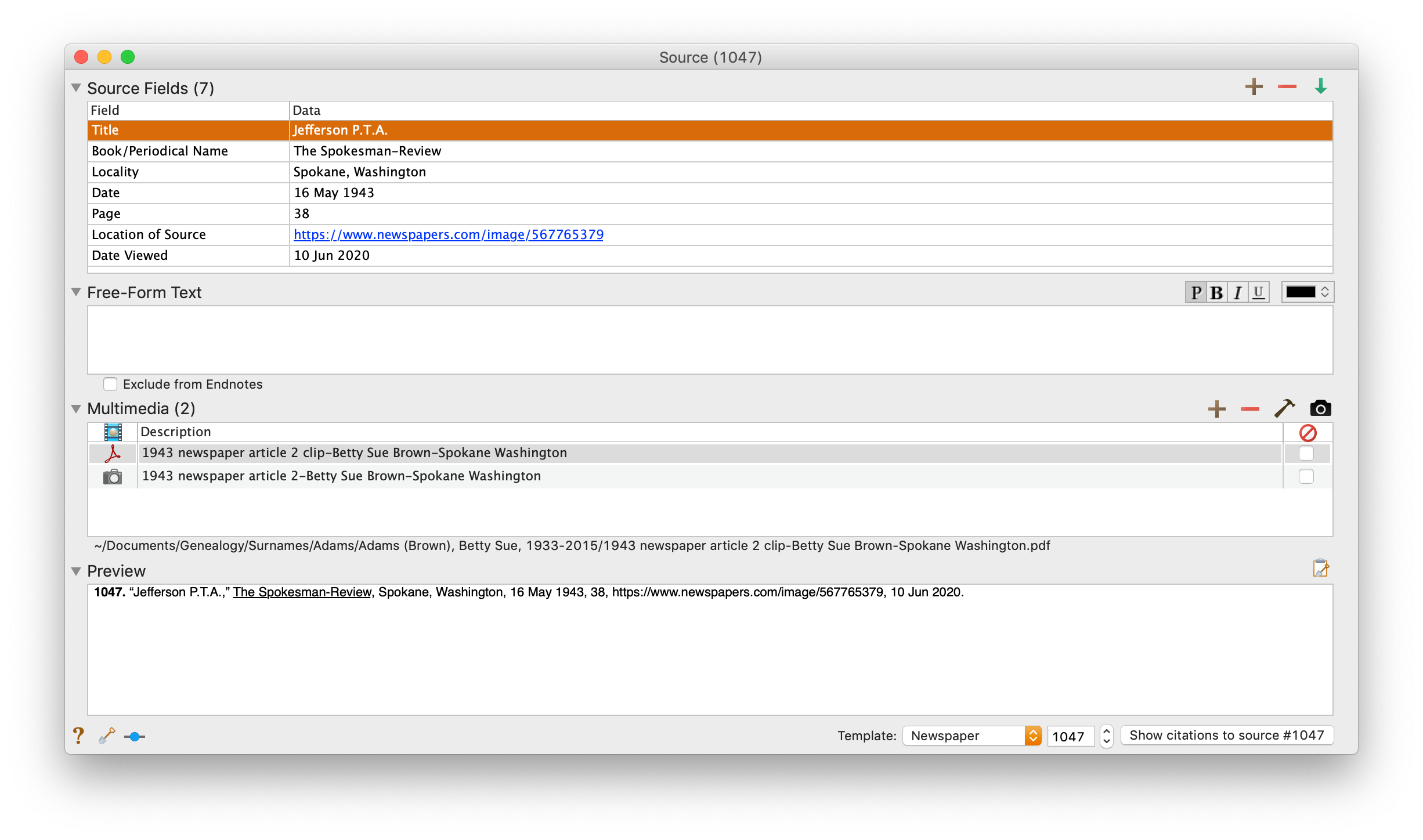
I take a fact from the article, enter it into Reunion and create a source citation. In Reunion, I use the template for Newspapers to create my source citations. So here’s what the source record for this article looks like (again, click any image for a larger view):

Processing an article from Newspapers.com Step FiveNote that I have attached both files, the clip and the whole page, as multimedia files in the source citation, by simply dragging them from the Finder. But before I do that, I do one other thing. I click on the little clipboard icon in the Preview pane and I paste the citation into the metadata of the file. Here’s how I do that.

I highlight the two files (article and whole page) in Finder, right (or control) click on them and then select Get Info. That brings up the metadata for those files. I paste the source citation in the Comments field. This is really helpful later on if I want to see which source a particular file is attached to.

Processing an article from Newspapers.com Step Six

Then I drag the files into the source record. After I’ve gleaned all the information from the articles, I file them in my folder structure.

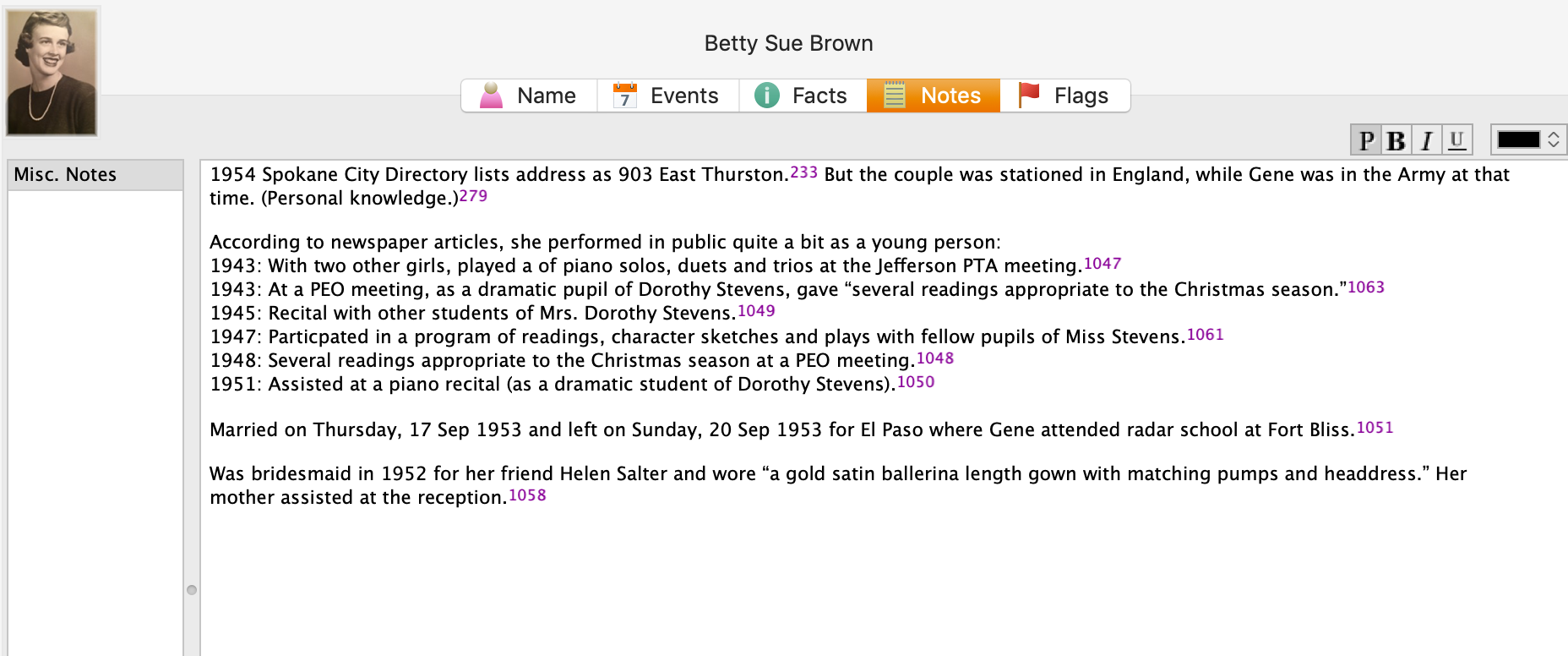
A final note: In this particular example, you might be curious how I entered this tidbit about a musical program in Reunion. Under Residence in the Events tab, I added the date of the newspaper article and Spokane, recording that my mother lived in Spokane on 16 May 1943.  But I took it a little further. This was one of six Spokesman-Review articles I found about my mother performing as a girl. So in the Notes tab I also created a little listing of those performances. Here’s a screenshot:

Processing an article from Newspapers.comI don’t know if it looks complicated laid out like this, but it really isn’t. I pretty easily got into the rhythm of it. The process can get a little tedious, but I think it’s worth the effort to have both the clip and the whole page downloaded. The little nuggets you get from newspaper research can really paint a great picture!


Filed Under: Challenges, Genealogy tips, Organizing, Technology Tagged With: Brown, electronic files, genealogy tools, newspaper clippings, newspapers, organizing aids, research, source documentation

Going through my box of inherited items: step one

August 24, 2021 By Janine Adams 6 Comments

On November 13, 2020 I wrote these words in a blog post about Stacy Julian’s method for going through a box of family photos, documents and memorabilia.

“When I drove to Walla Walla in September, I took the opportunity to bring home a box of family stuff. It’s not so much documents as photos, but I intend to use Stacy’s framework as I go through it.”

Nine months later, I finally opened that box this past weekend. I was excited to use Stacy’s method, which I had first heard about in her terrific 2020 RootsTech presentation. I decided to go through each of Stacy’s five steps and blog about each step after I finished it.

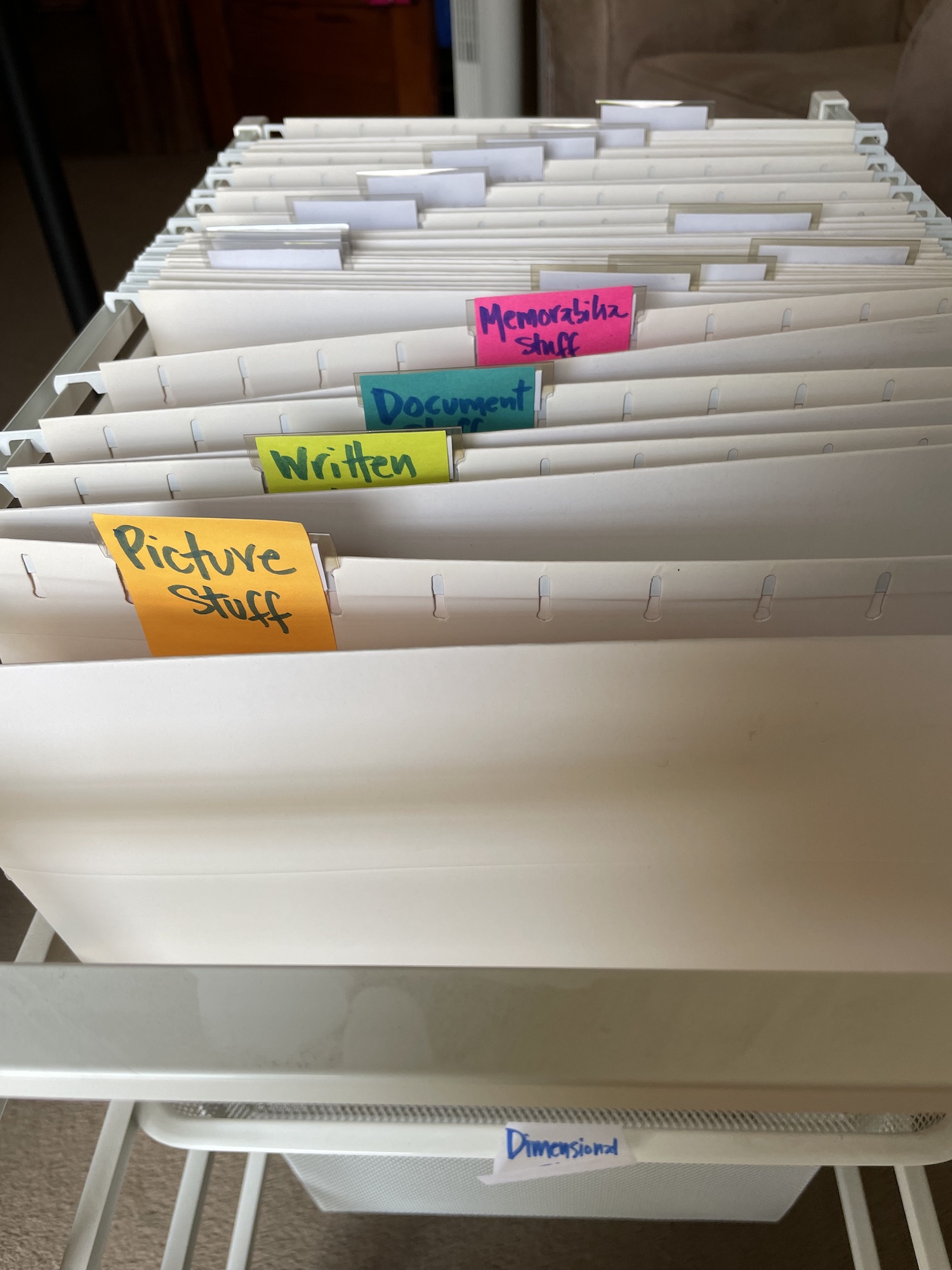
The first step is to sort the contents of the box into five categories:

  1. Picture Stuff
  2. Written Stuff
  3. Document Stuff
  4. Memorabilia Stuff
  5. Dimensional Stuff

I had an unused Elfa rolling  file cart and I rolled it to my workspace. I used sticky notes to label the folders. Here’s how it looked right before I started sorting:

It took me only 30 minutes to sort the entire contents of the box. As I had expected, the box contained primarily photos. I was able to tell by the handwriting on the back of many of them that at least some of the contents of the box had come from my grandmother, Susie Jeffries Brown, after she passed away in 1999. It was so touching to handle these items and remember my grandmother. (Today is my grandmother’s birthday! She was born 24 Aug 1908.) Some of the photos were framed in paper folders or wood or metal frames and I created a second Picture Stuff folder to contain those.

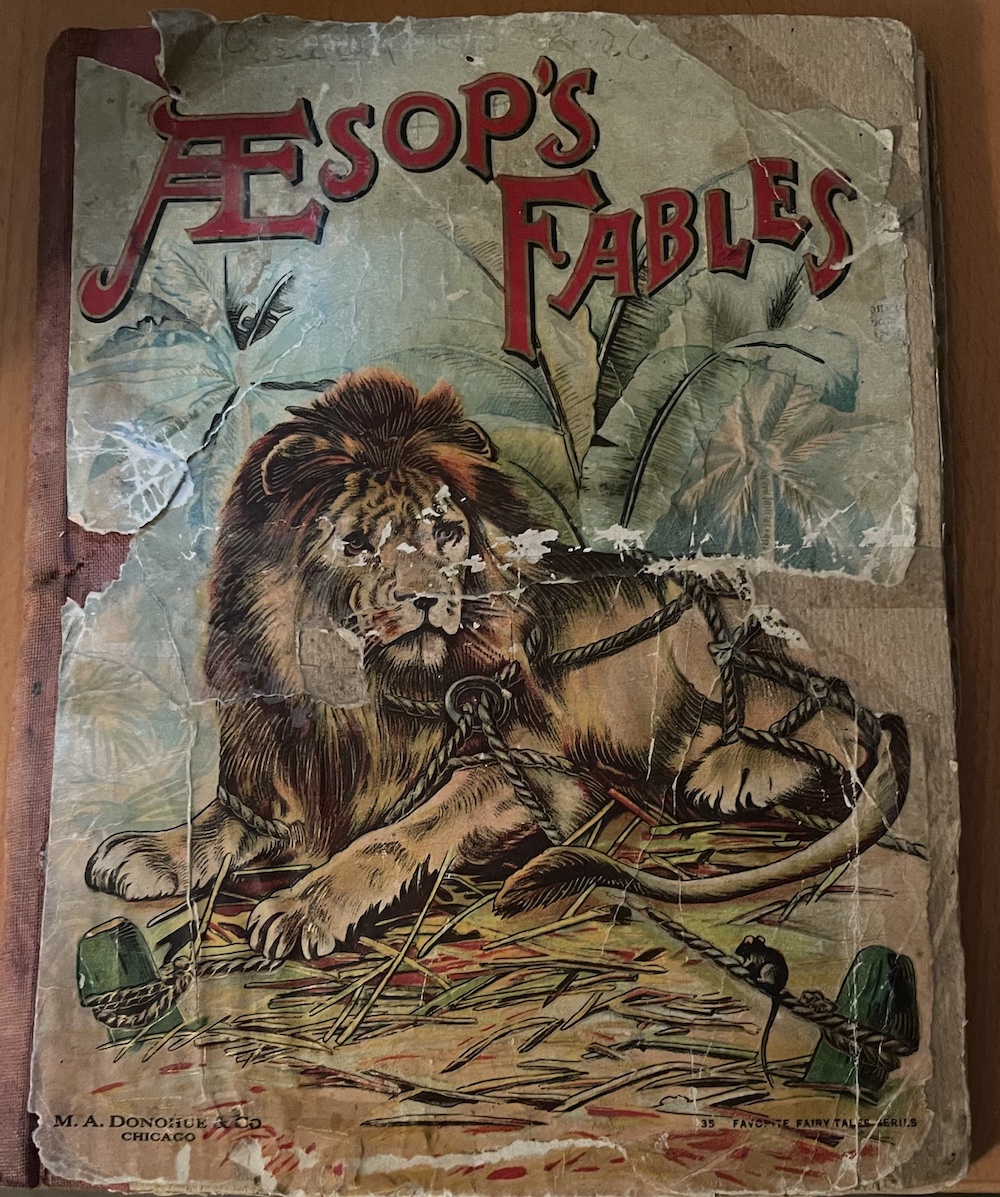
In addition to photos, there were some newspaper articles, as well as some other written items, including my parents’ wedding vows. (Those went into Written Stuff folder.) There were a few books, including an illustrated edition of Aesop’s Fables that had been given to my grandfather, Crawford Brown (1906-1996) in 1914. It was a Christmas gift from his grandmother, Antoinette Garlock Brown (1855-1922).

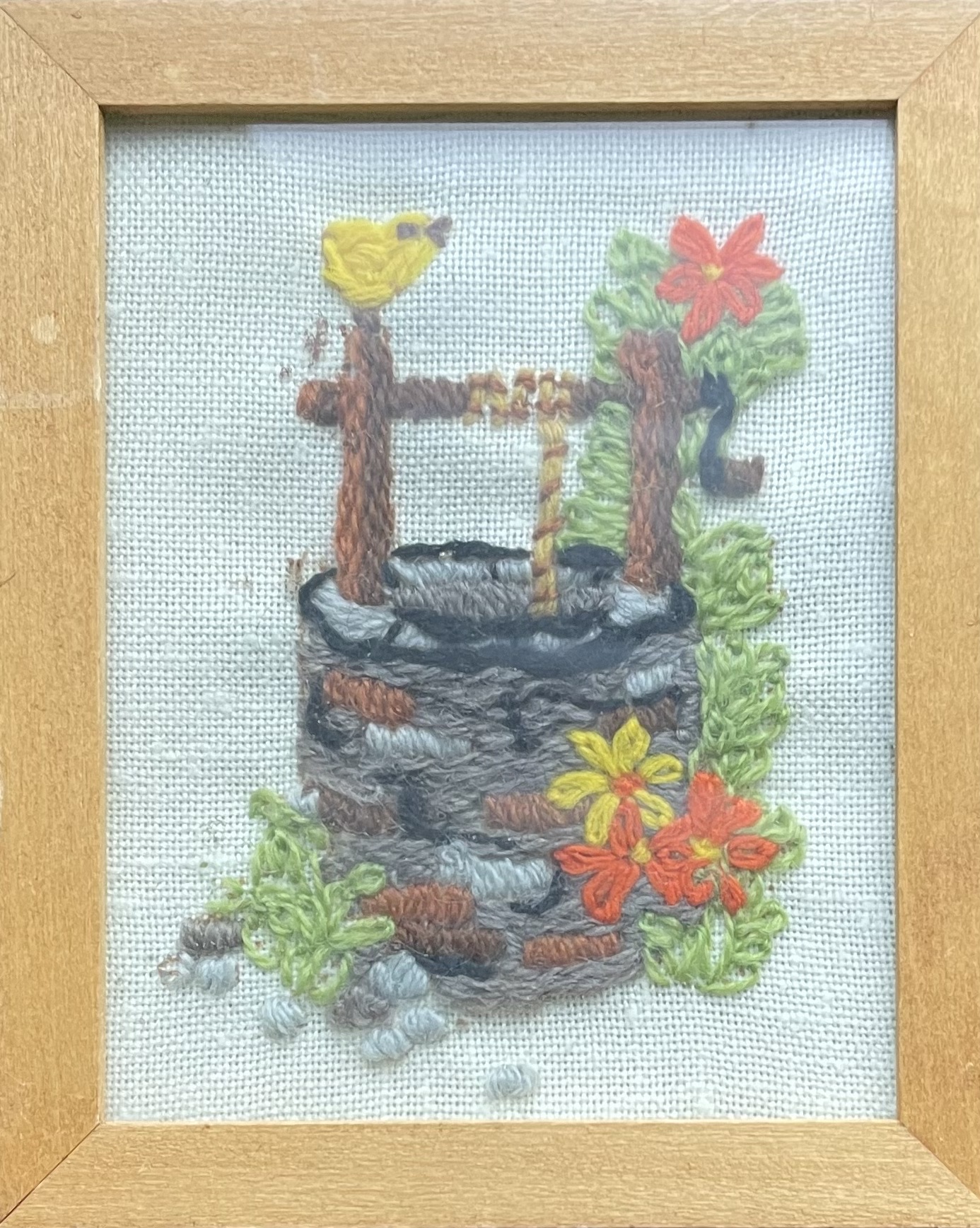
There was also a collection of the embroidery pieces I created as a kid and gave to my grandmother. She had framed them and hung them on the wall of the apartment she shared with my grandfather in their retirement home. (How sweet is that?) That’s a photo of one of them at the top of the post. The Elfa file cart has two drawers on the bottom and I ended up using both of them to hold all the dimensional stuff.

I worked hard not to spend a lot of time on individual items. The goal was to simply sort them to make them accessible. And it felt great. I can’t wait to dig in to the individual pieces.

In the next step, I will take a closer look at each document and assess value and usefulness of each item, according to Stacy’s methodology, which is detailed in her post, How to BEGIN with the BOX, on StacyJulian.com. I’ll blog about step two as soon as I finish it!

Here’s my post on step two!

Filed Under: Challenges, Excitement, My family, Organizing, Preservation Tagged With: Brown, family photos, Jeffries, organizing aids, overwhelm, paper files, resources, Stacy Julian

How I process Newspapers.com articles

July 10, 2020 By Janine Adams 25 Comments

I’ve been doing a lot of research on Newspapers.com recently. I downloaded a number of articles about my maternal grandparents, Crawford and Susie (Jeffries) Brown, who lived in Spokane, Washington, from 1936 until their deaths in the 1990s. My mother, Betty Sue Brown Adams, was born in Missouri in 1933, but the family to Spokane when she was three and lived there until she left for college.

The Spokesman-Review, Spokane’s daily paper, is part of Newspapers.com Publisher Extra collection. I did a seven-day free trial with them and when it was over I still I had research I wanted to do, so I signed up for a 30-day subscription for $19.99. (I didn’t want to spend $60 for a six-month subscription.) With the clock ticking, I’ve been downloading articles and also working through my backlog of downloaded articles. In doing so much research on Newspapers.com, I’ve developed a method of downloading and processing the articles that I thought I’d share with you here with some screenshots in case it’s helpful.

As always, I’m sharing what works for me…that doesn’t make it the right way or the best way. And it doesn’t mean I won’t change it up later. But this is what I’m doing now. (Several years ago, I did a screencast of how I process newspaper articles from Genealogy Bank, which was slightly different. If you’re interested, you can check it out here.)

When you find an article on Newspapers.com, you have the option to clip the article so that you find it later on Newspapers.com and others can see it (you can also download, share or save on Ancestry.com by clipping an article), or you can print or save the article. Because I don’t plan to keep my Publisher’s Extra subscription and because I prefer to download everything to my hard drive, I choose to the download the article and also to download the entire page it is on, for context. Here’s what I do:

Once I’ve found an article that I want to save (in this example, it’s a 1943 article about my ten-year-old mother performing in a musical program at a PTA meeting), I click on Print/Save.

Then I click on Select portion of page. (Click on any of these images to make them larger.)

Processing an article from Newspapers.com Step OneThen I outline the article using Newspaper.com’s grab tool and click Save.

Processing an article from Newspapers.com Step One

Once I click Save, I’m given an option of saving it as a jpg or a pdf. When you save as a pdf, the source information is included. I always save a clip as a pdf.

Processing an article from Newspapers.com Step Three

Once I click Save as PDF, the article is downloaded to my hard drive. When I open it, it looks like this:

Processing an article from Newspapers.com Step Four

You can see that Newspapers.com has included the newspaper title, date, and page number of the article, as well as the date it was downloaded and the URL for the image. This is really helpful when I create the source citation in Reunion, the genealogy software I use on my Mac. Notice that I have changed the filename of the article per my file-naming protocol. I always put “clip” in the filename for the clipped articles, since I will also download the entire page using the same filename (minus “clip”). I save the article in my Surnames folder.

Next, I go back to newspapers.com, click on Print/Save again, and this time select Entire Page. Then I’m asked if I want to save it as a jpg or pdf. I always save the whole page, as a jpg. That’s just my personal preference.

Processing an article from Newspapers.com Step FourOnce I click Save as JPG, the page is downloaded and I change the filename to match the clip’s filename (omitting the word “clip.”)

Now it’s time to glean information from the article and add it to Reunion.

I take a fact from the article, enter it into Reunion and create a source citation. In Reunion, I use the template for Newspapers to create my source citations. So here’s what the source record for this article looks like (again, click any image for a larger view):

Processing an article from Newspapers.com Step FiveNote that I have attached both files, the clip and the whole page, as multimedia files in the source citation, by simply dragging them from the Finder. But before I do that, I do one other thing. I click on the little clipboard icon in the Preview pane and I paste the citation into the metadata of the file. Here’s how I do that.

I highlight the two files (article and whole page) in Finder, right (or control) click on them and then select Get Info. That brings up the metadata for those files. I paste the source citation in the Comments field. This is really helpful later on if I want to see which source a particular file is attached to.

Processing an article from Newspapers.com Step Six

Then I drag the files into the source record. After I’ve gleaned all the information from the articles, I file them in my folder structure.

A final note: In this particular example, you might be curious how I entered this tidbit about a musical program in Reunion. Under Residence in the Events tab, I added the date of the newspaper article and Spokane, recording that my mother lived in Spokane on 16 May 1943.  But I took it a little further. This was one of six Spokesman-Review articles I found about my mother performing as a girl. So in the Notes tab I also created a little listing of those performances. Here’s a screenshot:

Processing an article from Newspapers.comI don’t know if it looks complicated laid out like this, but it really isn’t. I pretty easily got into the rhythm of it. The process can get a little tedious, but I think it’s worth the effort to have both the clip and the whole page downloaded. The little nuggets you get from newspaper research can really paint a great picture!


Filed Under: Challenges, Genealogy tips, Organizing, Technology Tagged With: Brown, electronic files, genealogy tools, newspaper clippings, newspapers, organizing aids, research, source documentation

  • Page 1
  • Page 2
  • Page 3
  • Interim pages omitted …
  • Page 8
  • Go to Next Page »

about me

I'm Janine Adams, a professional organizer and a genealogy enthusiast. I love doing family history research, but I find it's very easy for me to get overwhelmed and not know where to turn next. So I'm working hard to stay organized and feel in control as I grow my family tree.

In this blog, I share my discoveries and explorations, along with my organizing challenges (and solutions). I hope by sharing what I learn along the way I'll be able to help you stay focused and have fun while you do your research, too.

tags

30 x 30 Adams amy johnson crow anniversary Brown cemetery census Civil War conferences connections dna electronic files Evernote excitement Family Curator family photos genealogy tools getting started goals How They Do It Igleheart Jeffries keepsakes learning opportunities maps newspapers NGS organizing aids overwhelm paper files planning quick tips rasco record keeping research research log research trip resources RootsTech social history source documentation Stacy Julian technology time management vital records

join the facebook community!

join the facebook community!

My organizing business

Learn more about my organizing business, Peace of Mind Organizing®.

Subscribe by RSS

  • RSS - Posts
  • RSS - Comments

© 2026 Janine Adams


Loading Comments...