• BLOG
  • ABOUT
    • Privacy Policy

Organize Your Family History

Stay focused and happy while exploring your roots

Revisit: How I process Newspapers.com articles

April 21, 2025 By Janine Adams 10 Comments

I’ve been looking through my published blog posts for some that might be worthy of repeating. This article from 2020 is one that I thought folks might find helpful. The screenshots may not exactly match how things look currently on Newspapers.com and to be honest I haven’t had a subscription in awhile so I wasn’t able to verify that all the steps are exactly right. But I’m going on faith that it’s up-to-date enough to be helpful to those looking for ideas on including newspaper articles in their genealogy database. When I published it originally, it garnered some valuable comments, so you might want to check the comments on the original version.

I’ve been doing a lot of research on Newspapers.com recently. I downloaded a number of articles about my maternal grandparents, Crawford and Susie (Jeffries) Brown, who lived in Spokane, Washington, from 1936 until their deaths in the 1990s. My mother, Betty Sue Brown Adams, was born in Missouri in 1933, but the family to Spokane when she was three and lived there until she left for college.

The Spokesman-Review, Spokane’s daily paper, is part of Newspapers.com Publisher Extra collection. I did a seven-day free trial with them and when it was over I still I had research I wanted to do, so I signed up for a 30-day subscription for $19.99. (I didn’t want to spend $60 for a six-month subscription.) With the clock ticking, I’ve been downloading articles and also working through my backlog of downloaded articles. In doing so much research on Newspapers.com, I’ve developed a method of downloading and processing the articles that I thought I’d share with you here with some screenshots in case it’s helpful.

As always, I’m sharing what works for me…that doesn’t make it the right way or the best way. And it doesn’t mean I won’t change it up later. But this is what I’m doing now. (Several years ago, I did a screencast of how I process newspaper articles from Genealogy Bank, which was slightly different. If you’re interested, you can check it out here.)

When you find an article on Newspapers.com, you have the option to clip the article so that you find it later on Newspapers.com and others can see it (you can also download, share or save on Ancestry.com by clipping an article), or you can print or save the article. Because I don’t plan to keep my Publisher’s Extra subscription and because I prefer to download everything to my hard drive, I choose to the download the article and also to download the entire page it is on, for context. Here’s what I do:

Once I’ve found an article that I want to save (in this example, it’s a 1943 article about my ten-year-old mother performing in a musical program at a PTA meeting), I click on Print/Save.

Then I click on Select portion of page. (Click on any of these images to make them larger.)
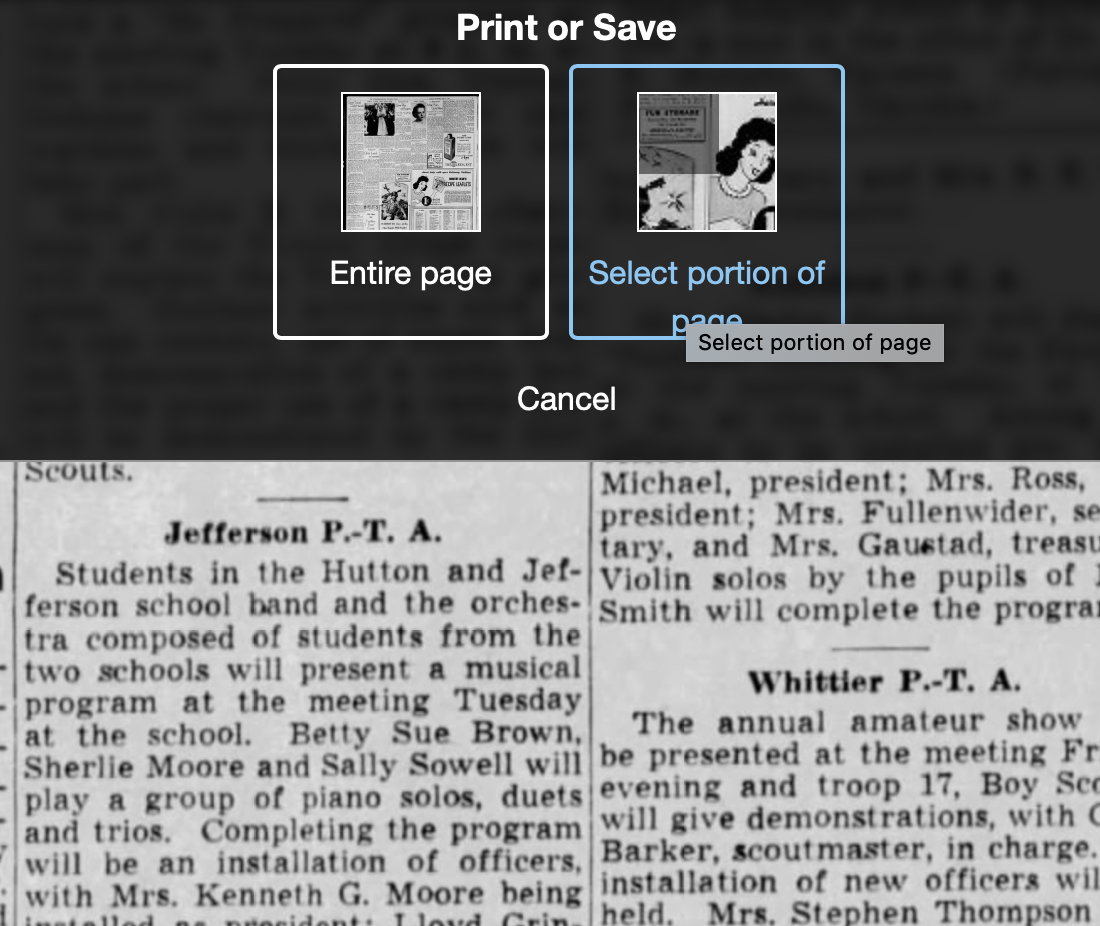
Processing an article from Newspapers.com Step OneThen I outline the article using Newspaper.com’s grab tool and click Save.
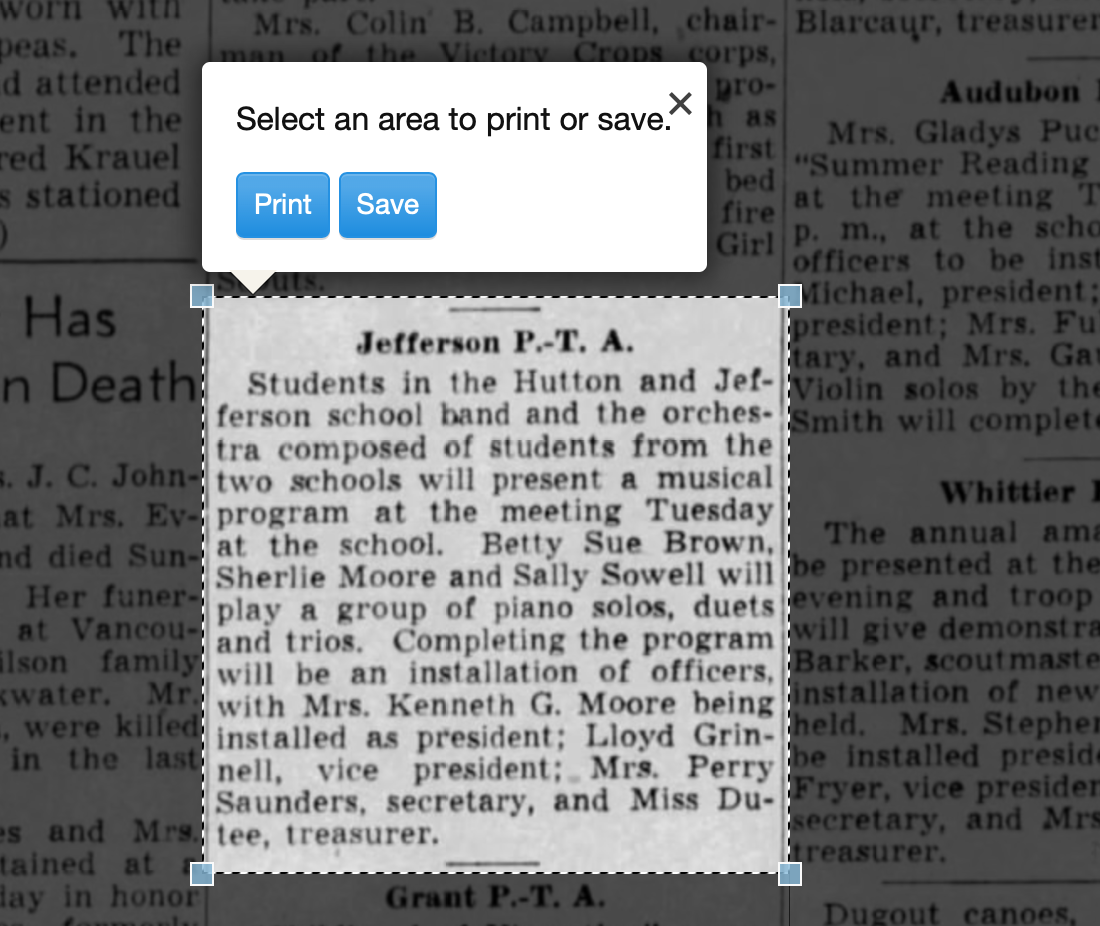
Processing an article from Newspapers.com Step One

Once I click Save, I’m given an option of saving it as a jpg or a pdf. When you save as a pdf, the source information is included. I always save a clip as a pdf.
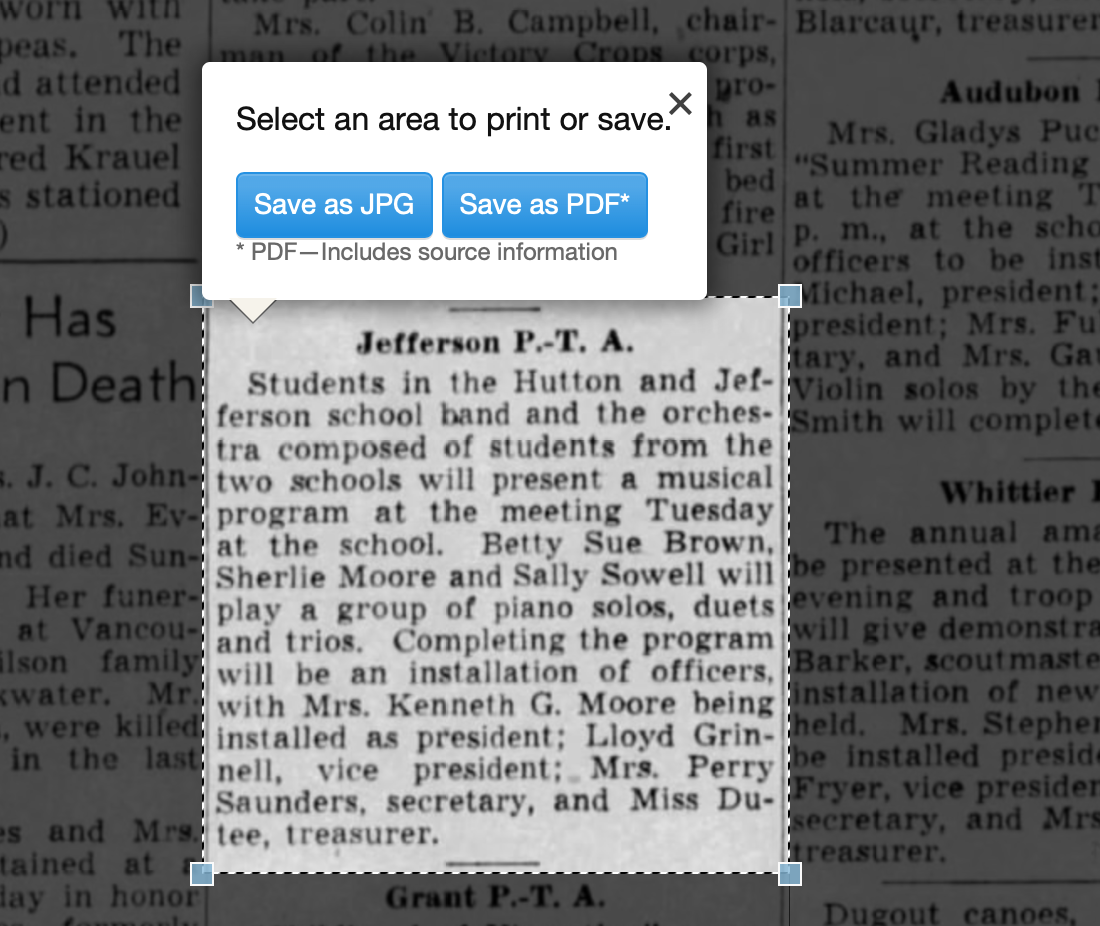
Processing an article from Newspapers.com Step Three

Once I click Save as PDF, the article is downloaded to my hard drive. When I open it, it looks like this:
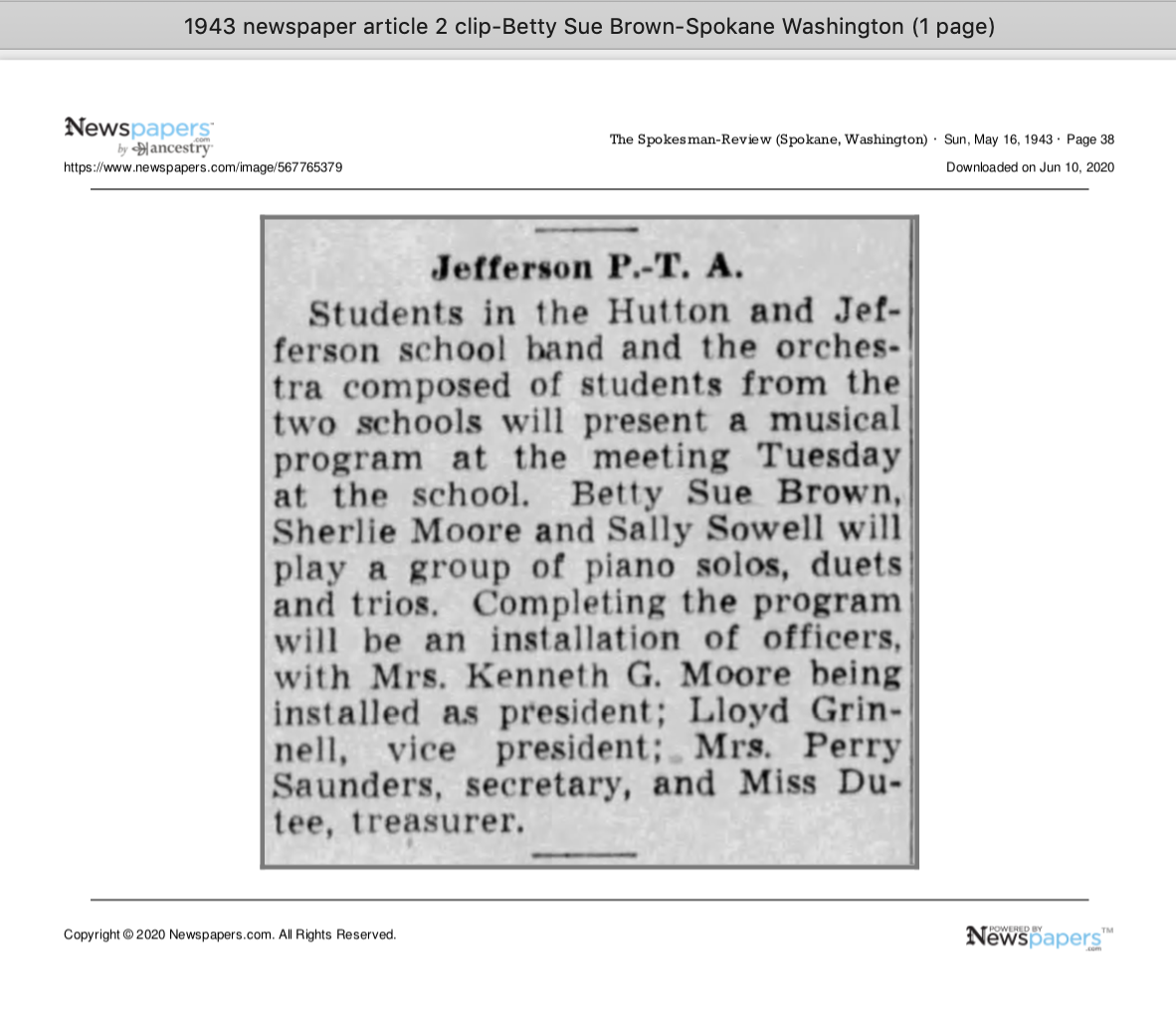
Processing an article from Newspapers.com Step Four

You can see that Newspapers.com has included the newspaper title, date, and page number of the article, as well as the date it was downloaded and the URL for the image. This is really helpful when I create the source citation in Reunion, the genealogy software I use on my Mac. Notice that I have changed the filename of the article per my file-naming protocol. I always put “clip” in the filename for the clipped articles, since I will also download the entire page using the same filename (minus “clip”). I save the article in my Surnames folder.

Next, I go back to newspapers.com, click on Print/Save again, and this time select Entire Page. Then I’m asked if I want to save it as a jpg or pdf. I always save the whole page, as a jpg. That’s just my personal preference.

Processing an article from Newspapers.com Step FourOnce I click Save as JPG, the page is downloaded and I change the filename to match the clip’s filename (omitting the word “clip.”)

Now it’s time to glean information from the article and add it to Reunion.

I take a fact from the article, enter it into Reunion and create a source citation. In Reunion, I use the template for Newspapers to create my source citations. So here’s what the source record for this article looks like (again, click any image for a larger view):
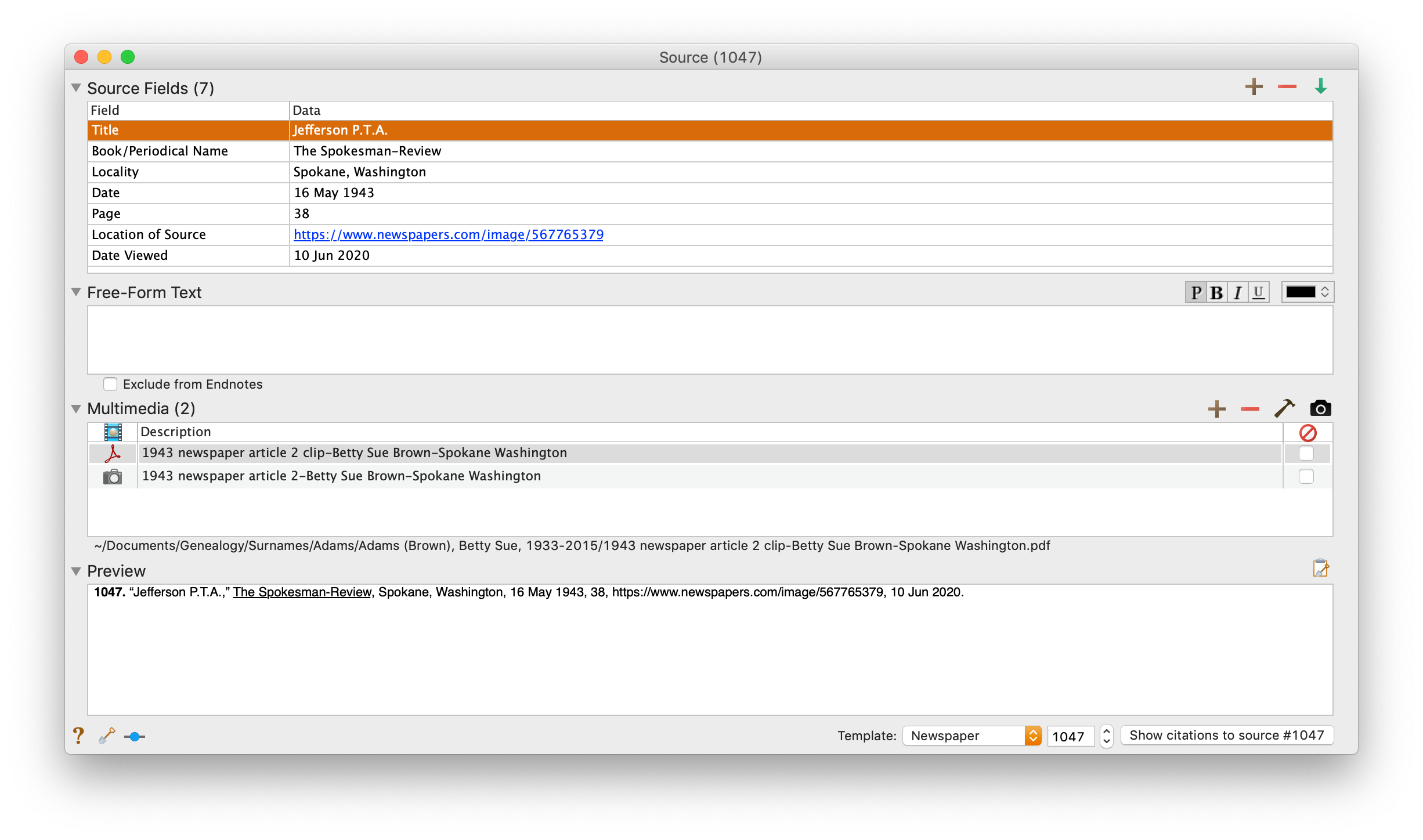
Processing an article from Newspapers.com Step FiveNote that I have attached both files, the clip and the whole page, as multimedia files in the source citation, by simply dragging them from the Finder. But before I do that, I do one other thing. I click on the little clipboard icon in the Preview pane and I paste the citation into the metadata of the file. Here’s how I do that.

I highlight the two files (article and whole page) in Finder, right (or control) click on them and then select Get Info. That brings up the metadata for those files. I paste the source citation in the Comments field. This is really helpful later on if I want to see which source a particular file is attached to.
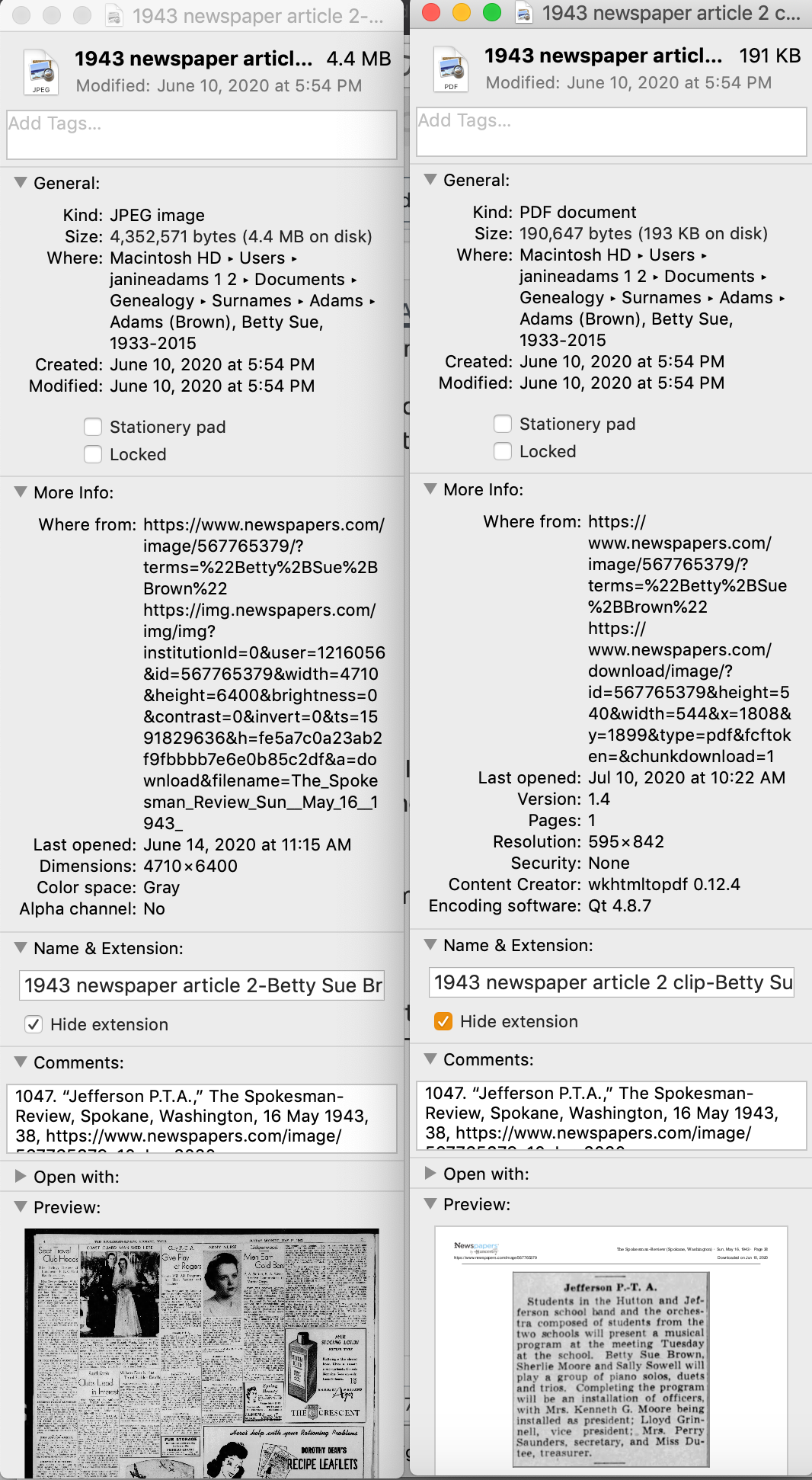
Processing an article from Newspapers.com Step Six

Then I drag the files into the source record. After I’ve gleaned all the information from the articles, I file them in my folder structure.

A final note: In this particular example, you might be curious how I entered this tidbit about a musical program in Reunion. Under Residence in the Events tab, I added the date of the newspaper article and Spokane, recording that my mother lived in Spokane on 16 May 1943.  But I took it a little further. This was one of six Spokesman-Review articles I found about my mother performing as a girl. So in the Notes tab I also created a little listing of those performances. Here’s a screenshot:
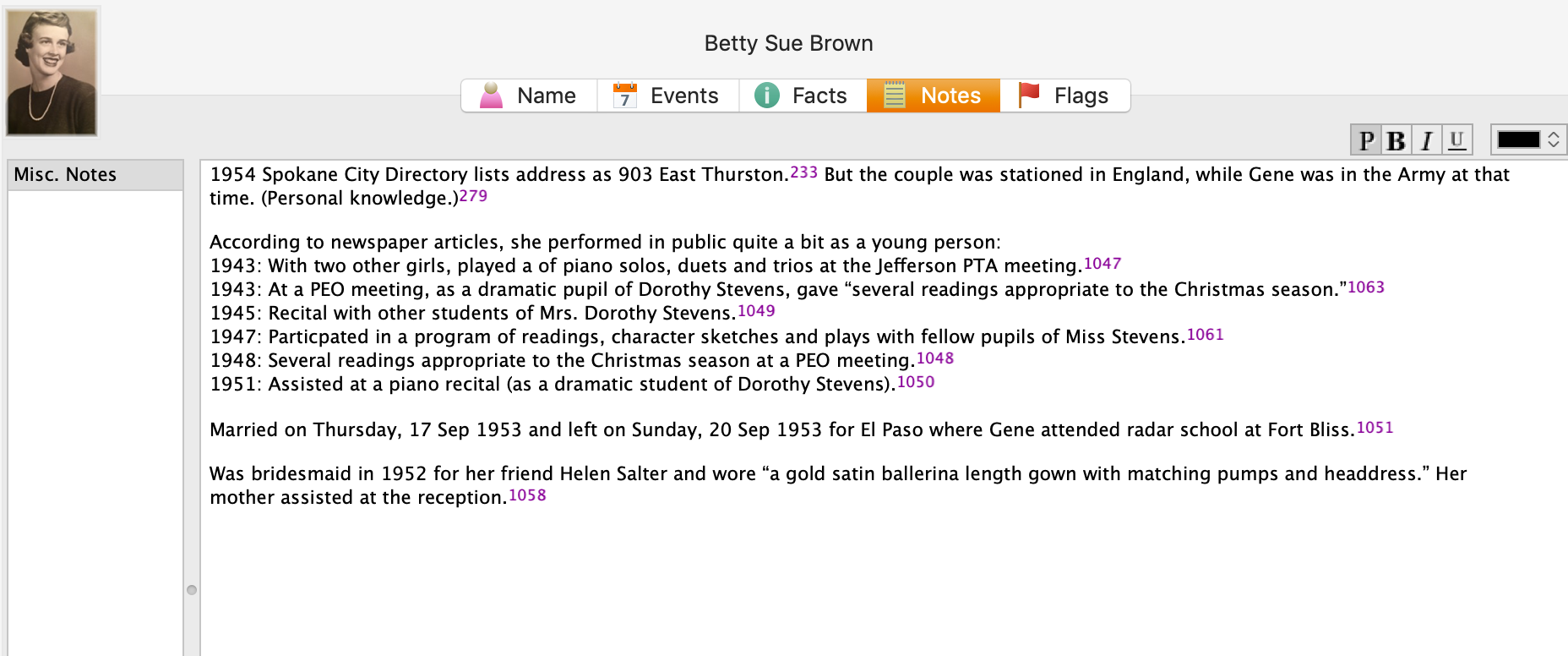
Processing an article from Newspapers.comI don’t know if it looks complicated laid out like this, but it really isn’t. I pretty easily got into the rhythm of it. The process can get a little tedious, but I think it’s worth the effort to have both the clip and the whole page downloaded. The little nuggets you get from newspaper research can really paint a great picture!
 

Filed Under: Challenges, Genealogy tips, Organizing, Technology Tagged With: Brown, electronic files, genealogy tools, newspaper clippings, newspapers, organizing aids, research, source documentation

How I processed my Civil War pension files

April 14, 2025 By Janine Adams 4 Comments

I’m fortunate to have three ancestors who fought on the Union side in the Civil War and for whom I was able to obtain pension files from the National Archives. Ten years ago, I wrote a post about how I processed those files, starting with creating a robust source citation. I got good feedback on the post, so I thought I’d resurrect it in case newer readers would find it helpful. The pension files truly are treasure troves of information and the painstaking time I spent going through them paid off. If you want to request your ancestor’s pension file, you can do so on this page of the NARA website.

Processing civil war pension filesAs I mentioned a couple of weeks ago, I received my 3d great grandfather’s Civil War pension files from the National Archives in record time. I’d been prepared to wait 45 to 120 days and it arrived the week after I submitted the request online.

I dug right in and started processing the information. I was so grateful that I had attended the class Anatomy of a Military Pension, presented by Certified Genealogist Julie Miller at the National Genealogical Society’s annual conference that month. She provided step-by-step instructions of what to do with a military pension.

So the day after I received that 65-page pension file, I did what Julie suggested. I put the documents in chronological order and I assigned a number to each. Then I figured out a citation for the overall file and a  citation for each of the numbered documents.

Coming up with a proper citation was a bit of a challenge and I emailed Julie, who was kind enough to share the citation she uses for these files. (She had given us that info in the talk, but I hadn’t written it down.)

Here’s the citation I’m using for the overall pension file for my ggggrandfather, Richard Anderson Jeffries:

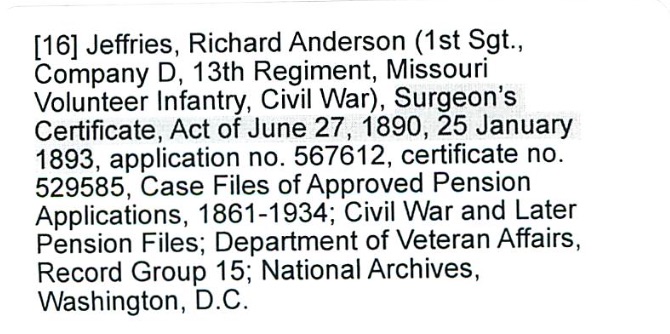
[278] Jeffries, Richard Anderson (1st Sgt., Company D, 13th Regiment, Missouri Volunteer Infantry, Civil War), application no. 567612, certificate no. 529585, Case Files of Approved Pension Applications, 1861-1934; Civil War and Later Pension Files; Department of Veteran Affairs, Record Group 15; National Archives, Washington, D.C.

278 was the next number in my source list in Reunion, my family tree software. Each of the individual documents is numbered, starting with 1, and has its own citation. My intention is that when I enter a fact into Reunion, I’ll use Source 278, but I’ll include in the detail field which of the 26 individual documents that particular fact came from.

I created citation labels for each of the documents and affixed them to the appropriate pages. (That’s the citation for document 16 above.) Then I scanned the whole document into a pdf. I elected to have one pdf, rather than 26 individual ones–time will tell whether that was a good choice. (Edited to add a year later: Yes! That was a great choice.)

The next step, according to Julie is to transcribe the documents. Yes, I’m going to type word for word exactly what is on the documents. Julie urged us not to skip that step because when we transcribe, we learn things we would not otherwise learn.

After I transcribe, I will abstract the documents, so I can tell at a glance what they are and what info is contained within each. And then I’ll enter the new-found facts into Reunion, my family-tree software.

That’s a lot of work, but I’m delighted to have learned how to be thorough with it. And I know I’ll learn so much about my ancestor.

I am so grateful to have this structure, because just a few days after receiving Richard Anderson Jeffries’s file, I received the pension file for my gggrandfather, George Washington Adams. That file is over 100 pages; I had to request and pay for the rest of the file (another 80 pages) to be copied–I’m still waiting for part two. That same week I received the third and final pension file, for another gggrandfather, Benjamin Franklin Igleheart. All three pension files, probably 250 pages, came within two weeks of my request.

If I did not have the structure Julie provided in that talk to thoroughly process the information, I know I would feel overwhelmed. I would probably skim the documents, pluck out a few easy-to-find facts, and put them away intending to get to them later. And I don’t know when later would be.

I have skimmed the most recently received pension files to get a preview what I’m going to learn. (G.W. Adams had a big dispute about the amount of his pension–an adversary in the Soldier’s Home turned him in for saying he was more disabled than he was!) But I’m not going to analyze them until I’m finished with Richard Anderson Jeffries. So that will be motivation to go through the process.

I think these pension files are going to be a great learning experience not just about my ancestors, but also about doing proper genealogical research. This feels great!

Filed Under: Challenges, Genealogy tips, Organizing Tagged With: Adams, Civil War, excitement, Jeffries, overwhelm, record keeping, research, source documentation

Creating a digital workflow

March 1, 2024 By Janine Adams Leave a Comment

Since it’s RootsTech time, I was thinking about the talk I co-presented at RootsTech 2017 with Brooks Duncan called Going Paperless in Genealogy. Shortly after I wrote a post about my digital workflow that presents it pretty concisely. I’m happy to report that the workflow has stood the test of time. I thought now would be a good time to repeat that post.

When Brooks Duncan and I spoke at RootsTech about going digital with genealogy research, it became apparent to me from the questions that digital workflow is an individual thing. I’ve developed a work flow that works well for me, so I thought I’d share it here. I’m not suggesting I do things The Right Way (I don’t know if there is a right way, especially for hobbyists), but I wanted to show you what works for me. I know that I love seeing examples of how people handle their own workflow, so in the spirit of sharing, here’s mine.

When I find a digital document online–let’s say it’s a census document that I found at Ancestry–I take the following steps after ascertaining that it’s pertinent to my research:

  1. I click Save to download the document to my computer’s desktop.
  2. I rename the file immediately so that it reflects my simple file-naming protocol (year document type-ancestor name-location).
  3. I immediately file the document in my file structure (Genealogy/Surnames/[Ancestor’s surname]/[Ancestor’s name]
  4. I analyze the document and enter the first fact into my Reunion software.
  5. I create a source for that fact, using Reunion’s templates.
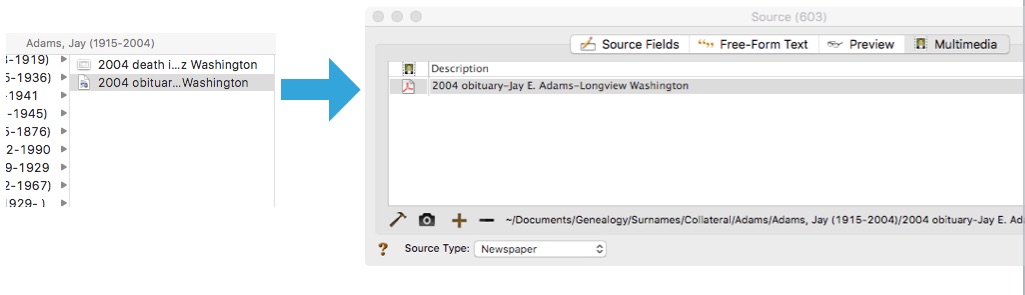
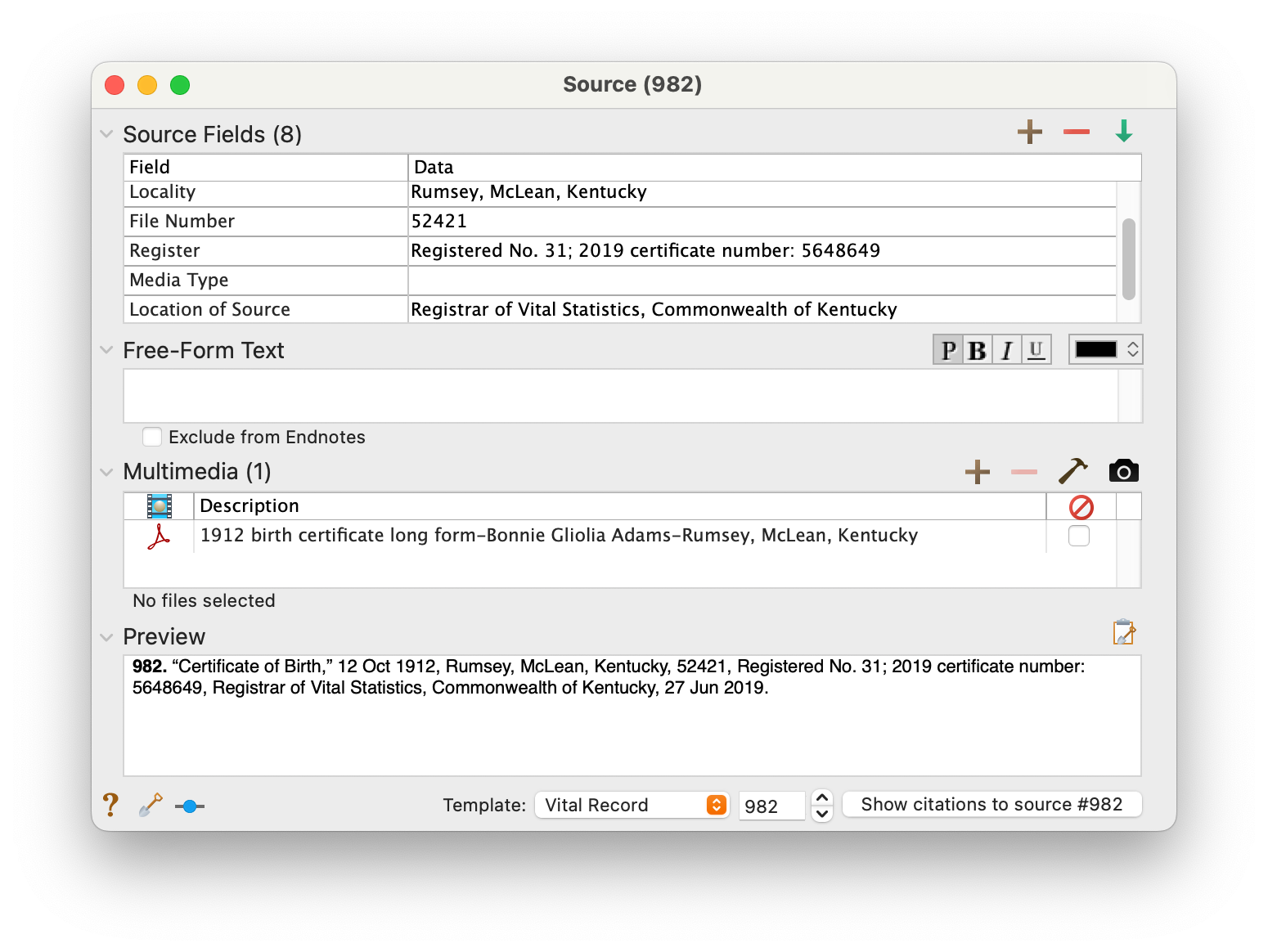
  6. I drag the image of the file into the Multimedia section of the Reunion source screen for that source. (That’s an example of the Reunion source screen at the top of this post.)
  7. I enter all other facts I find in the document into Reunion, using the same source number for each fact I find in that document.
  8. I click Preview in the Reunion source screen for that source and copy the citation and paste it into the metadata of the image file on my hard drive.

I added that last step after RootsTech, adapting a suggestion made by an audience member at our talk. I hadn’t thought about noting on the image what the source number and citation is. I think it’s a great idea and now I intend to go to back and do that for all my sources.

This eight-step work flow takes me from discovery through processing the document. It means that I don’t have stray documents on my hard drive with nonsensical file means. It also means I can easily a find a document when I want to. And it helps me see what documents are missing. Having the confidence that I can find a document I’ve saved allows me to feel good about not printing it, which cuts down on my paper clutter. (And, yes, I backup my hard drive daily, both to the cloud and to an external hard drive.) This workflow was about five years in the making, and I’m very satisfied with it!

For more in-depth information on how I organize my own genealogy, including a detailed look at my digital workflow, check out How I Do It: A Professional Organizer’s Genealogy Workflow, a 37-page downloadable available for $19.99.


Filed Under: Organizing, Technology Tagged With: electronic files, organizing aids, record keeping, source documentation

My process for downloaded documents

May 5, 2023 By Janine Adams 4 Comments

Life’s a little nuts right now, so rather than creating a new post, I’m re-running this post from October 20, 2017 in which I describe my workflow for a document I downloaded from the internet. Almost six years later, the process hasn’t really changed! For more detailed information on how I process digital documents, check out How I Do It: A Professional Organizer’s Genealogy Workflow, a 37-page downloadable pdf available for $19.99.

Last March, I wrote a post called My digital workflow that detailed what I do with a document I find on the Internet. (I never print it.) My digital workflow has not changed since then and it’s working out really well for me.

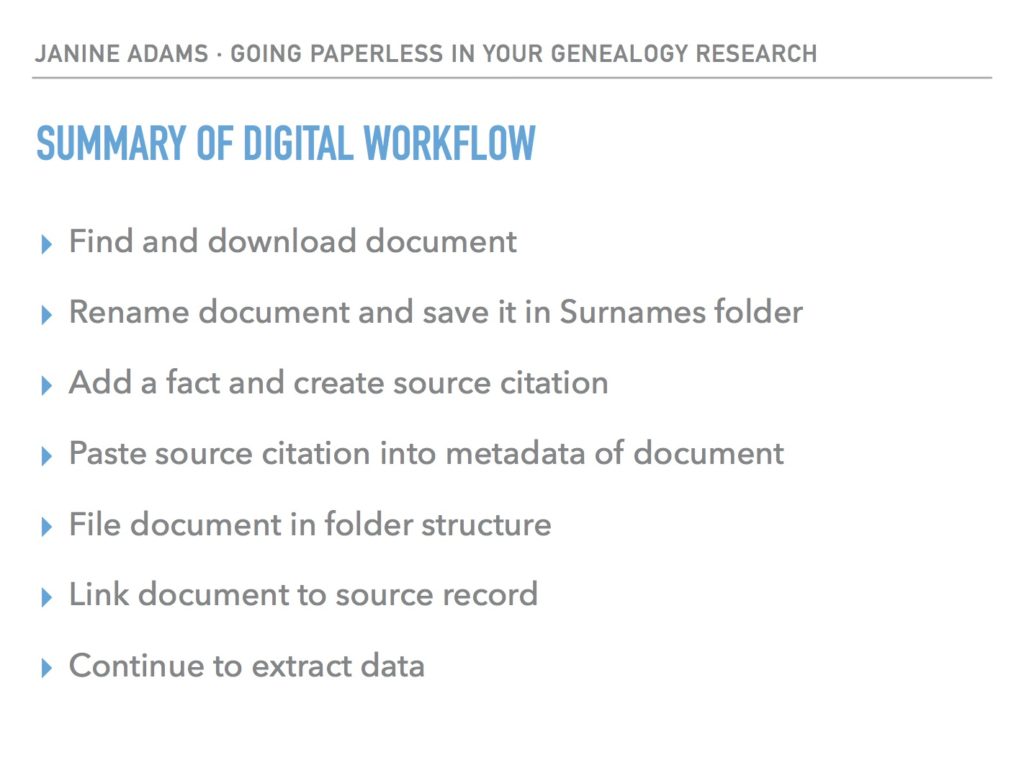
Last weekend, I did a talk at the St. Louis Genealogy Conference about going paperless and in my Powerpoint I included screenshots of the digital workflow and also a summary slide. The attendees asked for copies of the summary slide, so I decided to post it here.

The process is basically the same as my March post but I switched up the steps a little.

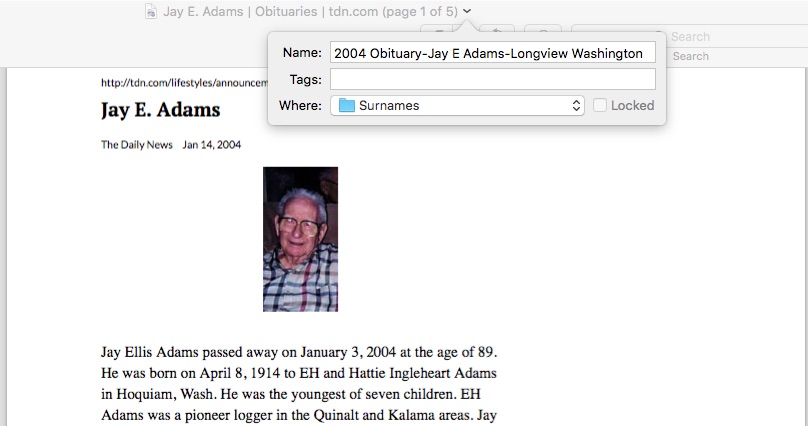
The example I used in my talk was my father’s uncle, Jay Ellis Adams (1914-2004). I had found his obituary online at the newspaper’s website. Here’s the workflow:

1. I click Print and, in the printer dialog box, Open in Preview (my Mac’s default pdf reader), which downloads the document to my computer. (If it had been a document at Ancestry, I would have clicked Save, then Save to My Computer.)

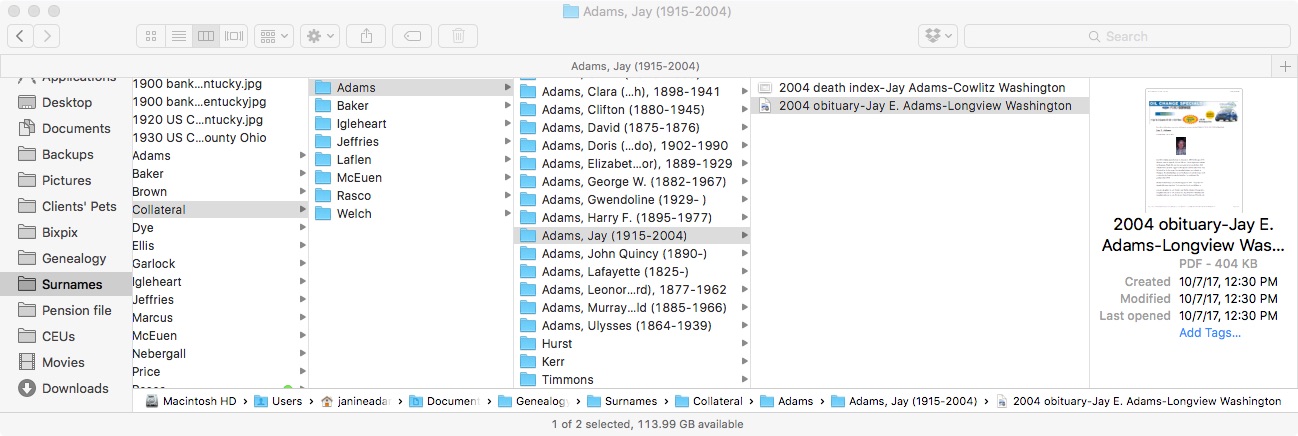
2. I immediately rename the file, using my file-naming protocol, which is Date Type of Document-Ancestor Name-Locality. I stick it into my Surnames folder, as a temporary holding place until I file it in step 6. I know that any unfiled documents in the Surnames folder require processing.


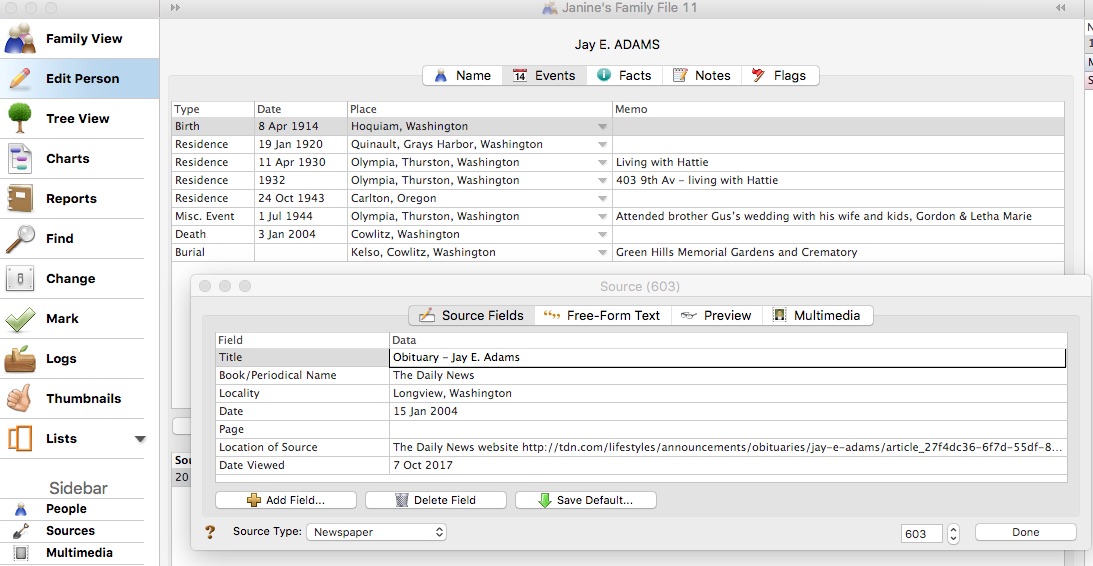
3. I select a fact from the document, add it to Reunion and create a source citation for it.


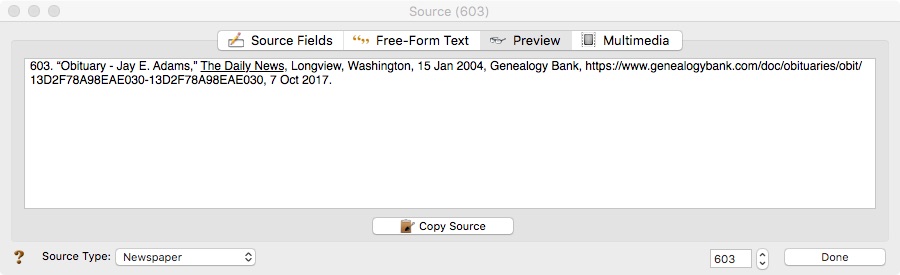
4. In Reunion, I click the Preview tab in the source record and then click Copy Source. (For the eagle-eyes among you, I originally found a transcript at Genealogy Bank and used that as the source citation. Then I decided to go to the newspaper’s website and download it from there, so I changed the source citation. But I was too lazy to take a new screenshot.)

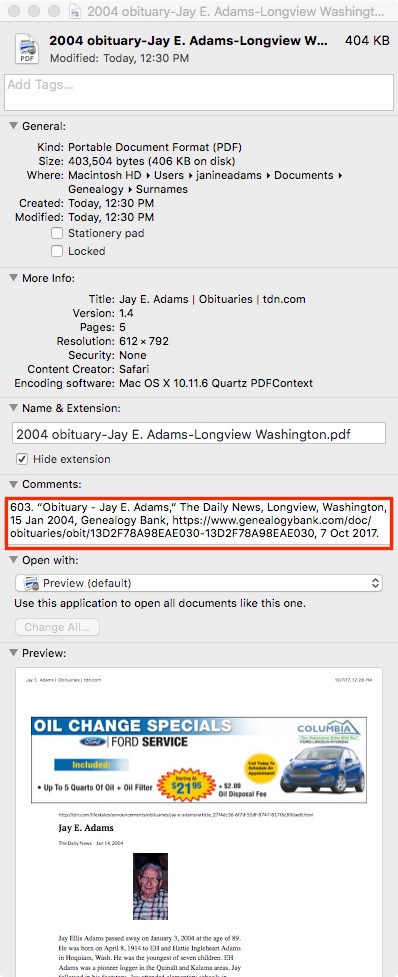
5. I paste the source citation into the metadata of the source document (the obituary) by Ctrl-clicking on the file and selecting Get Info from the menu that appears, then pasting into the Comments area.


6. Then I file the document into my folder structure. My folder structure for collateral relatives is Genealogy/Surnames/Collateral/[Surname]/[Name of Ancestor (YOB-YOD)]. If the document  applies to multiple people, I duplicate it for each person and then drag it into the appropriate folder for each person. But I don’t take the trouble to rename it.

7. The final step is to drag the document into the Multimedia area of the source record in Reunion. This creates a link to the document so that I can open it up inside Reunion, which is very handy.


From there, I continue to extract information from the source document and add that it to Reunion. Every piece of information I glean from a single source document uses the same source number, no matter what person it applies to.

Here’s the summary slide:

This is the way I do and it works well for me. Of course, it’s not the only way to do it or perhaps the best way to do it. But I’m hoping you’ll find it useful to see my workflow. I’ve been processing documents this way for almost a year now and it’s working very well.

Again, for more in-depth information on how I organize my own genealogy, check out How I Do It: A Professional Organizer’s Genealogy Workflow, a 37-page downloadable pdf available for $19.99.

Filed Under: Challenges, My family, Organizing, Technology Tagged With: Adams, electronic files, organizing aids, record keeping, source documentation

  • Page 1
  • Page 2
  • Page 3
  • Interim pages omitted …
  • Page 9
  • Go to Next Page »

about me

I'm Janine Adams, a professional organizer and a genealogy enthusiast. I love doing family history research, but I find it's very easy for me to get overwhelmed and not know where to turn next. So I'm working hard to stay organized and feel in control as I grow my family tree.

In this blog, I share my discoveries and explorations, along with my organizing challenges (and solutions). I hope by sharing what I learn along the way I'll be able to help you stay focused and have fun while you do your research, too.

tags

30 x 30 Adams amy johnson crow anniversary Brown cemetery census Civil War conferences connections dna electronic files Evernote excitement Family Curator family photos genealogy tools getting started goals How They Do It Igleheart Jeffries keepsakes learning opportunities maps newspapers NGS organizing aids overwhelm paper files planning quick tips rasco record keeping research research log research trip resources RootsTech social history source documentation Stacy Julian technology time management vital records

join the facebook community!

join the facebook community!

My organizing business

Learn more about my organizing business, Peace of Mind Organizing®.

Subscribe by RSS

  • RSS - Posts
  • RSS - Comments

© 2026 Janine Adams


Loading Comments...