• BLOG
  • ABOUT
    • Privacy Policy

Organize Your Family History

Stay focused and happy while exploring your roots

How I store my genealogy data

October 24, 2025 By Janine Adams 17 Comments

I originally wrote this post in 2016 and nine years later I’m amazed how little has changed about how I handle my electronic genealogy data. The only differences are that I’m using a newer version of Reunion, I moved my research notes from Evernote to Apple’s Notes app, and I use Backblaze, rather than CrashPlan Pro. Otherwise this method has stood the test of time and I have no regrets!
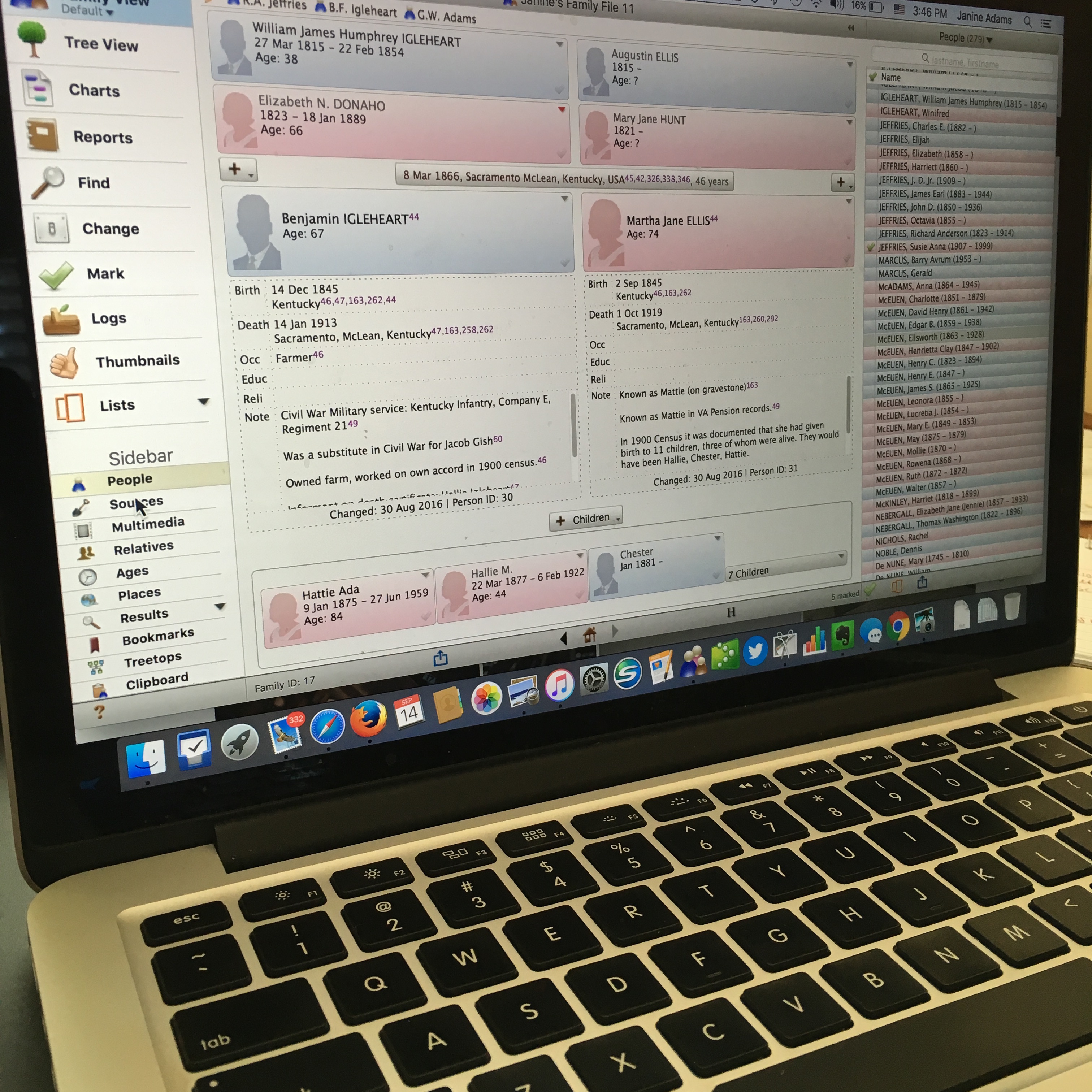
reuniononmac90I love organizing my family history research electronically. As I’ve mentioned here many times, I try not to print digital documents and instead store everything electronically where I can have easy access to it.

I don’t think I have been clear when I talk about storing my genealogy data electronically that I’m not talking about storing it as a family tree on Ancestry or Family Search. I’m talking about storing it on my hard drive.

To me, it would be folly to rely on an outside service to store my precious genealogy data. If the only copy of my information was at Ancestry, I would be required to renew my subscription to access my own data. Even storing all my information at a free site like Family Search feels risky to me. It’s conceivable that they could change their terms of service to something unacceptable to me. Or start charging for access. Or simply vanish. Another place that some people store their genealogy documents is Evernote. I think that can be a great way to have easy, searchable access to information. But I wouldn’t store genealogy documents on Evernote that I don’t also have on my hard drive. They could go belly up. (It happened with Springpad.)

I enter all of my data into family-tree software that resides on my laptop’s hard drive. I use Reunion 11, a Mac program. It can sync with the iPhone and iPad using the ReunionTouch app. I haven’t yet installed ReunionTouch because I take my Mac with me on research trips. I like that storing my data on my computer, rather than an online service, is that the information is accessible even when I don’t have an internet connection (if I have my computer with me).

Of course, I back up my hard drive, both on an external hard drive and with an online backup service (CrashPlan Pro). Backing up is critical.

I’m not saying that my way is the right way or the best way. But I’ll share with you my process for storing info, in case you find it helpful or interesting. So far, it’s working well for me.

When I find a sourced piece of information pertinent to my research this is what I do:

  1. Add the information to the appropriate person(s) in Reunion (or add a person if need be).
  2. Cite the source in Reunion.
  3. Download the information (or scan it if I found it in paper form).
  4. Attach an image of the source document to the source citation in Reunion.
  5. File the digital document in that ancestor’s electronic folder on my hard drive, copying it if it applies to more than one ancestor.
  6. Scour the source for further information.
  7. Make a note in Evernote if it sparks potential further research.

So far this feels good to me and I haven’t second guessed it.

How do you store your family tree information?

Filed Under: Challenges, Organizing, Technology Tagged With: electronic files, organizing aids, record keeping, technology

Revisit: How I process Newspapers.com articles

April 21, 2025 By Janine Adams 10 Comments

I’ve been looking through my published blog posts for some that might be worthy of repeating. This article from 2020 is one that I thought folks might find helpful. The screenshots may not exactly match how things look currently on Newspapers.com and to be honest I haven’t had a subscription in awhile so I wasn’t able to verify that all the steps are exactly right. But I’m going on faith that it’s up-to-date enough to be helpful to those looking for ideas on including newspaper articles in their genealogy database. When I published it originally, it garnered some valuable comments, so you might want to check the comments on the original version.

I’ve been doing a lot of research on Newspapers.com recently. I downloaded a number of articles about my maternal grandparents, Crawford and Susie (Jeffries) Brown, who lived in Spokane, Washington, from 1936 until their deaths in the 1990s. My mother, Betty Sue Brown Adams, was born in Missouri in 1933, but the family to Spokane when she was three and lived there until she left for college.

The Spokesman-Review, Spokane’s daily paper, is part of Newspapers.com Publisher Extra collection. I did a seven-day free trial with them and when it was over I still I had research I wanted to do, so I signed up for a 30-day subscription for $19.99. (I didn’t want to spend $60 for a six-month subscription.) With the clock ticking, I’ve been downloading articles and also working through my backlog of downloaded articles. In doing so much research on Newspapers.com, I’ve developed a method of downloading and processing the articles that I thought I’d share with you here with some screenshots in case it’s helpful.

As always, I’m sharing what works for me…that doesn’t make it the right way or the best way. And it doesn’t mean I won’t change it up later. But this is what I’m doing now. (Several years ago, I did a screencast of how I process newspaper articles from Genealogy Bank, which was slightly different. If you’re interested, you can check it out here.)

When you find an article on Newspapers.com, you have the option to clip the article so that you find it later on Newspapers.com and others can see it (you can also download, share or save on Ancestry.com by clipping an article), or you can print or save the article. Because I don’t plan to keep my Publisher’s Extra subscription and because I prefer to download everything to my hard drive, I choose to the download the article and also to download the entire page it is on, for context. Here’s what I do:

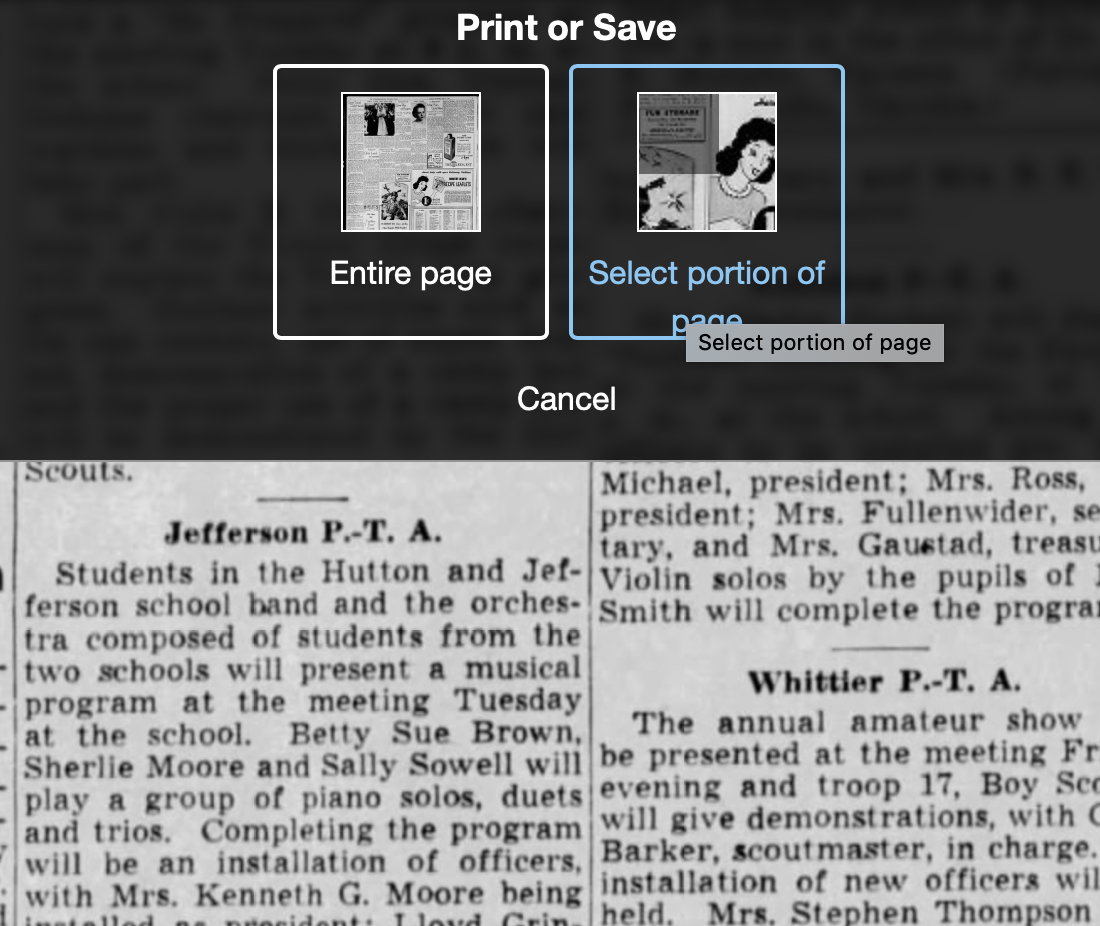
Once I’ve found an article that I want to save (in this example, it’s a 1943 article about my ten-year-old mother performing in a musical program at a PTA meeting), I click on Print/Save.

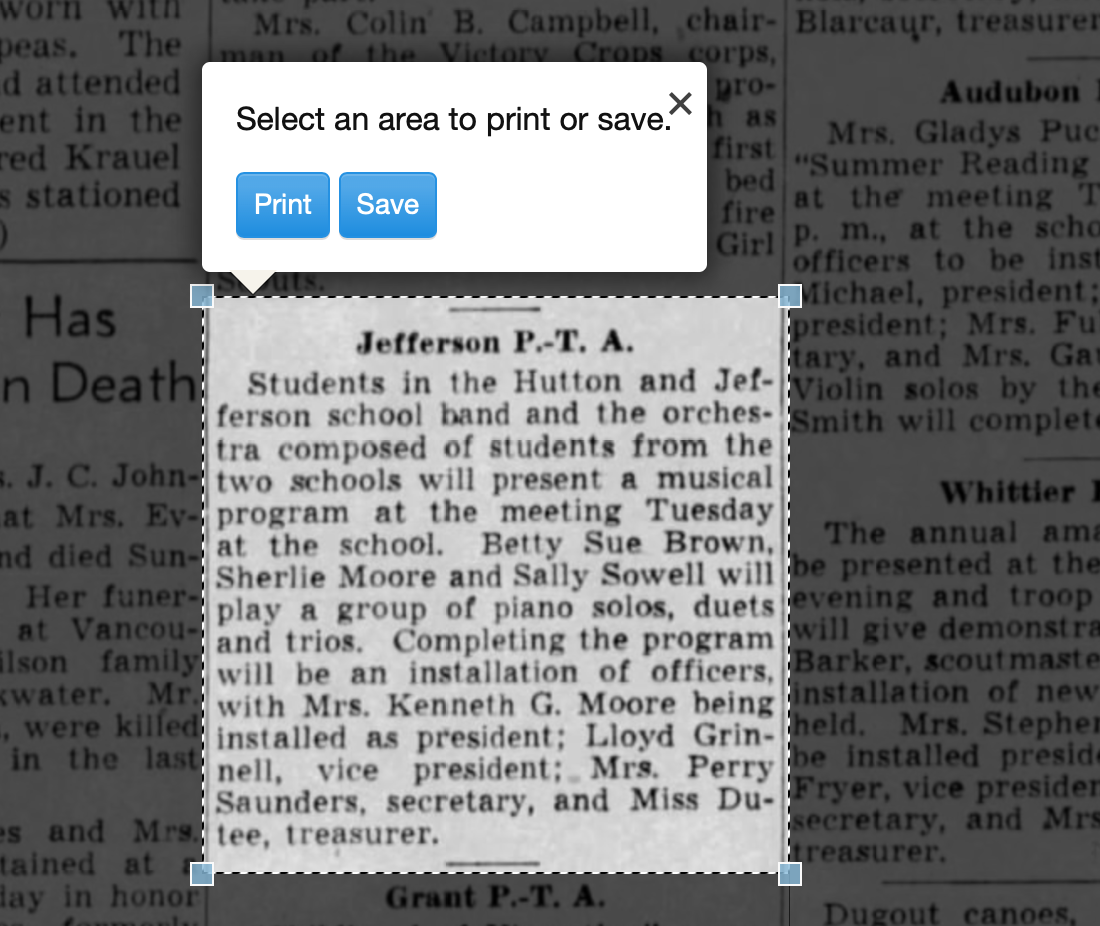
Then I click on Select portion of page. (Click on any of these images to make them larger.)

Processing an article from Newspapers.com Step OneThen I outline the article using Newspaper.com’s grab tool and click Save.

Processing an article from Newspapers.com Step One

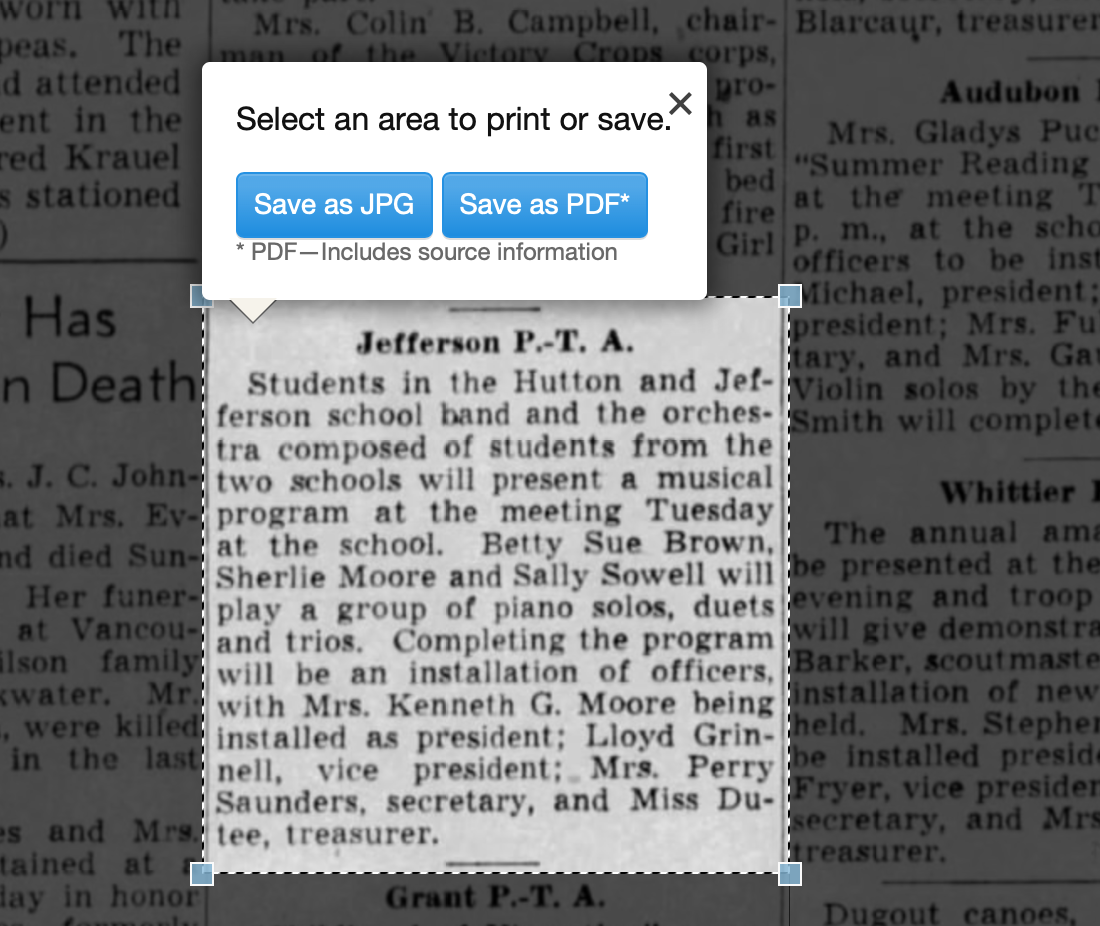
Once I click Save, I’m given an option of saving it as a jpg or a pdf. When you save as a pdf, the source information is included. I always save a clip as a pdf.

Processing an article from Newspapers.com Step Three

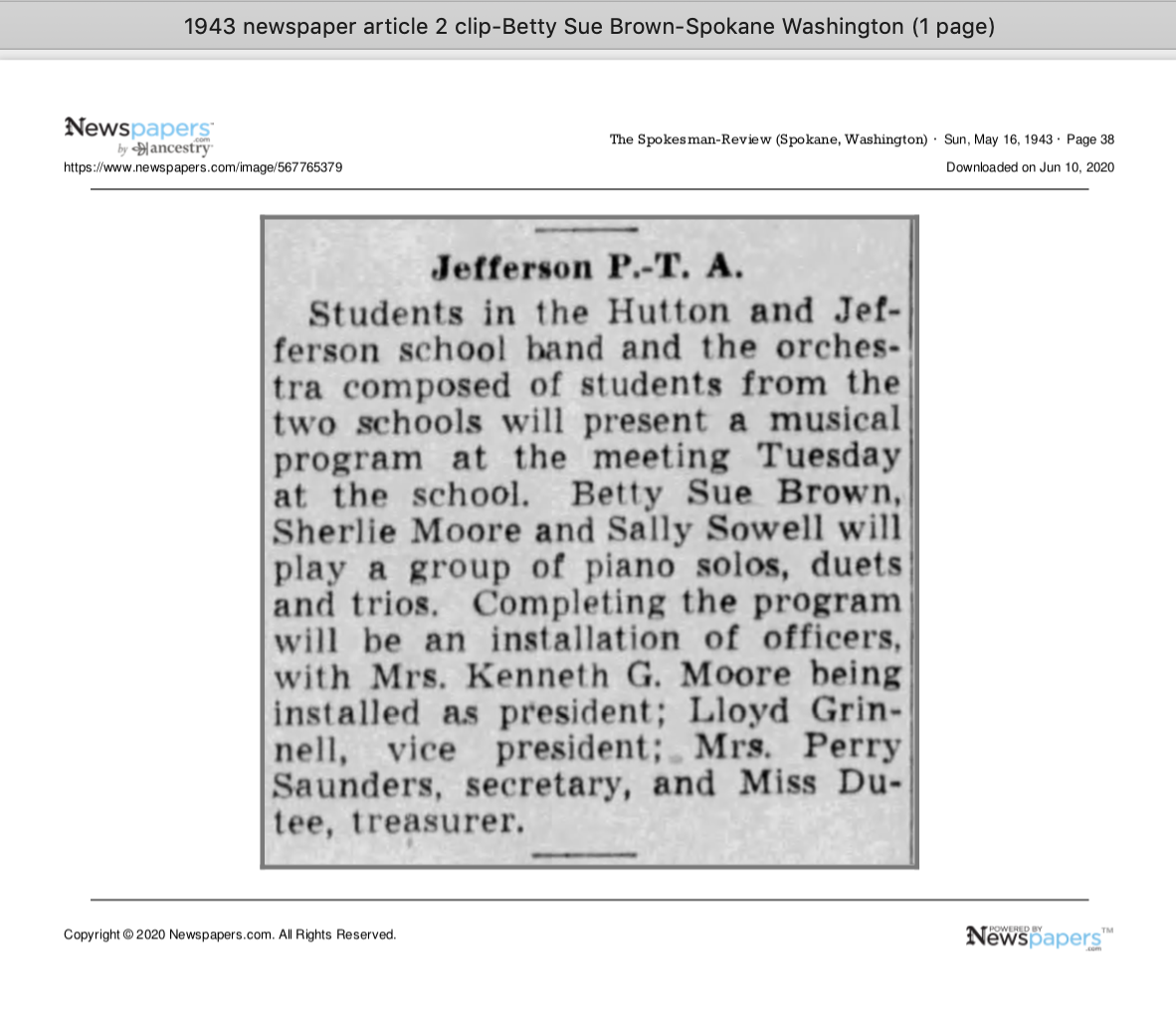
Once I click Save as PDF, the article is downloaded to my hard drive. When I open it, it looks like this:

Processing an article from Newspapers.com Step Four

You can see that Newspapers.com has included the newspaper title, date, and page number of the article, as well as the date it was downloaded and the URL for the image. This is really helpful when I create the source citation in Reunion, the genealogy software I use on my Mac. Notice that I have changed the filename of the article per my file-naming protocol. I always put “clip” in the filename for the clipped articles, since I will also download the entire page using the same filename (minus “clip”). I save the article in my Surnames folder.

Next, I go back to newspapers.com, click on Print/Save again, and this time select Entire Page. Then I’m asked if I want to save it as a jpg or pdf. I always save the whole page, as a jpg. That’s just my personal preference.

Processing an article from Newspapers.com Step FourOnce I click Save as JPG, the page is downloaded and I change the filename to match the clip’s filename (omitting the word “clip.”)

Now it’s time to glean information from the article and add it to Reunion.

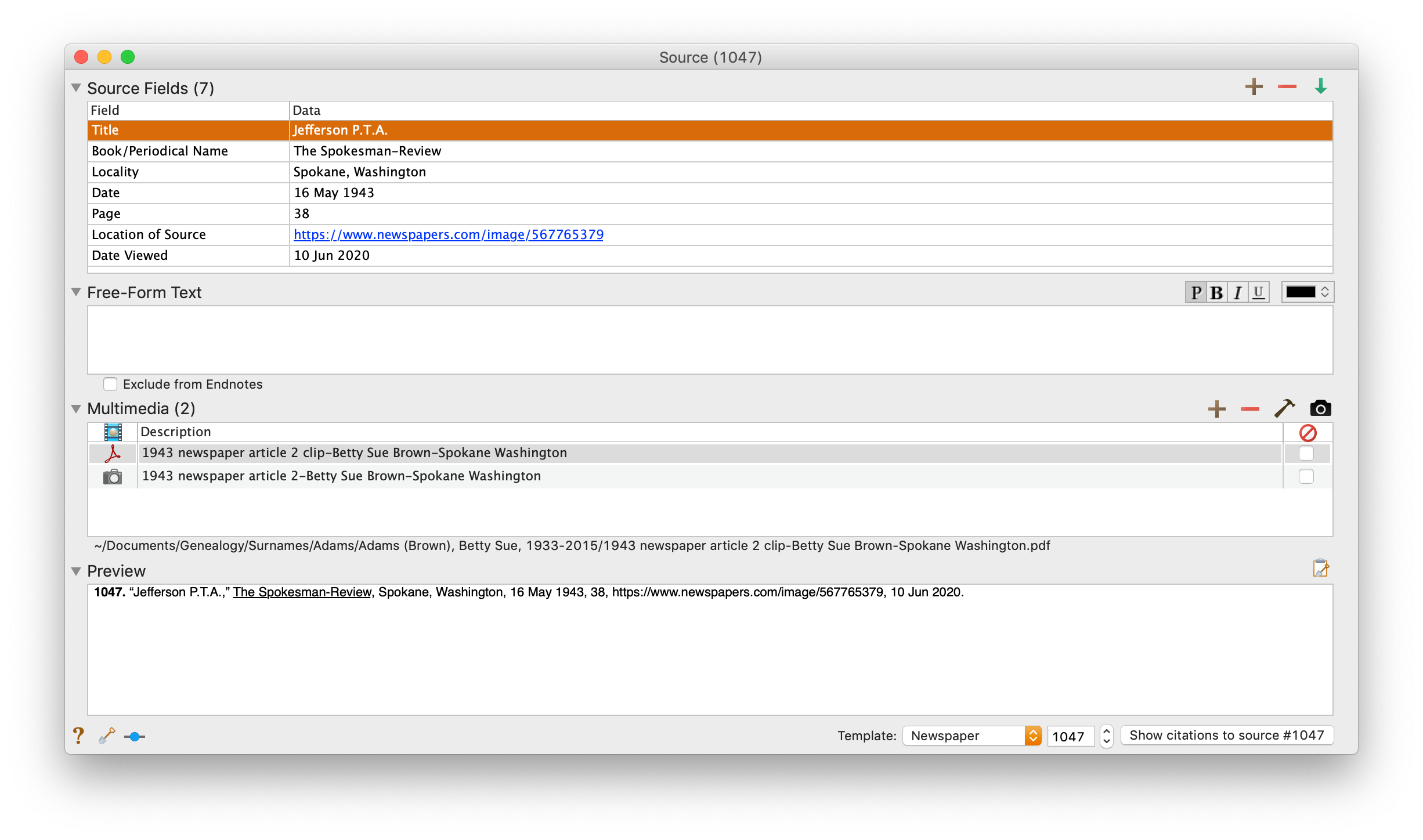
I take a fact from the article, enter it into Reunion and create a source citation. In Reunion, I use the template for Newspapers to create my source citations. So here’s what the source record for this article looks like (again, click any image for a larger view):

Processing an article from Newspapers.com Step FiveNote that I have attached both files, the clip and the whole page, as multimedia files in the source citation, by simply dragging them from the Finder. But before I do that, I do one other thing. I click on the little clipboard icon in the Preview pane and I paste the citation into the metadata of the file. Here’s how I do that.

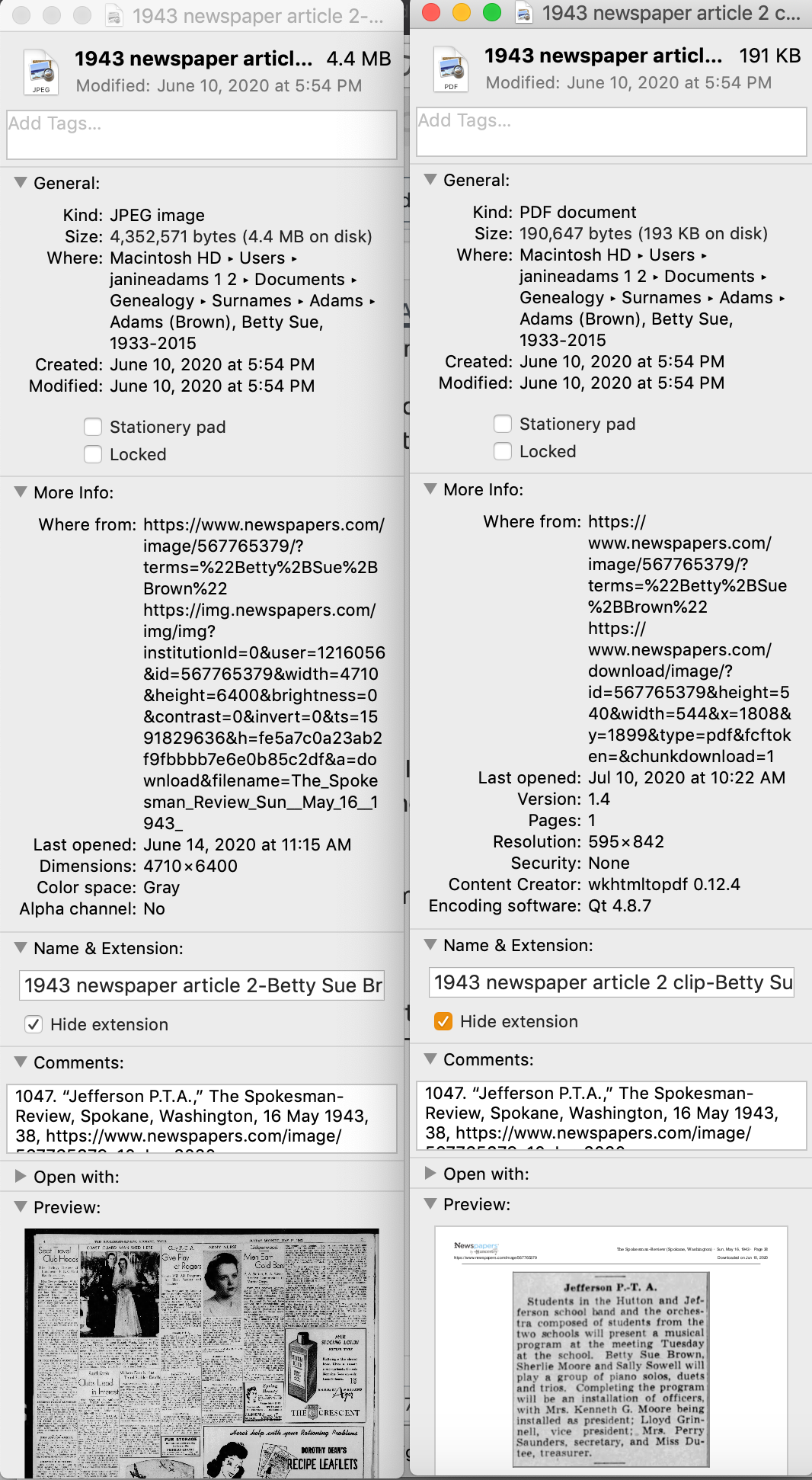
I highlight the two files (article and whole page) in Finder, right (or control) click on them and then select Get Info. That brings up the metadata for those files. I paste the source citation in the Comments field. This is really helpful later on if I want to see which source a particular file is attached to.

Processing an article from Newspapers.com Step Six

Then I drag the files into the source record. After I’ve gleaned all the information from the articles, I file them in my folder structure.

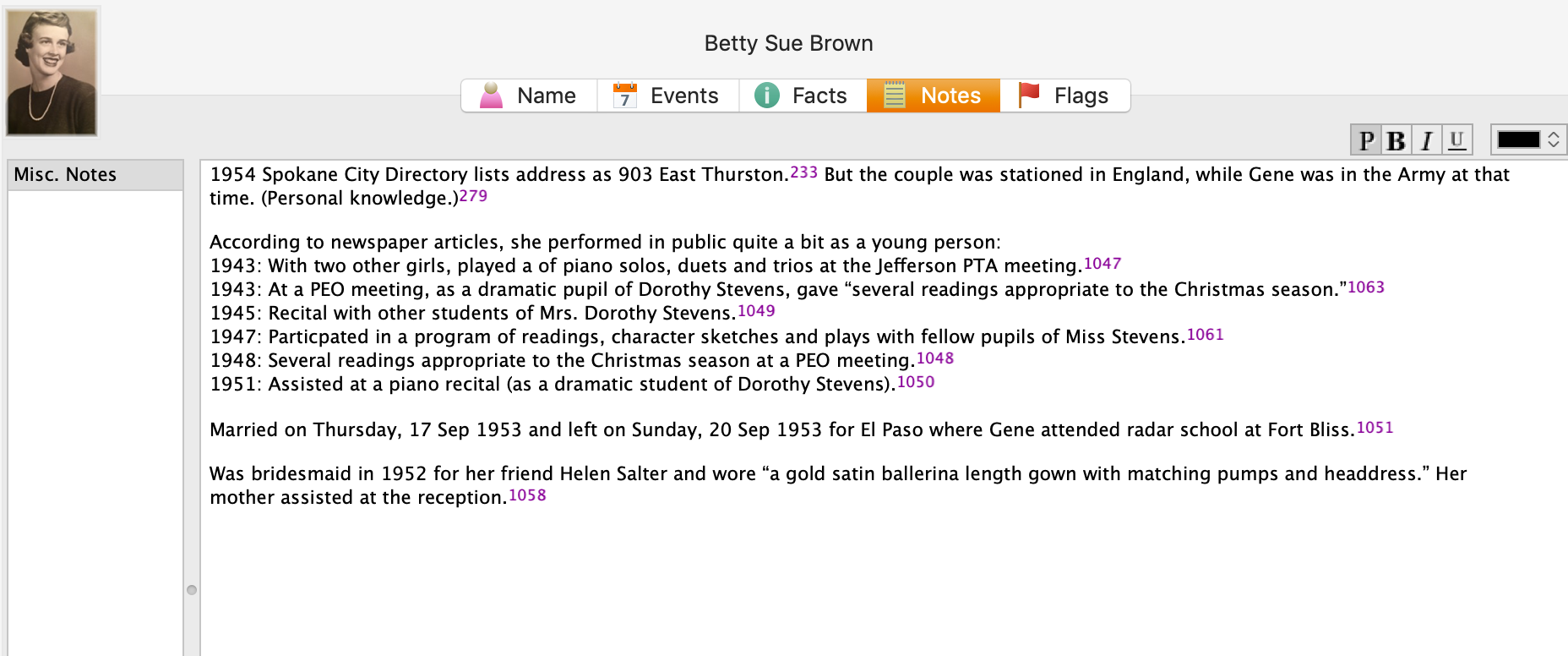
A final note: In this particular example, you might be curious how I entered this tidbit about a musical program in Reunion. Under Residence in the Events tab, I added the date of the newspaper article and Spokane, recording that my mother lived in Spokane on 16 May 1943.  But I took it a little further. This was one of six Spokesman-Review articles I found about my mother performing as a girl. So in the Notes tab I also created a little listing of those performances. Here’s a screenshot:

Processing an article from Newspapers.comI don’t know if it looks complicated laid out like this, but it really isn’t. I pretty easily got into the rhythm of it. The process can get a little tedious, but I think it’s worth the effort to have both the clip and the whole page downloaded. The little nuggets you get from newspaper research can really paint a great picture!


Filed Under: Challenges, Genealogy tips, Organizing, Technology Tagged With: Brown, electronic files, genealogy tools, newspaper clippings, newspapers, organizing aids, research, source documentation

Do you use Reunion?

March 29, 2024 By Janine Adams 2 Comments

If you’re like me and use Reunion for Macintosh as your genealogy software, you’ll probably be interested in learning that there is a virtual Reunion Users Group organized by the San Diego Genealogy Society that meets on Zoom. It’s free and open to the public and the next meeting is on Tuesday, 2 April 2024 at 12 pm Pacific time. The topic will be on the new version of the software, Reunion 14, and the speaker will be Anne Alves. Here’s the page with a link to register.

I am so grateful to reader Marian Kowalski who frequently shares great tips and resources. I appreciate her taking the time to email me about this users group. If you have ideas for blog posts or want me to share resources of interest, please don’t hesitate to reach out to me at janine@organizeyourfamilyhistory.com.

Other great learning resources for Reunion include Leister’s ReunionTalk forum and the Reunion Software Users Group on Facebook. My How I Do It: A Professional Organizer’s Genealogy Workflow is a 37-page pdf download explaining how I organize my genealogy research. Since I use Reunion, all the examples are shown in Reunion 13.

If you recommend other Reunion resources, please share them in the comments!

Filed Under: Genealogy tips, Technology Tagged With: genealogy tools, learning opportunities, Reunion, technology

Switching from Evernote to Apple Notes

March 15, 2024 By Janine Adams 38 Comments

I was a happy Evernote user for ten years. (Click on the Evernote tag below or search for the word Evernote above to read the articles I wrote about that.) It took me a little while to embrace Evernote. I think part of my problem was that I didn’t like the way it looked. But I got used to it and created a lot of notebooks for both my genealogy and my organizing business (and my life!). I kept my genealogy research log in Evernote.

I started with a free version, then moved to a $50 Premium version that allowed me access to my Evernote notebooks even when I was offline. The price was raised to $70 and I paid that for seven years. But then, after Evernote was sold, they raised the price to $130 a year. And they made the Free version all but useless.

I found that price hike egregious, so I decided to jump ship. I did a little research and opted to use Apple Notes, which came with my Mac and iPhone and is available at no additional cost. (I’m already paying extra to Apple for 2TB of iCloud storage space.)

It turns out that the process of transferring my data to Apple Notes isn’t difficult, but it has to be done a notebook at a time. I have 200 notebooks. So I’m working on it a few notebooks at a time. The process is easy. Here’s what I do on my laptop, using the Evernote app (not the website):

  1. Select a notebook to transfer
  2. Highlight all the notes in that notebook
  3. Click File, Export
  4. Select ENEX format and click Export
  5. Create a filename that matches the notebook name and click Save.
  6. Go to Apple Notes
  7. Click File, Import to Notes
  8. Select the file you just created, then click Import
  9. Rename the notebook from the default name Imported Notes

Then go to the next notebook.

I created a little screen share video for those who prefer to see these instructions in action.

https://organizeyourfamilyhistory.com/wp-content/uploads/2024/03/video2278013066.mp4

It’s worth noting that I’m not transferring everything…there are notebooks that I really don’t need again. I’m making that evaluation as I go along. Little by little the transfer will get done. In the interim, I’m making sure to add all new notes in Apple Notes, not Evernote. Once the Evernote transition is complete, Apple Notes will be my comprehensive go-to repository of notes.

My understanding is that I can use my existing notebooks without paying. The free version limits me to one new notebook with 50 notes but I wouldn’t lose my current notes and I can export, delete and merge existing notes. However, I haven’t tested that because when I went to cancel I was repeatedly offered a lower price to stay on. So I accepted an offer of $65 (less than the $70 I was prepared to pay) for one last year. I figure it will give me some time to make this transfer without feeling any pressure or feeling like I’m shackled. The key, of course, is to keep chipping away at it and not wait until the end of the year to work on it.

It feels great not to have to budget money for what turned out to be a redundant app for me.

Filed Under: Organizing, Technology Tagged With: Apple Notes, Evernote, research log

  • Page 1
  • Page 2
  • Page 3
  • Interim pages omitted …
  • Page 27
  • Go to Next Page »

about me

I'm Janine Adams, a professional organizer and a genealogy enthusiast. I love doing family history research, but I find it's very easy for me to get overwhelmed and not know where to turn next. So I'm working hard to stay organized and feel in control as I grow my family tree.

In this blog, I share my discoveries and explorations, along with my organizing challenges (and solutions). I hope by sharing what I learn along the way I'll be able to help you stay focused and have fun while you do your research, too.

tags

30 x 30 Adams amy johnson crow anniversary Brown cemetery census Civil War conferences connections dna electronic files Evernote excitement Family Curator family photos genealogy tools getting started goals How They Do It Igleheart Jeffries keepsakes learning opportunities maps newspapers NGS organizing aids overwhelm paper files planning quick tips rasco record keeping research research log research trip resources RootsTech social history source documentation Stacy Julian technology time management vital records

join the facebook community!

join the facebook community!

My organizing business

Learn more about my organizing business, Peace of Mind Organizing®.

Subscribe by RSS

  • RSS - Posts
  • RSS - Comments

© 2026 Janine Adams


Loading Comments...