 As I mentioned in my last blog post, being able to easily access my genealogy research findings is critical to me. I’m creating a reasonable file structure on my hard drive, but I can’t put a ton of information about a document in the file name. Happily, there’s a way I can find all the documents or photographs pertaining to one thing (like a location or a surname) and that’s by tagging my files with metadata.
When I went to RootsTech last month, I heard a couple of talks on metadata (one Mac focused, one PC focused). So I know more than I did before the conference, but I’m certainly no expert. Here’s a brief primer on metadata, with links to more in-depth information.
What is metadata?
The word metadata literally means “data about data.” So it’s information about what’s in a file or a photo. Think about a caption with info scribbled beneath is or on the back, saying who is in the picture, where it was taken, and when. That’s metadata. You can attach the same sort of information to your digital photos and scans, embedded in the file, without marring the photo.
If you’re familiar with tagging a document with keywords in Evernote or Springpad, you’ll understand the concept. Think also how you tag people in photographs in Facebook. Just use terms you can imagine searching on.
How do you add metadata?
Very generally, you add metadata by right-clicking on a file within the Windows Explorer or Mac Finder, then clicking on Properties (Windows) or Get Info (Mac). On a Windows machine, you’d then click on Properties, then on the third tab, Details. You’ll see a form you can fill in with varying types of data. On a Mac, it’s a little more free form. After clicking Get Info, you fill in the tags you want in the Spotlight Comments section at the top of the info window. Use a semicolon to separate tags.
You can also download software specifically for adding metadata. I need to research that more for my own files. I do know that I want to keep this as simple as possible.
Why bother using metadata?
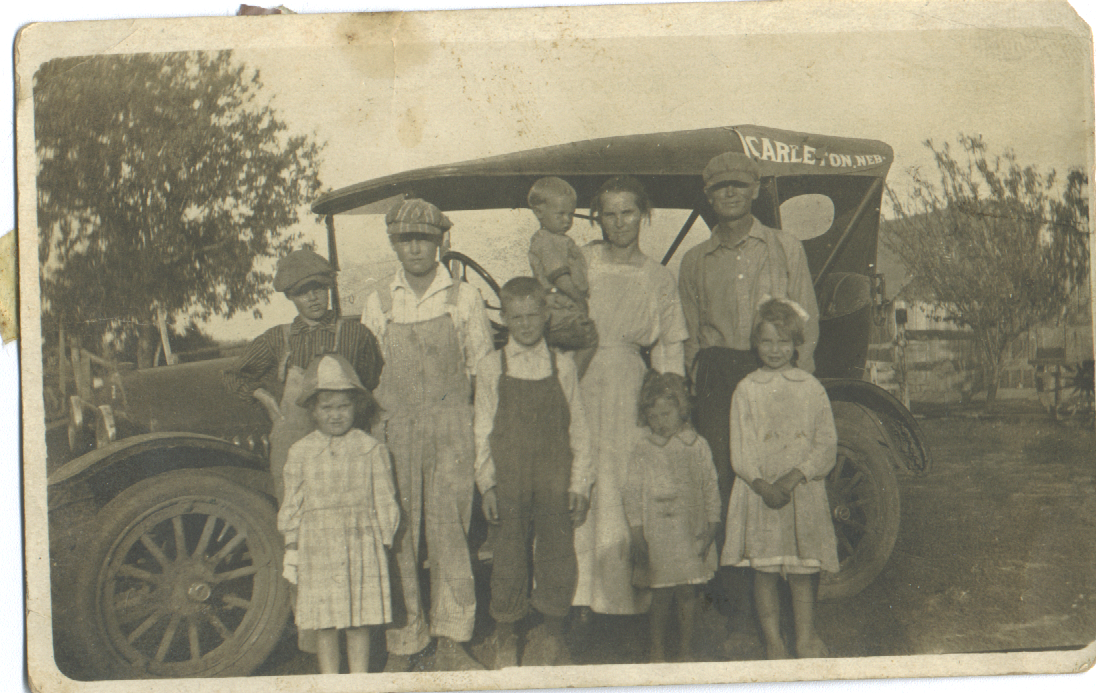
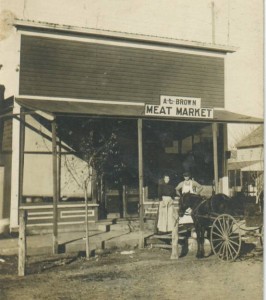
Even in the most organized file structure, you can only fit so many characters in a file name. And long file names can become unwieldy. Embedding metadata allows you to easily find the files you’re looking for, even if the search terms aren’t those you’d put in a filename. Also, the information stays with the file when you share it. The photo above, of my great grandfather’s meat market in Nebraska, has no metadata attached to it, except that the name of the cousin who sent it to me. I have many photos like that and I hope to make them more meaningful by embedding metadata.
How can you learn more about metadata?
I know I’m not giving you a whole lot of information here, partly because I use a Mac and don’t have a Windows machine at my fingertips to test things on. Here are some online resources to help you get started.
- Metadata for Digital Images, presentation by Flip-Pal Scanner at 2013 RootsTech (handout)
- Understanding Metadata and Genealogy, Lisa Louis Cooke’s Genealogy Gems podcast (video interview with Randy Whited)
- Labeling Digital Photos, on All About Digital Photos (more in-depth information on metadata and software)
- Labeling Photos with IPTC, Kimberly Powell, About.com Genealogy (info on the IPTC metadata standard)
My goal with this post was to make you aware of the concept and the utility of metadata and urge you to consider tagging your documents. Don’t worry about being perfect. Any data you add will be helpful.

Leave a Reply