• BLOG
  • ABOUT
    • Privacy Policy

Organize Your Family History

Stay focused and happy while exploring your roots

Identifying your military ancestors

May 25, 2018 By Janine Adams 2 Comments

Before Memorial Day in 2016, I wrote this post on figuring out which ancestors might have fought in which war. I ran it again on Memorial Day weekend last year and I’ve decided to make it an annual post. Incidentally, Fold3.com is offering free access to their military records through tomorrow night (Saturday, May 26, 2018).

Whenever I read about a records collection for a certain conflict (which seems to happen around military-related holidays, like Memorial Day, Veteran’s Day or anniversaries of conflicts) I get excited about researching my ancestors in those collections, which can be such a treasure trove of information. But in the past sometimes I would have difficulty remembering which ancestor might have fought in which war and I’d become overwhelmed and abandon the effort.

So I created a document that shows me the prospective ancestors for each conflict, based on the dates they were born. At the time, I used a table from Family Tree Magazine but when I went looking for it to share in this post, I couldn’t find it. However, I did find an even-better table called Ages of Servicemen in Wars that lists 20 military conflicts, the years they were fought, the typical birth dates for soldiers and the  typical ages of soldiers. Thank you, FamilySearch!

Armed with that information, I created a simple spreadsheet (pictured, in part, above) with the following column headers:

  • Conflict
  • Likely Birth Year of Soldiers
  • Prospective Ancestor
  • Confirmed Ancestor

For each conflict, I entered the names of the ancestors who were born during the birth-year window listed in column 2. After I ascertained that one had indeed fought in that war, I entered an X in the Confirmed Ancestor column. What I should have done and will from here forward, is place a dash or an N in the Confirmed Ancestor column to indicate that I’d ruled that ancestor out.

This is a simple way to see at a glance who I might research when I’m looking at military collections at the National Archives, Fold3 or elsewhere. It’s easy to create and I think it’s well worth the time spent.
Filed Under: Genealogy tips, Organizing Tagged With: genealogy tools, military, organizing aids

How many trees?

April 12, 2018 By Janine Adams 41 Comments

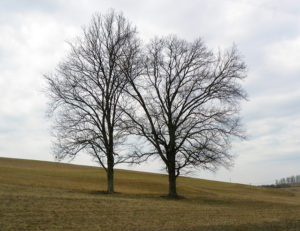
How many family trees should you have?I’m occasionally asked how genealogy researchers should split up their family trees. Should they have a separate tree for each parent’s line? Each grandparent’s line? Just one tree?


It’s a question that I didn’t even consider when I set up my family tree in Reunion (the genealogy software I use on my Mac) and in Ancestry. To me, it made sense to start with myself and just work my way up one tree.

(If I were doing my husband’s tree, which may happen some day, I would have a separate tree for him, since our ancestors come from completely different places and have no relevance to one another.)

One thing I like about having all my ancestors together in one tree is that I can easily access a different ancestor if I’m chasing a clue. I use the quickbar button at the top of the Family View for instant access to my most researched ancestors. Or if a name seems familiar, but I’m not sure it’s my person, a quick search will reveal where that person resides in my tree. It’s easy and it works for me.

All that said, I have only 570 people in my tree. (Only verified people with cited source documents I’ve seen are added to my tree, which is my excuse for that number being so small.) If I had a much larger tree, perhaps I’d be singing a different tune.

So I’m curious: How many trees do you have? How have you divided them up? Do you have any regrets?

Unmodified photo by Nichole Renee via Flickr. Used under Creative Commons License.

Filed Under: Challenges, Genealogy tips, Organizing Tagged With: genealogy tools, organizing aids, research

Exercising my microfilm muscle

February 27, 2018 By Janine Adams 2 Comments

I headed to Salt Lake City this morning to attended RootsTech. I landed at 11:30 a.m., dropped my suitcase off at my hotel and made a bee-line for the Family History Library. I had a list of things to look up and I was raring to go.

Just a few days ago, I had come across an index to deed books for Hopkins County, Kentucky, covering 1807-1939. Both the index and the deed books themselves are available at the Family History Library. But only the index has been digitized; the books themselves (with the exception of a couple) are available only on microfilm.

I was so happy to find the index right before, rather than right after, I was going to be in Salt Lake City! So today, I looked up the microfilm numbers, found the six rolls of microfilm (I didn’t realize I was supposed to limit myself to five at a time) and took up residence at the microfilm reader. At first, I was uncertain and slow. But by the third reel, I was a microfilm ninja!

At the Family History Library, in order to get a copy of the document you find on microfilm, you take the microfilm spool, along with the take-up reel, and carry them to a scanning machine. This way you’re saving your place on the film.

I was intimidated at the prospect of scanning from microfilm using unfamiliar software, but the staff member gave me a patient lesson (she used a pointer to point at the screen!) and after getting help just once, I was able to do it on my own the next eleven documents. It’s a little more complicated than it sounds because you have to zoom in and out, straighten pages and adjust the brightness. I felt so empowered!

I found some great stuff in those deed books and though I was a bit bleery eyed four hours later when I’d made it through all my lookups, it was well worth the effort. I’m grateful that I seldom have to use microfilm. Searching and browsing digital copies of documents and downloading with a single click is so much easier. But I always like it when I gain an appreciation for all the work that pre-internet genealogists went through.

It was a great start to my RootsTech week!

Filed Under: Challenges, Genealogy tips, Technology Tagged With: conferences, Family History Library, genealogy tools, research, RootsTech

Backing up Evernote on a Mac (updated)

November 28, 2017 By Janine Adams 4 Comments

I like storing important files on my hard drive, not in the cloud. Call it unreasonable, but I have a distrust of the cloud. Yet I love Evernote, the cloud-based note-taking and information storing app. In fact I depend on it for many facets of my personal, business, and genealogy lives. So I was thrilled when reader Corbin Dodge, J.D., was kind enough to spell out instructions for backing up Evernote to your hard drive, after I expressed my fear of what would happen if Evernote vanished, in a comment on my blog post How I store my genealogy information. I went through all the steps of Corbin’s clear and detailed instructions and now have such peace of mind knowing that my notes are safe and easily accessible outside of the Evernote app. (I back up my hard drive to an external hard drive and to the cloud.) I didn’t want this valuable information to remain buried in the comments, so Corbin has graciously agreed to let me reprint them here. [Note: Evernote issued an update which changed the way the backup is created. This post has been updated to include the new instructions.]

I share your concerns re: what if an app goes belly up (what nightmares are made of!).

One thing I admire about Evernote is that it is easy to backup your notes so they’re accessible even if the app goes away. To do this on Mac:

(1) select the “Notes” heading in the sidebar

(2) On mac, hold down the command key and the “A” key at the same time, which will select all notes (on PC, hold down the control key and the “A” key at the same time)
(3) On the main menu bar, click “File”, then select “Export notes…”
(4) A window will pop up. There is a drop-down box labeled “Format”. It gives you 2 options. Choose “HTML”
(5) Save*

To access the backups, click on any note in the folder. It will open in your default browser. You can backspace out the note name in the url to get the full table of contents of every note that was backed up. Not as smooth to browse as the app, but reassuring to know your notes are accessible even if Evernote goes away! It also saves the images, albeit as a separate image file

*I’ve found this folder structure works well to organize backups for my various apps:
Dropbox / Backups / Evernote / 2017-09-27 Evernote Backup

Selecting the HTML format is a safeguard in case Evernote ceases to exist. The alternate option is to save them as “Evernote XML Format (.enex)”, which is an Evernote-specific file format which saves more metadata about each note (e.g., notebooks, tags, author), so this choice could be useful if you ever need to restore lost notes into Evernote (i.e., if their sync ever messes up). The downside to .enex is that it’s not a universally-friendly file format, so it wouldn’t do you much good if Evernote ever goes kaput.

p.s., an added benefit of backing your notebooks up in HTML format is that you can easily go back and retrieve a previous version of any single note without affecting all of your Evernote notebooks (which would be the case if you didn’t select “HTML” in step 3.

You can learn about Corbin’s digital marketing business at corbin-dodge.com and read about his adventures renovating his 100+ year home at eastwoodbungalow.com. Thank you, Corbin!


Filed Under: Genealogy tips, Technology Tagged With: Evernote, genealogy tools, organizing aids, technology

  • « Go to Previous Page
  • Page 1
  • Interim pages omitted …
  • Page 10
  • Page 11
  • Page 12
  • Page 13
  • Page 14
  • Interim pages omitted …
  • Page 30
  • Go to Next Page »

about me

I'm Janine Adams, a professional organizer and a genealogy enthusiast. I love doing family history research, but I find it's very easy for me to get overwhelmed and not know where to turn next. So I'm working hard to stay organized and feel in control as I grow my family tree.

In this blog, I share my discoveries and explorations, along with my organizing challenges (and solutions). I hope by sharing what I learn along the way I'll be able to help you stay focused and have fun while you do your research, too.

tags

30 x 30 Adams amy johnson crow anniversary Brown cemetery census Civil War conferences connections dna electronic files Evernote excitement Family Curator family photos genealogy tools getting started goals How They Do It Igleheart Jeffries keepsakes learning opportunities maps newspapers NGS organizing aids overwhelm paper files planning quick tips rasco record keeping research research log research trip resources RootsTech social history source documentation Stacy Julian technology time management vital records

join the facebook community!

join the facebook community!

My organizing business

Learn more about my organizing business, Peace of Mind Organizing®.

Subscribe by RSS

  • RSS - Posts
  • RSS - Comments

© 2026 Janine Adams

Loading Comments...