• BLOG
  • ABOUT
    • Privacy Policy

Organize Your Family History

Stay focused and happy while exploring your roots

Quick Tip #27: Read the instructions to enumerators

October 23, 2021 By Janine Adams 4 Comments

Here’s the next in my occasional series of bite-size Quick Tips. Click on the Quick Tips tag for my other Quick Tips. Because I tend to write longer posts, I wanted to provide a quick-to-read (and quick-to-write) post every couple of weeks on a small topic that pops into my head. This one can be very helpful for census research.

Read the instructions to enumerators

When you’re processing a U.S. census record, it’s tempting to record the big information, like birth year and place and occupation, and leave it at that. But there are lots of other pieces of information that you can capture, which can vary by census year. Sometimes it’s not easy to understand exactly what the word or code written in a column refers to, and that’s where the instructions to enumerators come in.

Whenever I take the time to read the instructions, I benefit. They’re easy to find on the historical instructions page on  U.S. Census website or a simple google search like “instructions to enumerators 1910 census” will take you right there. In my experience, the quality of the work of enumerators is variable, so we don’t know for a fact that the enumerator followed the instructions precisely. But at least we can find out what the answer is supposed to mean!

Photo by Sam Dan Truong on Unsplash
Filed Under: Genealogy tips Tagged With: quick tips, research

The keyboard shortcuts I use most in my genealogy research

October 19, 2021 By Janine Adams 4 Comments

There are certain keyboard shortcuts I use all the time when I’m doing genealogy research. They save time and effort. I bet you’re using some, if not all, of them too. The list below is Mac-specific, but the ⌘ key (the Command key on a Mac) is the same as the Control key in Windows in most of the browser and text functions described below. I thought I’d share them here in case they’re helpful. I figure everyone can use some time-saving tips!

In Finder:

⌘-D: Duplicates the selected file

⌘-delete: Deletes the selected file without having to confirm

⌘-I: Opens the Get Info window, giving me a backend look at the selected file. (This is where I paste the source citation I’ve created for this document, in the Comments section. See step 5 of this post for more information on that.)

Spacebar: Uses Quick Look to preview the selected file

⌘-N: Opens a new finder window (very handy when you want to drag a file into another folder)

In a browser:

⌘-T: Opens a new browser tab

⌘-N: Opens a new browser window

⌘-F: Find text

When dealing with text (in Pages or Reunion or elsewhere):

⌘-C: Copies the selected text

⌘-X: Cuts the selected text

⌘-V: Pastes the selected text

⌘-B: Bolds the selected text

⌘-I: Italicizes the selected text

⌘-Z: Undoes the last command (on a Windows computer, it’s Ctrl-Y)

Shift-⌘-Z: Redo the last undone command

⌘-K: Opens a pop-up window to add a link to the selected text

fn-delete: Deletes one character to the right

I think I used half of these while writing this post! If I’ve missed any favorites, please share in the comments.


Filed Under: Genealogy tips, Technology Tagged With: technology

Creating a poster of your family tree

October 13, 2021 By Janine Adams 2 Comments

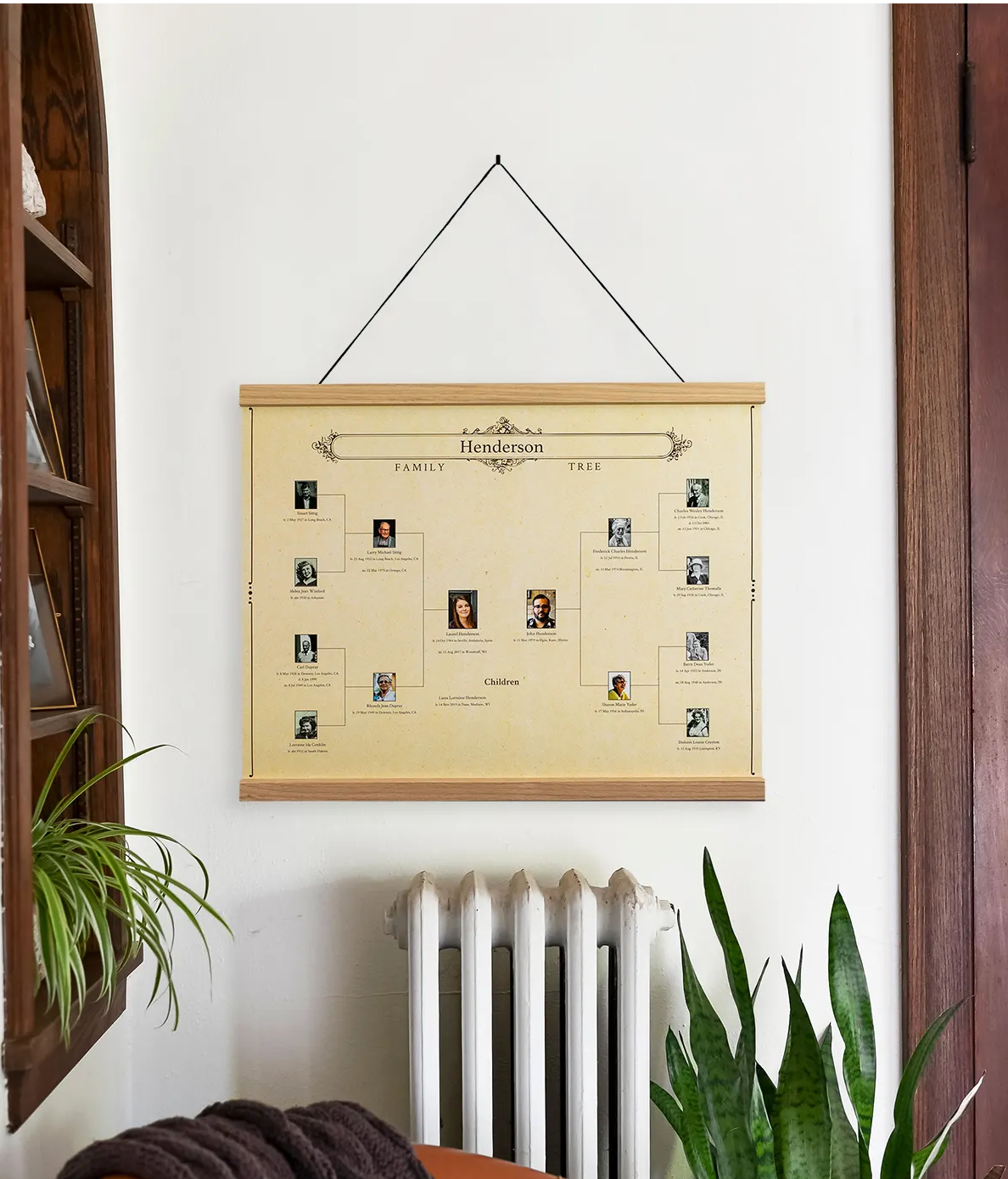
A tree from MyCanvas

I had an inquiry recently from someone who wanted to get her Ancestry tree printed so that she could see the whole tree. This isn’t the first time I’ve been asked this question and I did a little research. I haven’t had the desire to see a printed version of my tree, but I do get the attraction.

I found three companies that create large-scale printed versions of a tree (sometimes very large, suitable for family reunions!). I like limiting my options, so I stopped at three. This obviously isn’t an exhaustive list, but I hope you find it helpful. Feel free to add resources in the comments!

  • To have a decorative tree created from your Ancestry tree (rather than from software or a GEDCOM), it looks like the easiest option might be MyCanvas, which offers a 24 x 18 poster in three different types of trees, Standard Combination or Descendant (coming soon). Just connect your Ancestry tree to get started. Prices vary from $25 to $55, depending on the tree type and the number of generations. (Maximum is nine generations.) They also offer oak hanging rails.
  • Ancestry Printing will create a large-scale chart directly from a variety of genealogy software packages (including the one I use, Reunion). It also looks like they print from Ancestry, Geni, My Heritage and Tribal Pages. AncestryPrinting says it offers personalized customer service and lots of flexibility. They will do the designing for you! Their pricing is based on the linear foot of the chart.
  • Family ChartMasters offers custom decorative charts, as well as working charts and charts with blanks to be filled in. You can design your own or work with a designer. They offer charts in a variety of formats and you can get the ball rolling with a free consultation. Their prices vary depending on the type of chart.

If you’re looking for a decorative gift, a giant tree for a family reunion or a large-scale chart to help you with your research, it looks like these companies can help! If you have experience with any of these companies or you know of others, please let me know in the comments.


Filed Under: Challenges, Genealogy tips Tagged With: genealogy tools

Quick Tip #26: Search for an ancestor without using his name

October 8, 2021 By Janine Adams Leave a Comment

Here’s the next in my occasional series of bite-size Quick Tips. Click on the Quick Tips tag for my other Quick Tips. Because I tend to write longer posts, I wanted to provide a quick-to-read (and quick-to-write) post every couple of weeks on a small topic that pops into my head. I learned this trip from Amy Johnson Crow’s excellent, Getting Savvy with FamilySearch workshop.

Search for an ancestor without using his name

When you fill out a search form on FamilySearch on Ancestry, you typically enter the name into the search box of the ancestor whose records your searching for. That seems like a no-brainer, doesn’t it? But if you’re having trouble finding records on a research subject whose parents’, spouses’s or siblings’ names you know, try the leaving the person’s name blank an instead entering the name of one or more of those relatives. Sometimes you’ll find documents that did not come up with a search on the ancestor’s name.

Why does it work? There are lots of possibilities. Perhaps there was an indexing error on the research subject’s name. Or maybe you were searching on a full name when the document in question uses a nickname or initials. It’s an easy thing to try and you might be pleasantly surprised by the results!

Photo by Sam Dan Truong on Unsplash

Filed Under: Challenges, Genealogy tips Tagged With: quick tips, research

  • « Go to Previous Page
  • Page 1
  • Interim pages omitted …
  • Page 18
  • Page 19
  • Page 20
  • Page 21
  • Page 22
  • Interim pages omitted …
  • Page 106
  • Go to Next Page »

about me

I'm Janine Adams, a professional organizer and a genealogy enthusiast. I love doing family history research, but I find it's very easy for me to get overwhelmed and not know where to turn next. So I'm working hard to stay organized and feel in control as I grow my family tree.

In this blog, I share my discoveries and explorations, along with my organizing challenges (and solutions). I hope by sharing what I learn along the way I'll be able to help you stay focused and have fun while you do your research, too.

tags

30 x 30 Adams amy johnson crow anniversary Brown cemetery census Civil War conferences connections dna electronic files Evernote excitement Family Curator family photos genealogy tools getting started goals How They Do It Igleheart Jeffries keepsakes learning opportunities maps newspapers NGS organizing aids overwhelm paper files planning quick tips rasco record keeping research research log research trip resources RootsTech social history source documentation Stacy Julian technology time management vital records

join the facebook community!

join the facebook community!

My organizing business

Learn more about my organizing business, Peace of Mind Organizing®.

Subscribe by RSS

  • RSS - Posts
  • RSS - Comments

© 2026 Janine Adams


Loading Comments...