• BLOG
  • ABOUT
    • Privacy Policy
  • CONTACT

Organize Your Family History

Stay focused and happy while exploring your roots

My top five reasons to organize digitally

February 15, 2022 By Janine Adams Leave a Comment

Regular readers of this blog know that I prefer organizing my genealogy files digitally. I almost never print anything I find online and things that come to me on paper get scanned and organized on my hard drive.

Today, I wanted to simply share the top reasons for my preference for digital organizing of genealogy records:

  1. It’s more portable. I love that my research is with me wherever I go. I use Reunion genealogy software on my Mac and attach my source documents to each source record. The data is stored in Dropbox and easily accessible on my phone through the ReunionTouch app.
  2. It’s easier on my eyes. Early on, I would print census records on 8.5″ x 11″ paper and have to use a magnifying glass to read them. My eyes aren’t getting any younger and I really appreciate that I can just zoom in on documents in Preview, the app I use to read pdfs and jpgs.
  3. It takes less effort to file digitally. It is so much easier to rename a file, then drag it file to a folder on my computer than it it so open a file cabinet drawer and locate and open a folder and file (or open a binder to the right place and insert a piece of paper).
  4. It creates less clutter. I don’t have a pile of genealogy papers waiting to be filed. I don’t have unruly paper files or binders. I just have a nice neat hard drive. (True confession: I do, sometimes, I have a tidy digital backlog of files waiting to be processed into my software.)
  5. It’s less expensive. Since I’m not printing documents I find online, I save money on paper and toner. And I may save a tree or two while I’m at it.

I could go on; there are more than five reasons I love digital organization for my genealogy research! An important note: since I know that hard drives can fail, I backup my genealogy files in three places (Dropbox, an external hard drive and in the cloud via Backblaze.) A good back-up routine is critical.

If you’re interested in making the switch, check out my blog post Getting started going digital. And if you’d like a deep dive into exactly how I organize my research digitally, you can my purchase my Orderly Roots guide, How I Do It: A Professional Organizer’s Genealogy Workflow.

Filed Under: Challenges, Genealogy tips, Organizing, Technology Tagged With: electronic files, organizing aids, paper files, record keeping, technology

Getting started going digital

November 26, 2021 By Janine Adams 10 Comments

If you’ve been pondering transitioning to digital organization of your genealogy records, you may be stymied about how to get started. It can feel overwhelming and perfectionism might be paralyzing you.

If you’ve been reading this blog for awhile, you know that I’m almost completely paperless in my genealogy research. I started out printing and filing everything but transitioned over a few years to digital. I didn’t make a decision to go paperless on a certain date. Rather, once I had a trustworthy digital folder structure and file-naming protocol in place, I didn’t feel like I needed to print anything out. I’m lucky, in a way. I came to this after just a couple of years of serious research. So I didn’t have a huge backlog to contend with.

I get a good number of questions from folks who have been researching for years and have a whole of lot paper to show for it. They want to go digital but don’t know where to start digitizing their research. If that’s something you think about, here’s a post designed to help you get started.

Here’s what I recommend as the first steps to organizing your genealogy research digitally.

  1. Create a folder structure and a file-naming protocol. This is critical so you easily find your documents. I describe my folder structure and file-naming protocol in step six of this blog post.
  2. From this point forward, stop printing and start downloading documents you find online, using your new folder structure and file-naming protocol. If you start now, you’ll familiarize yourself with your the new file system and you won’t add to your backlog of documents to be scanned and filed.
  3. Start scanning, renaming and filing your paper documents. What I did was go through my paper file folders, which were organized by couple, one by one, evaluating each piece of paper and scanning documents any that I didn’t already have in electronic form. I blogged about it in a post called Marrying my electronic and paper files. This may sound tedious, but I urge you to think about this as an opportunity to check your research. Looking at each paper, you may come across evidence that you overlooked when you first filed those papers. Here’s the good news: you don’t have to take a vacation to get it done. You can do it little by little, person by person or couple by couple (depending on how your paper documents are organized).
  4. Recycle or shred paper after you scan it. I see no reason to hang onto the paper files you have scanned, unless they have some historical value. For example, after I carefully scanned it, I kept the epic handwritten letter my grandfather wrote my grandmother before they married.
  5. If you find yourself pulling a paper document out of your files to help you in your current research, go ahead and scan and file it electronically. Then toss the paper.
  6. It should go without saying, but I’ll say it anyway. If you’re organizing your genealogy research digitally it’s imperative that you have a routine in place for backing up your hard drive. (Look no further than my recent experience of my backup saving my bacon when my computer died without warning.) It’s a good idea to have more than one back up.

This process reminds me of that age-old question: “How do you eat an elephant?” One bite at a time. Once you get your folder structure and file-naming protocol set up, you just take it paper by paper. Acknowledge that it will take awhile. Recognize the value of going through your old papers. And keep your eye on the prize: An easily accessible, readable and sharable archive of your genealogy records.

For detailed information on the digital organizing system I created for my research, check out my 2021 Orderly Roots Guide, How I Do It: A Professional Organizer’s Genealogy Workflow. The downloadable pdf is 37 pages and available for $19.99.
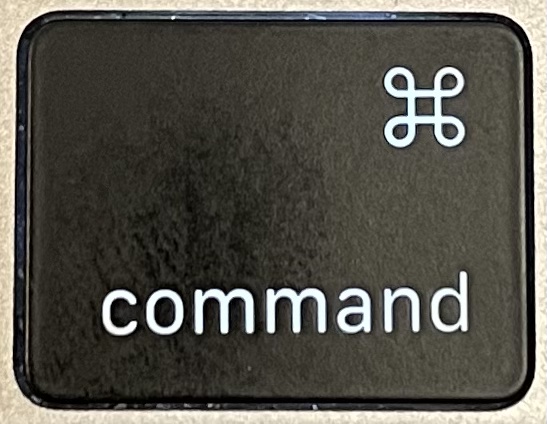
Photo by Tom Woodward via Flickr. Used under Creative Commons License.

Filed Under: Challenges, Genealogy tips, Organizing, Technology Tagged With: electronic files, organizing aids, paper files, record keeping, technology

Back up to the rescue!

November 2, 2021 By Janine Adams 8 Comments

I’ve blogged before about the importance of backing up your data. Since I organize all my genealogy files (as well as almost all of my business and personal files) digitally, a back up is essential. In this post from earlier this year, I detailed how I back up my hard drive to the cloud and to an external hard drive.

My back up was put to the test last Friday when my MacBook Pro stopped working. While I was using it, it turned itself off and refused to come back on. I called AppleCare (thankfully, it’s still under warranty) then went to the Genius Bar at the Apple Store where they spent two fruitless hours trying to revive it. So now it’s on its way to the Apple repair shop. Unless I decide to purchase a new MacBook with the intention of returning it (something I might end up doing), I will be without a computer for at least a week.

My husband has an iPad Pro that he’s letting me use. It has a keyboard case and I can also connect my Bluetooth mouse to it. I’m grateful for that, but the iPad has limitations. The whole thing is a hassle. But it’s nothing like the panic I would be experiencing if I did not have an automatic backup routine in place.

Since I back up to the cloud via BackBlaze, I am able to cherry pick files to download to the iPad. So I’m able to use key spreadsheets and documents to keep my business going. I have Reunion Touch on my iPhone so I can easily access my genealogy database and source documents. (The truth is that I’m not doing much research, though. Since everything else is taking me so much time to do I have no spare time.)

My backup routine has turned a potential calamity into an inconvenience. If you’re not backing up regularly, I hope this cautionary tale is enough to get you to start!

Edited to add: I received my computer back from Apple on Thursday (only two days after I originally wrote this post). The logic board was replaced and an updated operating system installed, which meant that I had to restore all files from my back up. My Time Machine back up on my external hard drive made that so easy. I was able to initiate the transfer of those files with one click and they were installed overnight. I was happily surprised to learn that the back up had been updated during the hour that my computer was plugged into the hard drive before it crashed. So I had an up-to-date backup.

My takeaway: Having both the Time Machine back up on an external hard drive and a cloud backup on BackBlaze is what allowed me to weather this situation without too much trauma or inconvenience.

Photo by Dallas Reedy on Unsplash


Filed Under: Challenges, Technology Tagged With: electronic files, technology

The keyboard shortcuts I use most in my genealogy research

October 19, 2021 By Janine Adams 4 Comments

There are certain keyboard shortcuts I use all the time when I’m doing genealogy research. They save time and effort. I bet you’re using some, if not all, of them too. The list below is Mac-specific, but the ⌘ key (the Command key on a Mac) is the same as the Control key in Windows in most of the browser and text functions described below. I thought I’d share them here in case they’re helpful. I figure everyone can use some time-saving tips!

In Finder:

⌘-D: Duplicates the selected file

⌘-delete: Deletes the selected file without having to confirm

⌘-I: Opens the Get Info window, giving me a backend look at the selected file. (This is where I paste the source citation I’ve created for this document, in the Comments section. See step 5 of this post for more information on that.)

Spacebar: Uses Quick Look to preview the selected file

⌘-N: Opens a new finder window (very handy when you want to drag a file into another folder)

In a browser:

⌘-T: Opens a new browser tab

⌘-N: Opens a new browser window

⌘-F: Find text

When dealing with text (in Pages or Reunion or elsewhere):

⌘-C: Copies the selected text

⌘-X: Cuts the selected text

⌘-V: Pastes the selected text

⌘-B: Bolds the selected text

⌘-I: Italicizes the selected text

⌘-Z: Undoes the last command (on a Windows computer, it’s Ctrl-Y)

Shift-⌘-Z: Redo the last undone command

⌘-K: Opens a pop-up window to add a link to the selected text

fn-delete: Deletes one character to the right

I think I used half of these while writing this post! If I’ve missed any favorites, please share in the comments.


Filed Under: Genealogy tips, Technology Tagged With: technology

  • « Go to Previous Page
  • Page 1
  • Interim pages omitted …
  • Page 3
  • Page 4
  • Page 5
  • Page 6
  • Page 7
  • Interim pages omitted …
  • Page 27
  • Go to Next Page »

about me

I'm Janine Adams, a professional organizer and a genealogy enthusiast. I love doing family history research, but I find it's very easy for me to get overwhelmed and not know where to turn next. So I'm working hard to stay organized and feel in control as I grow my family tree.

In this blog, I share my discoveries and explorations, along with my organizing challenges (and solutions). I hope by sharing what I learn along the way I'll be able to help you stay focused and have fun while you do your research, too.

tags

30 x 30 Adams amy johnson crow anniversary Brown cemetery census Civil War conferences connections dna electronic files Evernote excitement Family Curator family photos genealogy tools getting started goals How They Do It Igleheart Jeffries keepsakes learning opportunities maps newspapers NGS organizing aids overwhelm paper files planning quick tips rasco record keeping research research log research trip resources RootsTech social history source documentation Stacy Julian technology time management vital records

join the facebook community!

join the facebook community!

My organizing business

Learn more about my organizing business, Peace of Mind Organizing®.

Subscribe by RSS

  • RSS - Posts
  • RSS - Comments

© 2026 Janine Adams


Loading Comments...
