• BLOG
  • ABOUT
    • Privacy Policy
  • CONTACT

Organize Your Family History

Stay focused and happy while exploring your roots

Time for me to address my backlog

July 24, 2020 By Janine Adams 4 Comments

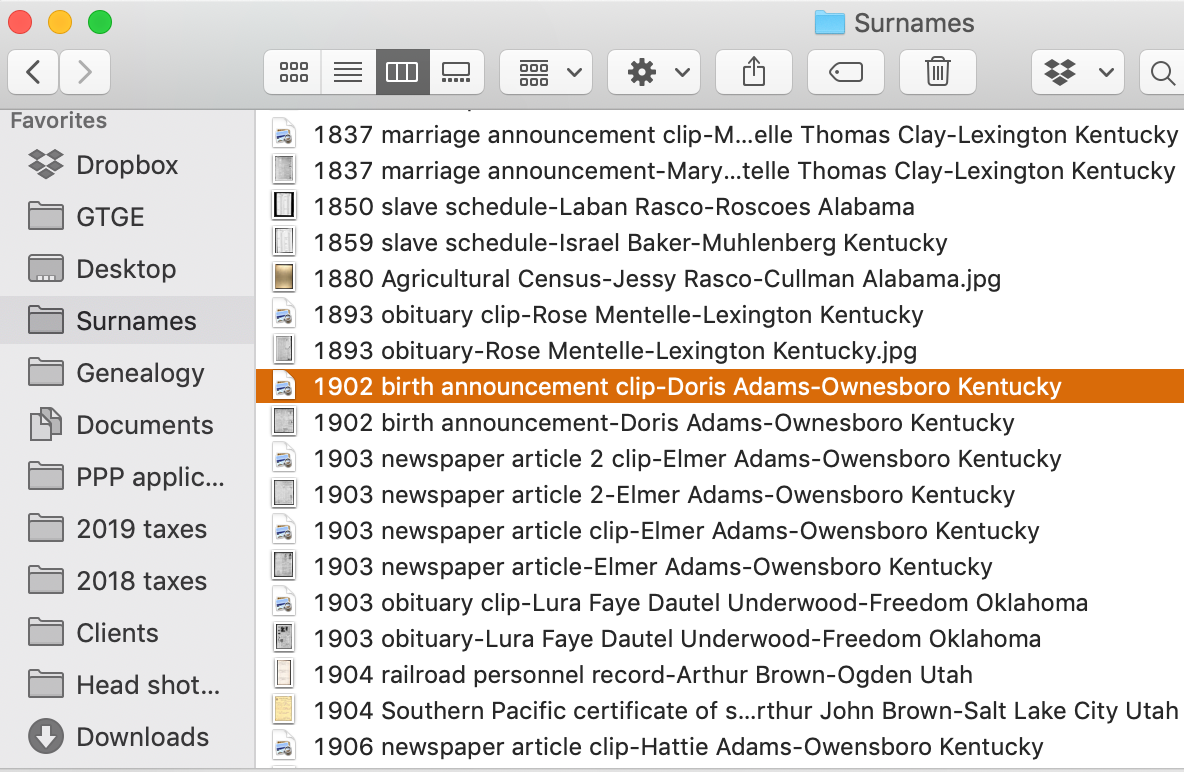
I hate it when I let a backlog of downloaded files build up. I know that downloading a file without gleaning the facts from it and adding it to my genealogy software does not further my research. And yet I struggle with backlogs. My most recent post on my struggle was in October 2018. That fall, I vowed to eliminate my backlog and I succeeded in doing it, sort of. I took a group of deeds I couldn’t face and moved them to a foldern unprocessed. But otherwise, I processed 79 downloaded documents by making backlog-busting my research focus.

Well, the backlog has built up again and it’s time to address it. I have 78 documents languishing in my Surnames folder, waiting to be processed and filed in their appropriate folders. I plan to announce an August 30 x 30 challenge next week and my focus in August will be to get rid of that backlog. Two years ago, I created a spreadsheet in which I kept a running tally of the numbers of files I needed to process. I found updating it every session to be quite rewarding. So I think I’ll employ that strategy again.

One reason for my large backlog is that I went on a sprint of newspaper research in June and July. I had a seven-day free trial of newspapers.com and then bought a 30-day subscription that expired July 22. I found myself downloading, but not necessarily processing, a bunch of newspaper articles. (I did process some of them, though!)

In organizing, we refer to this as backsliding. I know how to process documents. I actually enjoy processing documents. But when I let a backlog build up it quickly gets overwhelming and less enjoyable. I find that focusing on the backlog to get it back to zero brings me great peace of mind.

In order to succeed at getting rid of my backlog, I know I have to avoid downloading any new documents while I’m focused on the backlog. Any documents I do download, I must commit to processing in the same research session. That way the number of documents left to process goes down every day. (Come to think about it, that’s not unlike dealing with physical clutter, credit card debt or any number of other scenarios!)

I bet I’m not the only one dealing with a backlog of genealogy documents (either digital or paper) that have been collected but not dealt with. If you have a backlog, feel free to join me in backlog busting in August!

For more in-depth information on how I organize my own genealogy, including dealing with my backlog, check out  How I Do It: A Professional Organizer’s Genealogy Workflow, a 37-page downloadable pdf published in 2021 and available for $19.99.

Filed Under: Challenges, Organizing Tagged With: backlog, electronic files, research, time management

How I process Newspapers.com articles

July 10, 2020 By Janine Adams 25 Comments

I’ve been doing a lot of research on Newspapers.com recently. I downloaded a number of articles about my maternal grandparents, Crawford and Susie (Jeffries) Brown, who lived in Spokane, Washington, from 1936 until their deaths in the 1990s. My mother, Betty Sue Brown Adams, was born in Missouri in 1933, but the family to Spokane when she was three and lived there until she left for college.

The Spokesman-Review, Spokane’s daily paper, is part of Newspapers.com Publisher Extra collection. I did a seven-day free trial with them and when it was over I still I had research I wanted to do, so I signed up for a 30-day subscription for $19.99. (I didn’t want to spend $60 for a six-month subscription.) With the clock ticking, I’ve been downloading articles and also working through my backlog of downloaded articles. In doing so much research on Newspapers.com, I’ve developed a method of downloading and processing the articles that I thought I’d share with you here with some screenshots in case it’s helpful.

As always, I’m sharing what works for me…that doesn’t make it the right way or the best way. And it doesn’t mean I won’t change it up later. But this is what I’m doing now. (Several years ago, I did a screencast of how I process newspaper articles from Genealogy Bank, which was slightly different. If you’re interested, you can check it out here.)

When you find an article on Newspapers.com, you have the option to clip the article so that you find it later on Newspapers.com and others can see it (you can also download, share or save on Ancestry.com by clipping an article), or you can print or save the article. Because I don’t plan to keep my Publisher’s Extra subscription and because I prefer to download everything to my hard drive, I choose to the download the article and also to download the entire page it is on, for context. Here’s what I do:

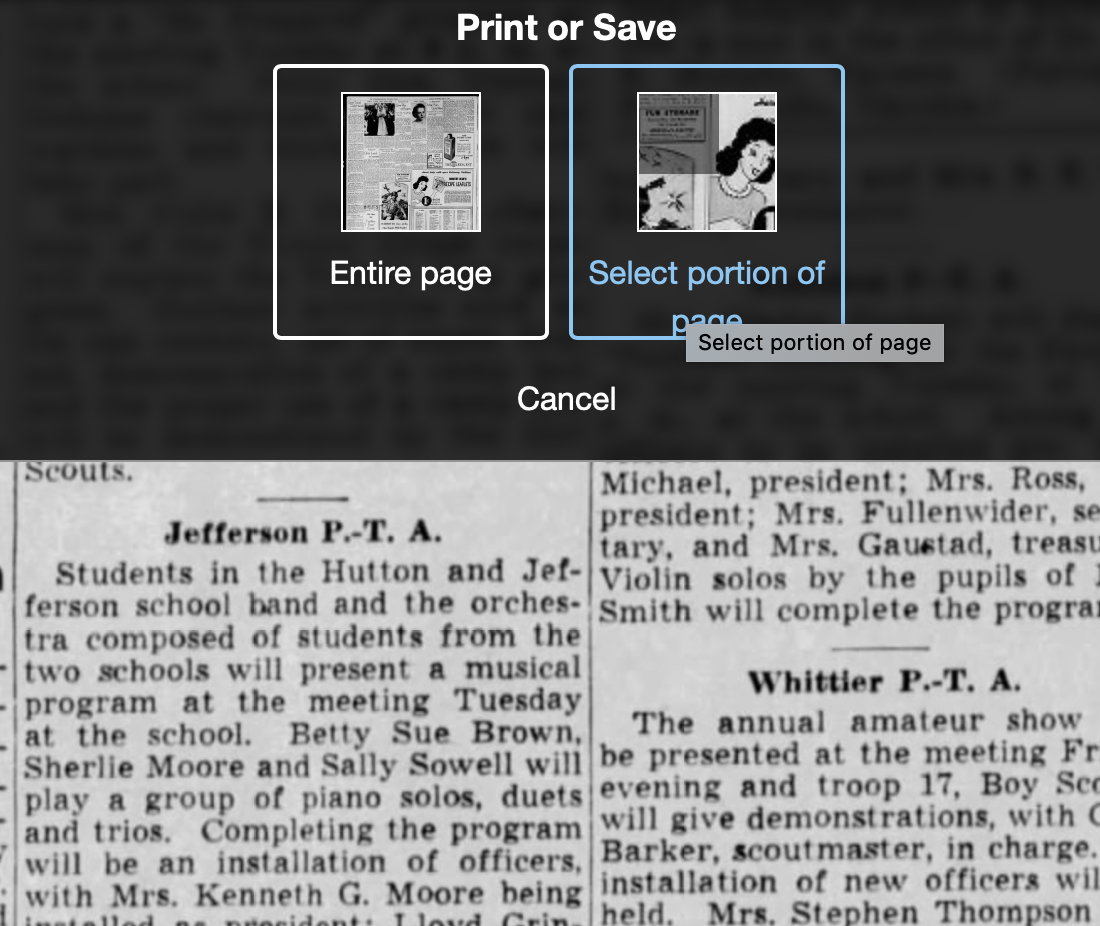
Once I’ve found an article that I want to save (in this example, it’s a 1943 article about my ten-year-old mother performing in a musical program at a PTA meeting), I click on Print/Save.

Then I click on Select portion of page. (Click on any of these images to make them larger.)

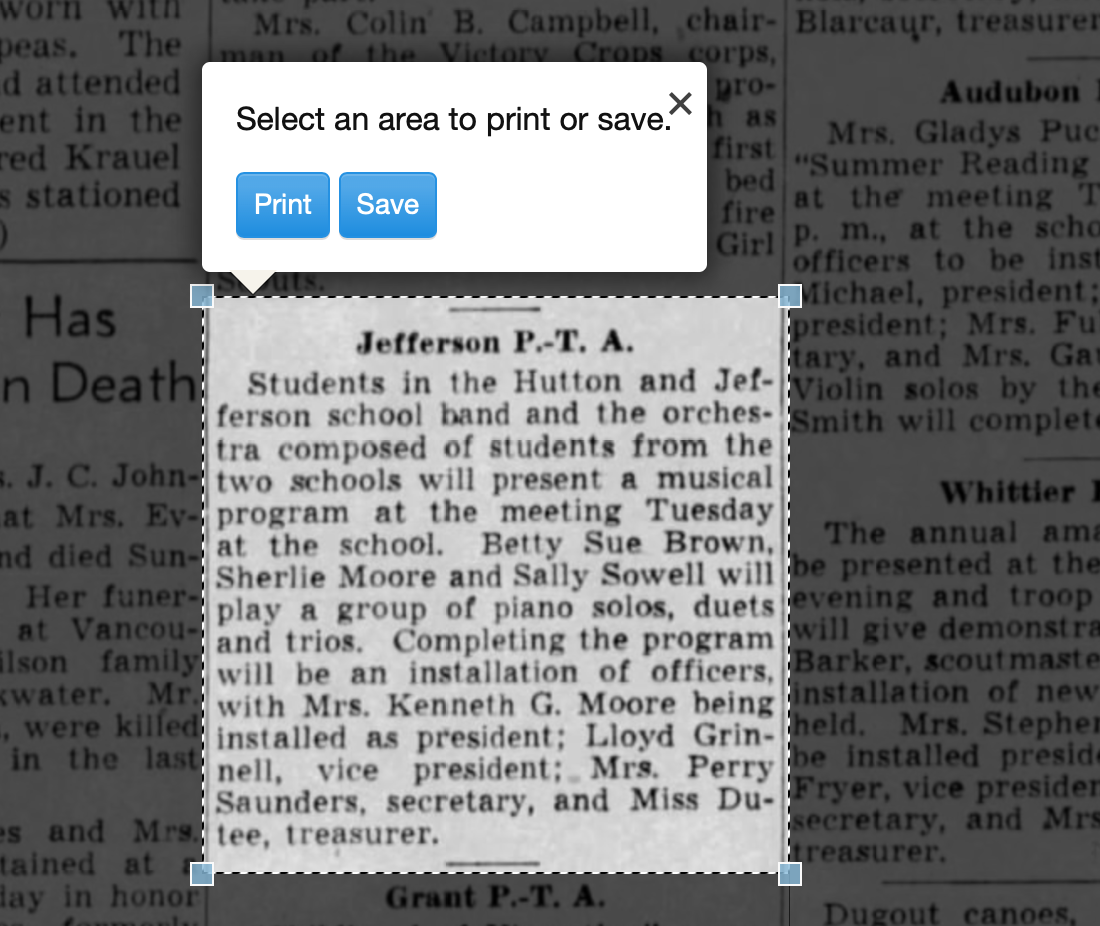
Processing an article from Newspapers.com Step OneThen I outline the article using Newspaper.com’s grab tool and click Save.

Processing an article from Newspapers.com Step One

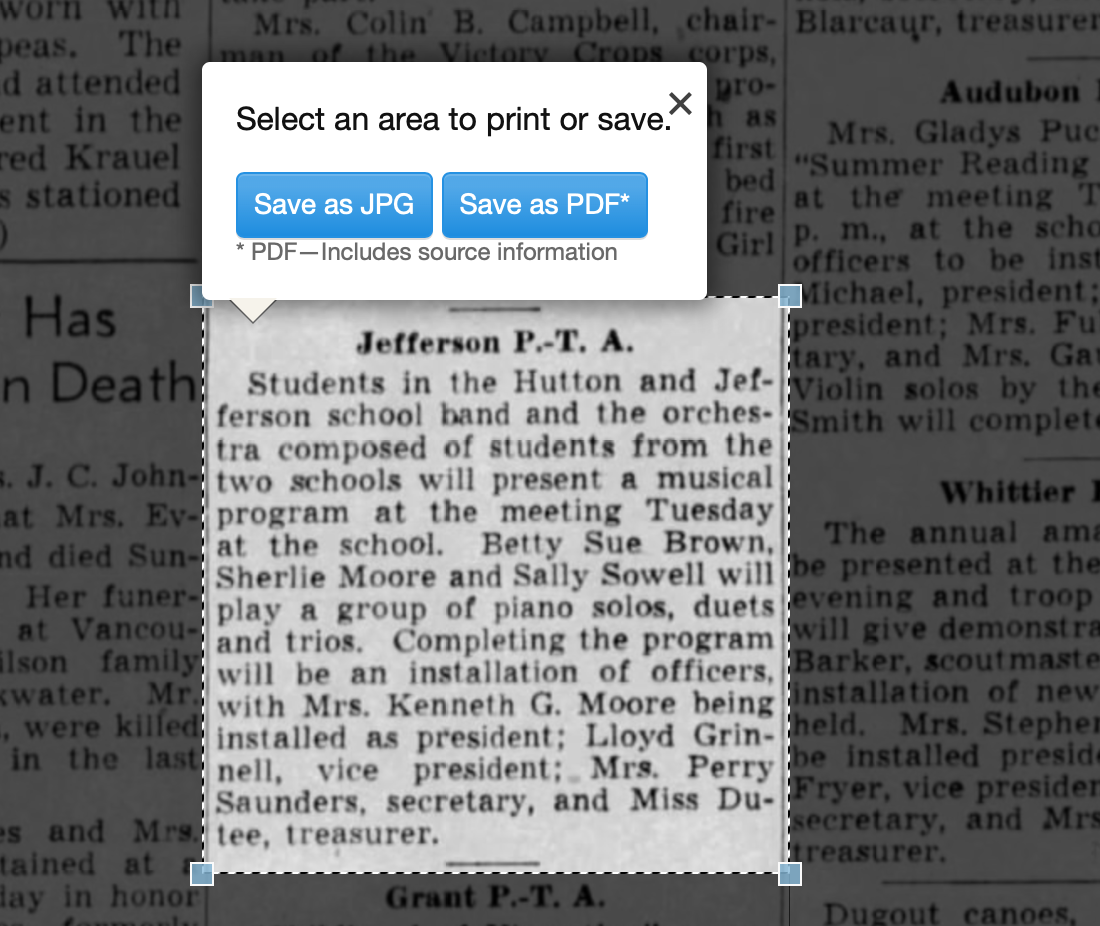
Once I click Save, I’m given an option of saving it as a jpg or a pdf. When you save as a pdf, the source information is included. I always save a clip as a pdf.

Processing an article from Newspapers.com Step Three

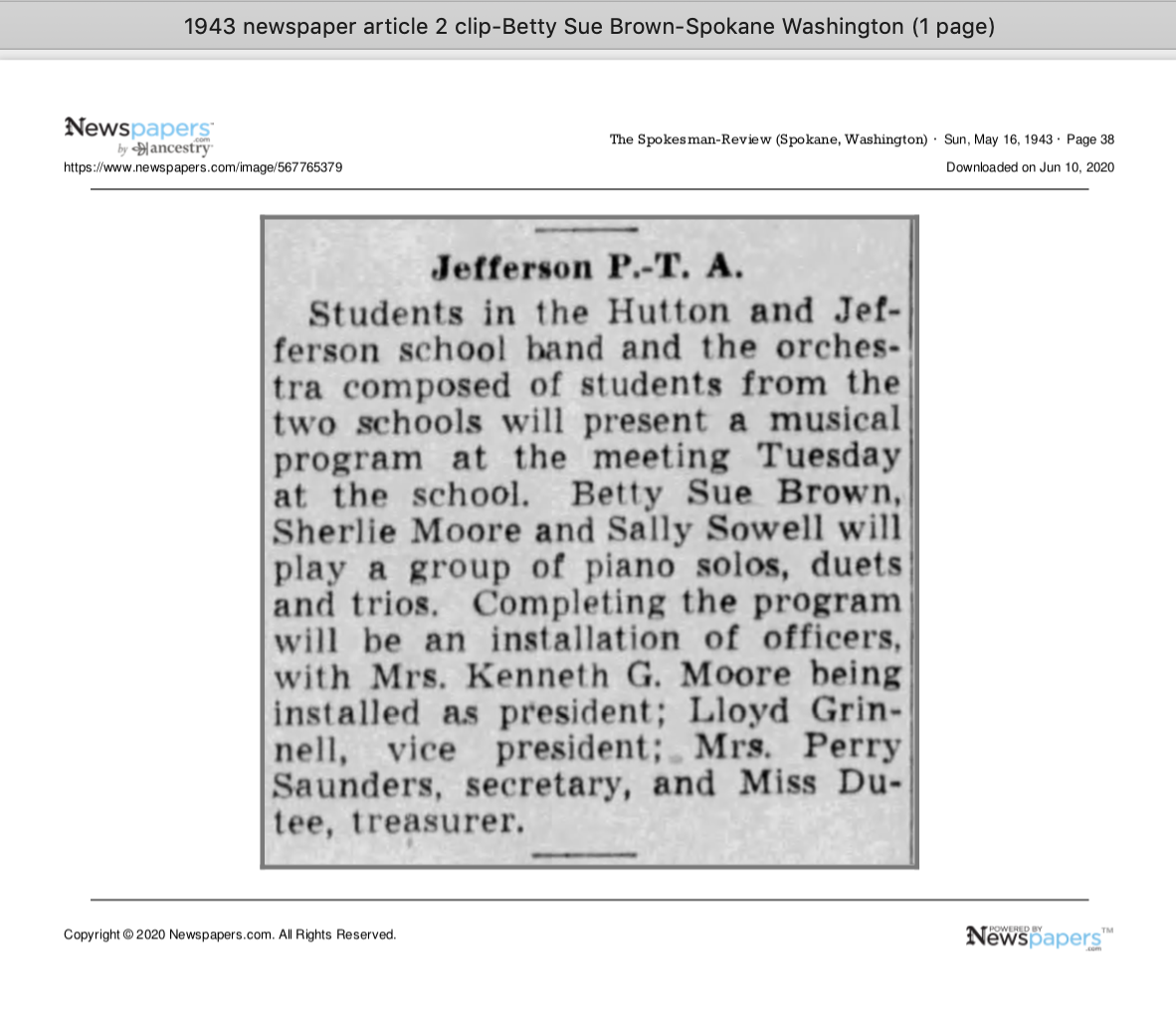
Once I click Save as PDF, the article is downloaded to my hard drive. When I open it, it looks like this:

Processing an article from Newspapers.com Step Four

You can see that Newspapers.com has included the newspaper title, date, and page number of the article, as well as the date it was downloaded and the URL for the image. This is really helpful when I create the source citation in Reunion, the genealogy software I use on my Mac. Notice that I have changed the filename of the article per my file-naming protocol. I always put “clip” in the filename for the clipped articles, since I will also download the entire page using the same filename (minus “clip”). I save the article in my Surnames folder.

Next, I go back to newspapers.com, click on Print/Save again, and this time select Entire Page. Then I’m asked if I want to save it as a jpg or pdf. I always save the whole page, as a jpg. That’s just my personal preference.

Processing an article from Newspapers.com Step FourOnce I click Save as JPG, the page is downloaded and I change the filename to match the clip’s filename (omitting the word “clip.”)

Now it’s time to glean information from the article and add it to Reunion.

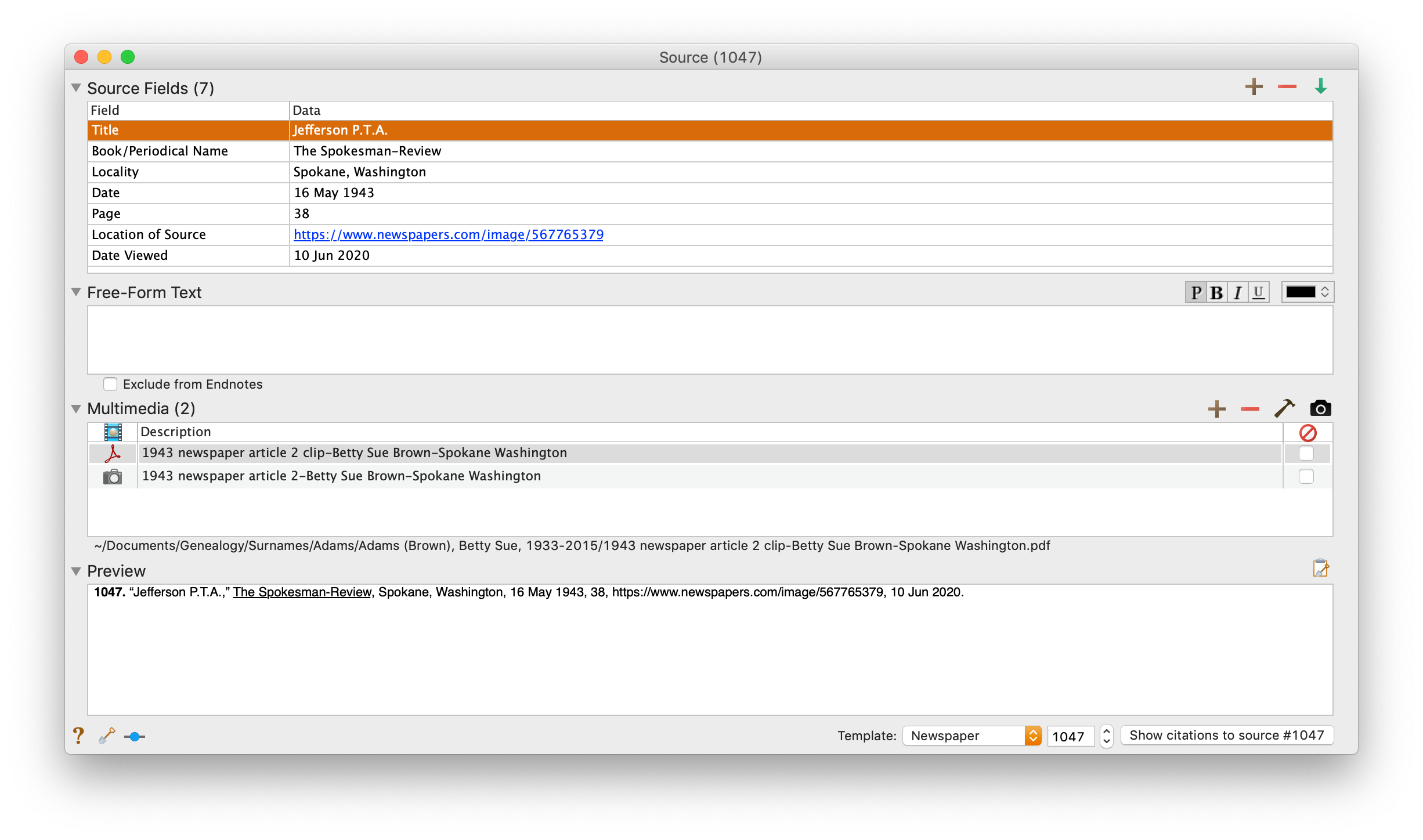
I take a fact from the article, enter it into Reunion and create a source citation. In Reunion, I use the template for Newspapers to create my source citations. So here’s what the source record for this article looks like (again, click any image for a larger view):

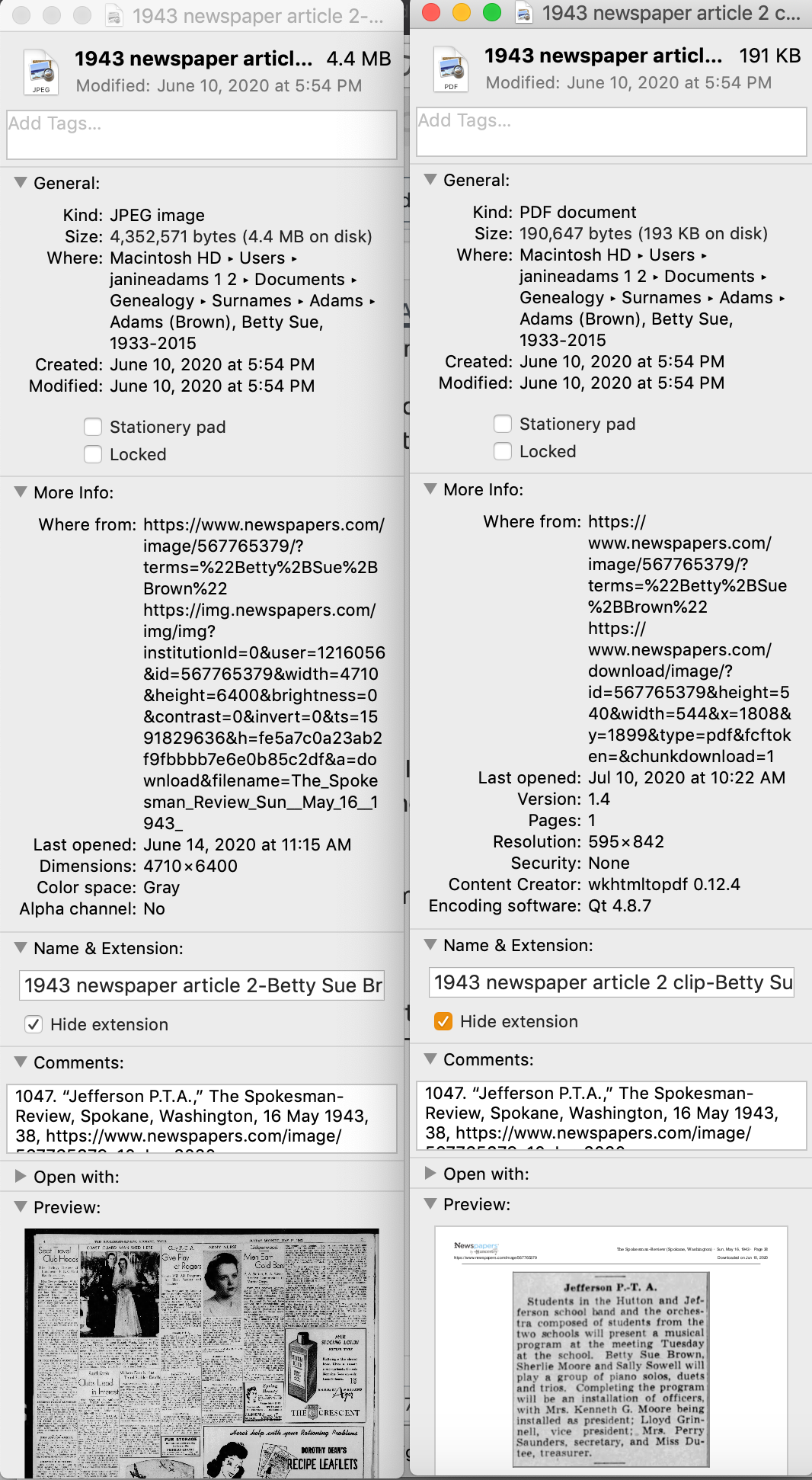
Processing an article from Newspapers.com Step FiveNote that I have attached both files, the clip and the whole page, as multimedia files in the source citation, by simply dragging them from the Finder. But before I do that, I do one other thing. I click on the little clipboard icon in the Preview pane and I paste the citation into the metadata of the file. Here’s how I do that.

I highlight the two files (article and whole page) in Finder, right (or control) click on them and then select Get Info. That brings up the metadata for those files. I paste the source citation in the Comments field. This is really helpful later on if I want to see which source a particular file is attached to.

Processing an article from Newspapers.com Step Six

Then I drag the files into the source record. After I’ve gleaned all the information from the articles, I file them in my folder structure.

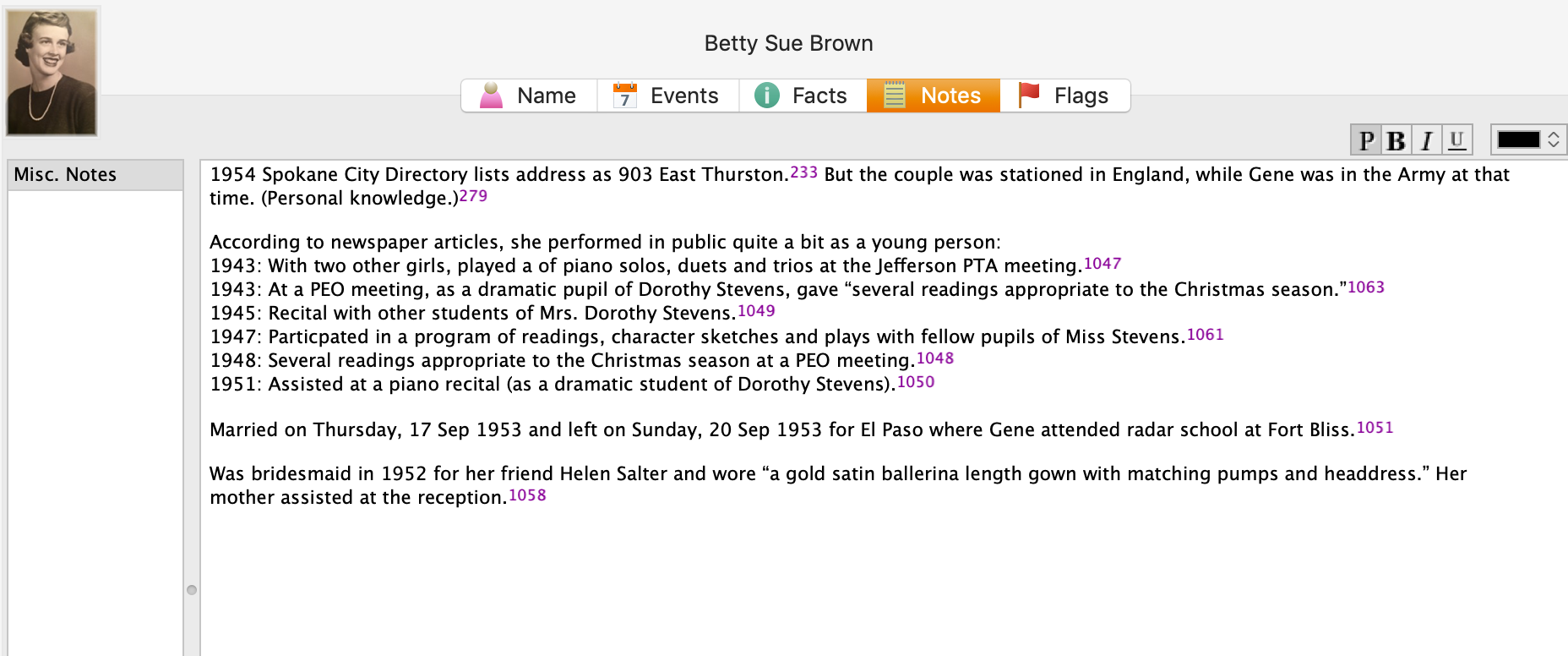
A final note: In this particular example, you might be curious how I entered this tidbit about a musical program in Reunion. Under Residence in the Events tab, I added the date of the newspaper article and Spokane, recording that my mother lived in Spokane on 16 May 1943.  But I took it a little further. This was one of six Spokesman-Review articles I found about my mother performing as a girl. So in the Notes tab I also created a little listing of those performances. Here’s a screenshot:

Processing an article from Newspapers.comI don’t know if it looks complicated laid out like this, but it really isn’t. I pretty easily got into the rhythm of it. The process can get a little tedious, but I think it’s worth the effort to have both the clip and the whole page downloaded. The little nuggets you get from newspaper research can really paint a great picture!


Filed Under: Challenges, Genealogy tips, Organizing, Technology Tagged With: Brown, electronic files, genealogy tools, newspaper clippings, newspapers, organizing aids, research, source documentation

Now’s a great time to go paperless

April 11, 2020 By Janine Adams 10 Comments

Have you been thinking about going paperless with your genealogy? I made that transition about six years ago and have never looked back. In 2015, I wrote a post called 8 reasons not to print that pretty well spells out my reasoning behind embracing digital organizing.

Making that transition is the kind of thing that you might be putting off, thinking you’ll need time to think it through and come up with and implement a plan. Most of us are not working at this time of COVID-19, so now might be a good time to start the process. And here’s a great (if I say so myself) resource to help you get started: The Paperless Genealogy Guide, a  40-plus-page downloadable pdf that I wrote in 2017 with scanning expert Brooks Duncan of DocumentSnap. We wrote the guide as we were working on the Going Digital talk we gave together at RootsTech that year.

One thing I want to make clear as you’re pondering going transitioning to digital: You don’t have to scan your existing paper files all at once. Just figure out what your digital workflow will be (here’s mine) and think about your digital file naming convention and computer folder structure. Once you know those things, you can just start with next document you find online. Rather than print it, just do this: rename it, process it and then file it digitally. You can then work on the backlog a file folder (or half hour) at a time until it’s done. But the key is not to add to the backlog. From this point forward process all incoming documents digitally.

So that it’s handy, I’ll share with you my file-naming protocol and folder structure. They’ve been working well for me for years but of course you might have or come up with something that works better for you.

My file-naming protocol:

Year Document Type-Ancestor Name-Locality of document

Example: 1938 death certificate-George Washington Adams-Indianapolis Indiana

My folder structure:

Genealogy/Surnames/[Surname]/Last Name, First Name, YOB-YOD

Example: Genealogy/Surnames/Adams/Adams, George Washington, 1845-1938

I have a folder for each individual. For married women, I file them under their married name (if there’s more than one, I use the one pertains to me) and put their birth name in parentheses.

Example of wife: Genealogy/Surnames/Adams/Adams (McEuen), Henrietta, 1847-1902

This is the kind of information that’s covered in The Paperless Genealogy, along with a lot more. The guide also includes information on selecting a scanner, keeping your data safe, and what you do (and don’t) need to get started. It also includes our Paperless Genealogy Checklist to walk you through the steps you need to take. The Paperless Genealogy is $9 and available instantly. Read more about it and purchase it at the DocumentSnap website.

Filed Under: Genealogy tips, Organizing, Technology Tagged With: electronic files, organizing aids, record keeping, technology

Putting my imperfectionism to work

April 7, 2020 By Janine Adams 7 Comments

As I wrote in a post last week, I’ve been working on processing my 2nd great grandfather’s Civil War pension file. I got the tedious up-front source citation work completed, which involved creating source citations and labels for each of the 53 documents, affixing the labels to the paper documents and scanning the whole thing into a long pdf. I’m now working on transcribing the documents, one per day. (This is how I choose to process this type of document–I’m not saying it’s the only way or the best way, but it works for me.)

So today, I was working on Document Six and I realized that I have a typographical error in my source citation. The correct application number is 1007144 but I had typed 1006144 and copied it onto all my labels without realizing my error. That numbers appears 54 times (one for each document, plus an overall citation). Of course, it’s easy to fix in my software. But then I was faced with the pension document itself having the wrong application number on every document.

I considered my options:

  1. Fix all the labels, print them out again, affix the corrected label over the incorrect label on each document, and rescan the whole thing.
  2. Hand correct each label and rescan the whole thing.
  3. Add a notation to each label in the pdf itself
  4. Add a notation at the beginning of the pdf only

It felt like the “right’ thing to do would be option number 1. But what a pain in the butt that would be. I was okay with doing it once. But doing it a second time felt practically unbearable. Plus my printer is about to run out of toner.

I thought about what was important to me and realized that the most important citation was the one in my Reunion software (the one that I corrected in about 5 seconds). But I didn’t want my pension file pdf to be wrong, in case I pass it along to someone else.

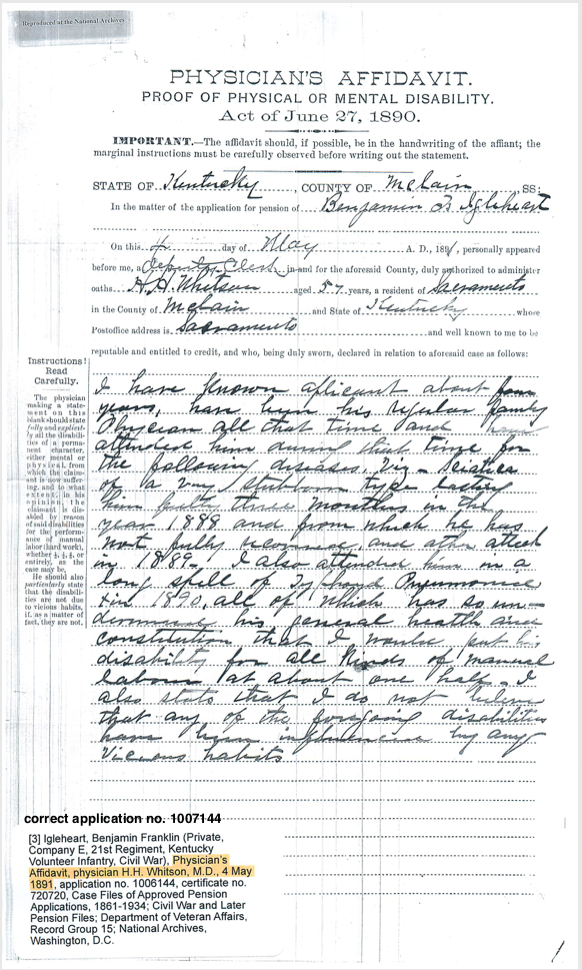
So I added a notation in the pdf, 54 times, that says “correct application no. 1007144.” (That’s a picture of it above.) And you know what? That’s going to be good enough. It didn’t feel good enough to just do it at the top of the file. I want each citation label corrected in case someone is looking at only one document.

It took me less than 10 minutes to make this electronic correction (thanks to the miracle of copying and pasting), substantially less time than option number 1 would have taken. Bonus: I didn’t use up toner or risk the frustration of jammed documents in my scanner. Luckily, this is not a situation I will encounter with any kind of frequency, since I so rarely deal with paper documents.

I try to take these little lessons about “good enough” to heart and pass them along when I can. When does good enough speak to you in your genealogy research?

ETA: In the comments to this post, Kay asked for an example of a placement of the label. As I mentioned in the reply, I usually put it wherever it fits (or on the back of the page). Here’s a full-page view of the label placement.

Filed Under: Challenges, Reflections Tagged With: Civil War, electronic files, Igleheart, learning opportunities

  • « Go to Previous Page
  • Page 1
  • Interim pages omitted …
  • Page 5
  • Page 6
  • Page 7
  • Page 8
  • Page 9
  • Interim pages omitted …
  • Page 15
  • Go to Next Page »

about me

I'm Janine Adams, a professional organizer and a genealogy enthusiast. I love doing family history research, but I find it's very easy for me to get overwhelmed and not know where to turn next. So I'm working hard to stay organized and feel in control as I grow my family tree.

In this blog, I share my discoveries and explorations, along with my organizing challenges (and solutions). I hope by sharing what I learn along the way I'll be able to help you stay focused and have fun while you do your research, too.

tags

30 x 30 Adams amy johnson crow anniversary Brown cemetery census Civil War conferences connections dna electronic files Evernote excitement Family Curator family photos genealogy tools getting started goals How They Do It Igleheart Jeffries keepsakes learning opportunities maps newspapers NGS organizing aids overwhelm paper files planning quick tips rasco record keeping research research log research trip resources RootsTech social history source documentation Stacy Julian technology time management vital records

join the facebook community!

join the facebook community!

My organizing business

Learn more about my organizing business, Peace of Mind Organizing®.

Subscribe by RSS

  • RSS - Posts
  • RSS - Comments

© 2026 Janine Adams


Loading Comments...