• BLOG
  • ABOUT
    • Privacy Policy

Organize Your Family History

Stay focused and happy while exploring your roots

Using the card catalog to find elusive documents on Family Search

September 22, 2017 By Janine Adams 6 Comments

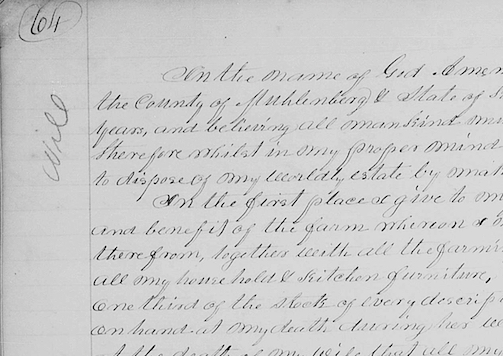
Using the card catalog at Family SearchI use both Ancestry and Family Search regularly for online research. I tend to start with Ancestry because I find it easier to find indexed documents there. But when I’m looking for a document that’s more elusive, the catalog at Family Search often comes through for me.

I will sometimes do a Records search on Family Search but most often I start with a card catalog search. And I frequently come up with some great results.

I’ll give you a real-life example. I was doing research yesterday at the Saint Louis County Library and found an index to a Will Book. I wanted to see if I could find the actual document it referenced (an 1843 will for my 5th great grandfather, Jacob S. Baker, 1766-1845). Here’s what I did:

  1. I went to www.familysearch.org and logged in, then clicked Search, then Catalog.
  2. Under Place, I filled in the location from biggest to smallest (i.e. United States, Kentucky, Muhlenberg) then clicked Search.
  3. In the search results, I clicked on the type of document I wanted, in this case Court Records.
  4. In those search results, I clicked on a collection called Court Orders, 1799-1912.
  5. When I scrolled down under Film Notes, I was delighted to see that of the 12 rolls of microfilm, two had been digitized. And the year I was interested in was on one of those two rolls. (It seems like that never happens!)
  6. I clicked on the little camera icon, which opened the images of the film reel. And just as though I were using a microfilm reader, I was able to find the document I was looking for, based on the information in the index. Hooray!

If I had simply done a Records search on Jacob S. Baker I would not have found this image. (This is another argument for getting away from my computer and going to a library or other repository.)

Here’s another way the a Catalog search can be helpful. Sometimes at Family Search, you can do a Records search and find an entry that doesn’t have an image. But that image may indeed be available, with a Catalog search.

For example, I was looking for the death certificate for the second wife of my 2nd great grandfather, George Washington Adams. Her name was Della or Idella Adams and she died in Olympia, Washington, in 1943. On Family Search, through a Records search, I found an entry for her death certificate in the collection Washington Death Certificates, 1907-1960. But there was the dreaded “No image available” message.

But I didn’t give up. Instead, I copied the GS Film Number (2024117) and started a new search, this time of the Catalog. I pasted the film number in the box that says Search For Film/Fiche Number. (When I entered location as well, it didn’t produce results, so I deleted the location and left just the film number.)

That gave me a link to the whole collection of Washington state death certificates. I clicked on film number 2024117, even though its description didn’t seem to fit the county I was looking for. Then I went to the index record I’d found in the Record search and looked for the image number, 2348. I simply entered that number at the top of the screen for microfilm roll number 2024117 and it took me right to an image of Della’s death certificate.

I love searching the catalog at Family Search. I know a catalog search is an option at Ancestry, too, but I find it less enjoyable and productive.

Next time you can’t find an image of a document you have some information for, I heartily suggest using the catalog!
Filed Under: Challenges, Genealogy tips, Technology Tagged With: Adams, excitement, family search, genealogy tools, research, resources, technology

Creating a quickbar button in Reunion

September 12, 2017 By Janine Adams 12 Comments

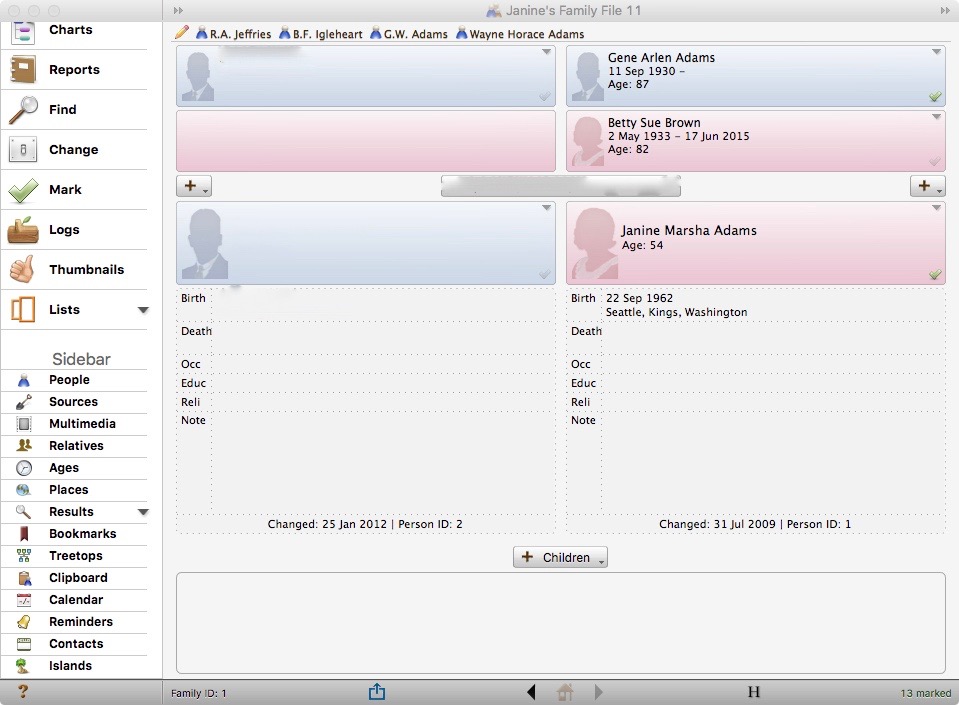
Creating a quickbar button shortcut in ReunionI use Reunion on my Mac to keep track of my family tree. It’s the only software I’ve used, so I don’t have a basis of comparison, but I really like it.

My default view is the Family View and when I open the program, it starts at the base of the tree, with the records for my husband and me. At a session at the Midwestern Roots conference last year, I learned about creating a shortcut so that I can easily click on a person from anywhere on my tree to access their record. Reunion calls the area at the top of the screen the quickbar and it calls the individual name you put there a quickbar button.

I created quickbar buttons for my three ancestors for whom I have Civil War pension files because I access them a lot. I also added one for my great grandfather’s half-brother, Wayne Horace Adams (1907-1976), because otherwise to get to him, I have to first click on the red arrow to access his mother (his father’s second wife), which is a tiny hassle. (This year I’ve been trying to figure out Horace’s late childhood/early adulthood, so I’ve been spending time with him.) Click on the picture at the top of this post to see a larger photo of my opening Family View screen with the quickbar buttons at the top. (To protect my husband’s privacy, I blurred out his info and our marriage date.)

It’s extremely easy to add a quickbar button. Within the Family View just click on the person in question and drag him/her to the quickbar at the top of the screen. Reunion will ask you to give the quickbar button a name. To remove it, just drag it to the trashcan icon on the Mac. You can also click the little pencil icon on the far left of the quickbar to edit the buttons on it. And if you click the question mark icon you see in that edit menu, you’ll get lots more information on the quickbar.

I have found this to be so helpful, especially since I’m focusing on one family line this year. My great great grandfather G.W. Adams is the nexus of my research this year, so I click on his name pretty much every session. It’s really nice not to have to click my way up my tree to him!

Filed Under: Genealogy tips, Technology Tagged With: genealogy tools, Reunion, software

Help for going paperless

June 27, 2017 By Janine Adams Leave a Comment

Paperless Genealogy GuideI’ve been researching every day as part of the current 30 x 30 challenge and was just thinking about how grateful I am that all my documents are organized digitally. Five years ago, when I kept and organized paper versions of everything (and let my digital files fall where they may on my hard drive), researching took more effort. I stored my files in a rolling file cart, which I would roll out from my office closet to my desk. I would have to pull out folders, I would print, I would file. I’d roll the cart back. Just handling the paper took precious time away from my research.

Now that everything is digital, I sit at my desk and just get going. I’m downloading and renaming, not printing. I’m still filing, but electronic filing takes moments because I have a solid file structure. I know where everything is and it’s not taking up any physical space. As a professional organizer, I find great peace in this.

If that sounds good to you but you’re not there yet, I’d like to offer you some help for going paperless with your own research. Earlier this year I wrote, with scanning expert Brooks Duncan of DocumentSnap, the Paperless Genealogy Guide, a 44-page downloadable pdf. We published it in February in conjunction with the talk we gave at RootsTech (Go Paperless: Streamline and Digitize Your Genealogy). It’s detailed and quite complete and available instantly for only $9. You can read more about it (and buy it!) at the Paperless Genealogy Guide page at Brooks’ website.

Filed Under: Genealogy tips, Organizing, Technology Tagged With: Brooks Duncan, electronic files, genealogy tools, paperless, record keeping, technology

Formal citations: Do it for those who follow

June 9, 2017 By Janine Adams 18 Comments

In response to my blog post, How Important are Formal Citations?, reader Karen Cavanaugh sent me an excellent email about why she’s taken the trouble to format her sources in the format prescribed by Evidence Explained and how she makes it easier on herself. I liked it so much, I asked whether I could turn it into a guest post. She graciously said yes, so I present to you Organize Your Family History’s  first guest post. Take it away, Karen!

I had been aware of the Evidence Explained book and used the website in the past but resisted implementing the standard in documenting my sources as it seemed so demanding and required more detail than I was accustomed to doing.  I found it too tedious to master and just the weight and scope of the book made it harder to commit.

But one day as I was organizing some files I found an old family history created by a distant cousin using the old Family Tree Maker.  It included some new information on my family and boy, was I excited.  Until I looked at sources.  Dismay!  The sources were so skimpy as to be useless – I had a hard time deciphering them.  I made calls to libraries and repositories in the respective area but no one could identify the one citation I needed.  As a last resort I went down to the Allen County Public Library and found a very helpful person who was able to guess at the reference it was alluding to, took me to the shelf and there is was!  Lesson learned.

I have always documented my sources (I have about 950 in Reunion) but this experience made me wonder if I was doing the best I could in my own work and convinced me to look at EE again.  Like you, I tried the templates in Reunion but found them restrictive and especially difficult to modify the punctuation so they printed in a readable and standard manner.

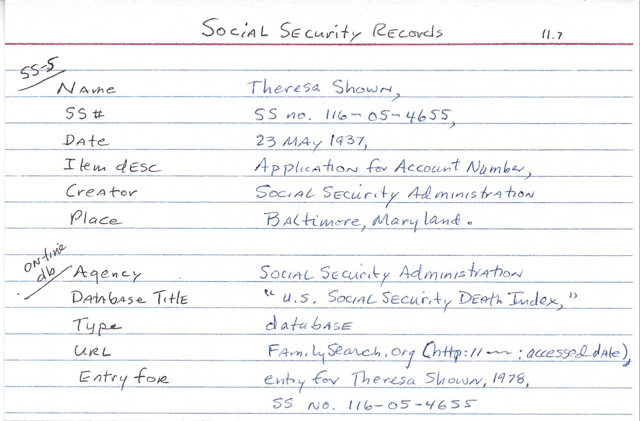
Even after studying many of the sections of the book and trying to understand the logic behind it all, I still struggled to find an efficient way to implement it.  Then one day I tried creating a 4” x 6” cards (see photo) for each major kind of source and rather than having to pick up the heavy book and look it up each time, I could use the cards as guides.  And so I did and it worked.  After adopting this aid and entering all my new sources using these cheat cards I was able to remember many of the formats without consulting the cards and now can write many of the sources from memory.

Making Evidence Explained easier

I put the cards in one of those cheap 4″ x 6” photo books that cost about a dollar and can flip through them quickly.  I love not having to return to looking them up in EE.

On the sample card the top portion guides a citation for a SS-5 (application for SS number) and is substantially different than the second citation for an on-line entry found in the SS Death Index.  Why is that important?  Because the application will contain the applicant’s birth date and place, the names of mother and father, and date of application.  The SS Death Index just provides the name, SS number, date of death and state where SS was issued.  If I were reviewing the sources in a book or report, the citation for the application would jump out at me.  I’d definitely want to consult that record!

In Reunion I now use the free form format to create a source.  I also do a lot of copy and pasting the citations from on-line sites into Reunion, particularly FamilySearch as they seem to have adopted much of the EE standard.  Often I use your idea of copy and paste in the preview section in the source window.  Over couple of days I was able to edit all 950 sources in my family file and am very pleased with the results.

The most important benefit to me is that my sources now are standard and consistent when I use the Book feature or report features in Reunion.  I am confident any researcher coming behind me will be able to locate the source without difficulty.

Another benefit is the EE citation will include the access date and this has been helpful on several sites such as Find A Grave because contributors often come back to add more information and that helps prompt me to remember to return to the site periodically for a particular ancestor.  And last, I noticed the EE citation often includes the birth and death dates of the person to help tell same-name ancestors apart.  For example, I have many John Boyers in my tree and now when I review sources it is clear to which person it refers (John Boyer 1785-1826).

I don’t hesitate to modify the EE format when I need to.  Often I will add a brief comment such as “this book contains four sections the pages of which are renumbered at the start of each section.”

A brief note about me: I am a “Roots generation” genealogist and the daughter of a career officer who served in WW II and a mother born in Texas.  I am retired from Parkview Health System in Fort Wayne, Indiana.  My current project is digitizing my father’s 300 letters he wrote home during the war.  I give presentations on my journey to discover his service record to genealogy groups, Air Force associations, and anyone else who cares to listen!  I have a son in Denver and twin sister in Indianapolis.

I think this is great food for thought and makes the idea of using the Evidenced Explained format less daunting and more compelling. I think I would probably use Evernote, rather than index cards, but the idea of using a “cheat sheet” to make it easier remains the same. Thank you, Karen!

Filed Under: Challenges, Genealogy tips, Organizing Tagged With: evidence explained, genealogy tools, guest post, karen cavanaugh, source documentation

  • « Go to Previous Page
  • Page 1
  • Interim pages omitted …
  • Page 11
  • Page 12
  • Page 13
  • Page 14
  • Page 15
  • Interim pages omitted …
  • Page 30
  • Go to Next Page »

about me

I'm Janine Adams, a professional organizer and a genealogy enthusiast. I love doing family history research, but I find it's very easy for me to get overwhelmed and not know where to turn next. So I'm working hard to stay organized and feel in control as I grow my family tree.

In this blog, I share my discoveries and explorations, along with my organizing challenges (and solutions). I hope by sharing what I learn along the way I'll be able to help you stay focused and have fun while you do your research, too.

tags

30 x 30 Adams amy johnson crow anniversary Brown cemetery census Civil War conferences connections dna electronic files Evernote excitement Family Curator family photos genealogy tools getting started goals How They Do It Igleheart Jeffries keepsakes learning opportunities maps newspapers NGS organizing aids overwhelm paper files planning quick tips rasco record keeping research research log research trip resources RootsTech social history source documentation Stacy Julian technology time management vital records

join the facebook community!

join the facebook community!

My organizing business

Learn more about my organizing business, Peace of Mind Organizing®.

Subscribe by RSS

  • RSS - Posts
  • RSS - Comments

© 2026 Janine Adams


Loading Comments...